Connect to Microsoft Entra ID with WS-Federation
Use FoxIDs as a WS-Federation Security Token Service (STS) for a federated Microsoft Entra ID domain and federated Windows sign-in.
FoxIDs can be used as the federated identity provider for Microsoft Entra joined and Microsoft Entra hybrid joined Windows devices.
In a federated environment, Microsoft Entra ID requires WS-Federation and WS-Trust support for Windows sign-in. FoxIDs exposes the MEX endpoint and active WS-Trust UsernameMixed endpoint required by these Microsoft Entra ID and Windows flows. FoxIDs does not join or register devices; device registration is handled by Microsoft Entra ID and Windows.
Organisations using AD FS for Microsoft Entra ID domain federation can use FoxIDs for the federated identity provider role described in this guide.
Configure FoxIDs
This guide describes how to configure FoxIDs as the STS for a federated Microsoft Entra ID domain. Users are connected to Microsoft Entra ID users with their Immutable ID.
1 - Create the Microsoft Entra ID WS-Federation application in FoxIDs Control Client
The recommended setup is to use the Connect to Microsoft Entra ID application template. The template enables Microsoft Entra ID Windows sign-in, configures the WS-Federation metadata URL, adds the required issue claim and claim transforms, and uses an application-specific issuer.
- Select the Applications tab.
- Click Add application.
- Select Connect to Microsoft Entra ID with the WS-Federation badge.
- Add the display name, e.g.
Microsoft Entra ID. - Select Automatic federation (recommended).
- Add the verified Microsoft Entra domain to synchronise.
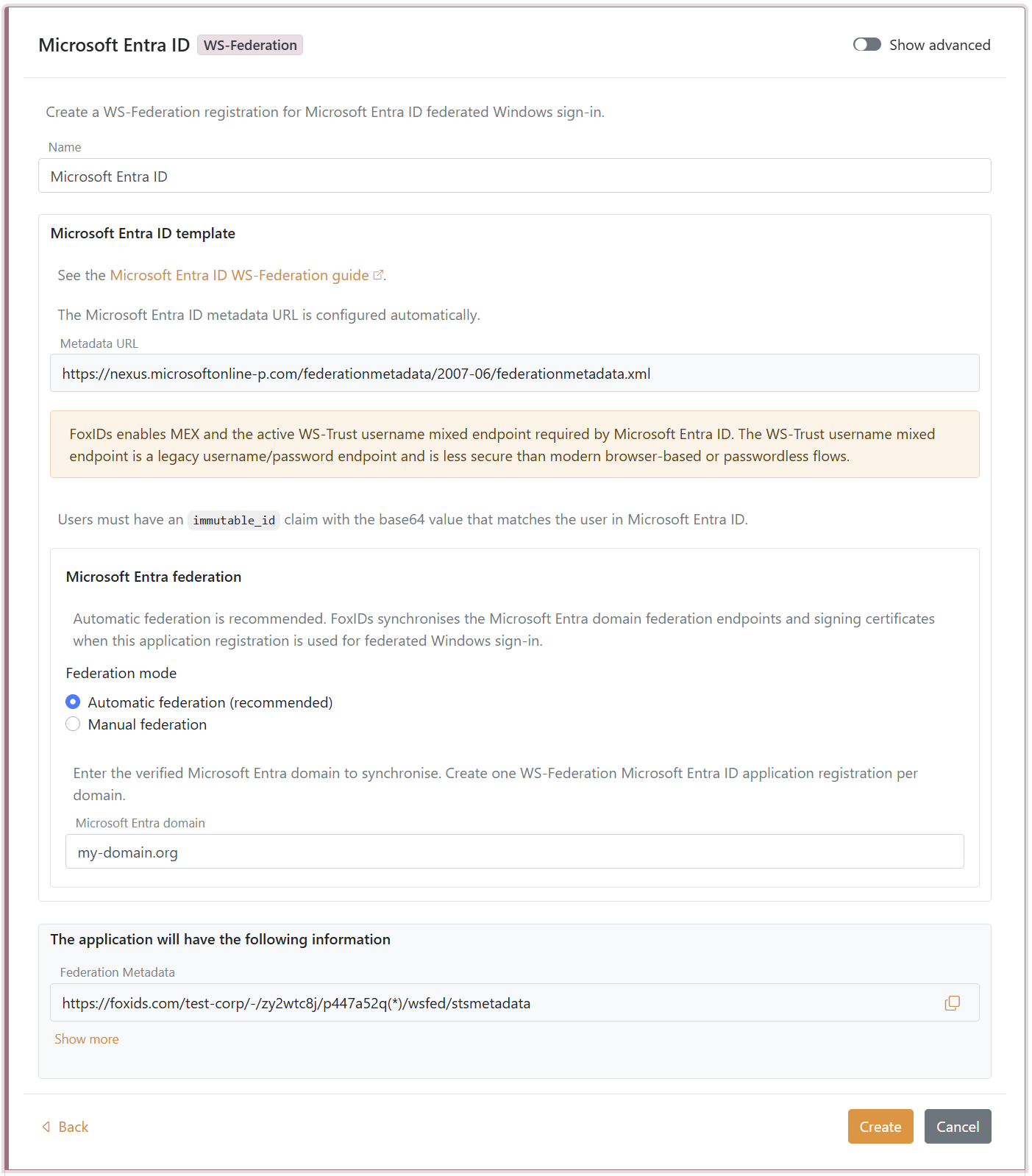
- Click Create.
- Click Set up Microsoft Entra federation.
If automatic federation is not available in a self-hosted deployment, configure the automatic Microsoft Entra ID sync app registration first or select Manual federation and configure Microsoft Entra ID manually.
2 - Grant consent and synchronise Microsoft Entra federation
Automatic federation uses Microsoft Graph to create or update the Microsoft Entra ID domain internalDomainFederation configuration. FoxIDs synchronises the WS-Federation endpoints, the MEX endpoint, the active WS-Trust endpoint, the primary signing certificate and the secondary signing certificate if one exists.
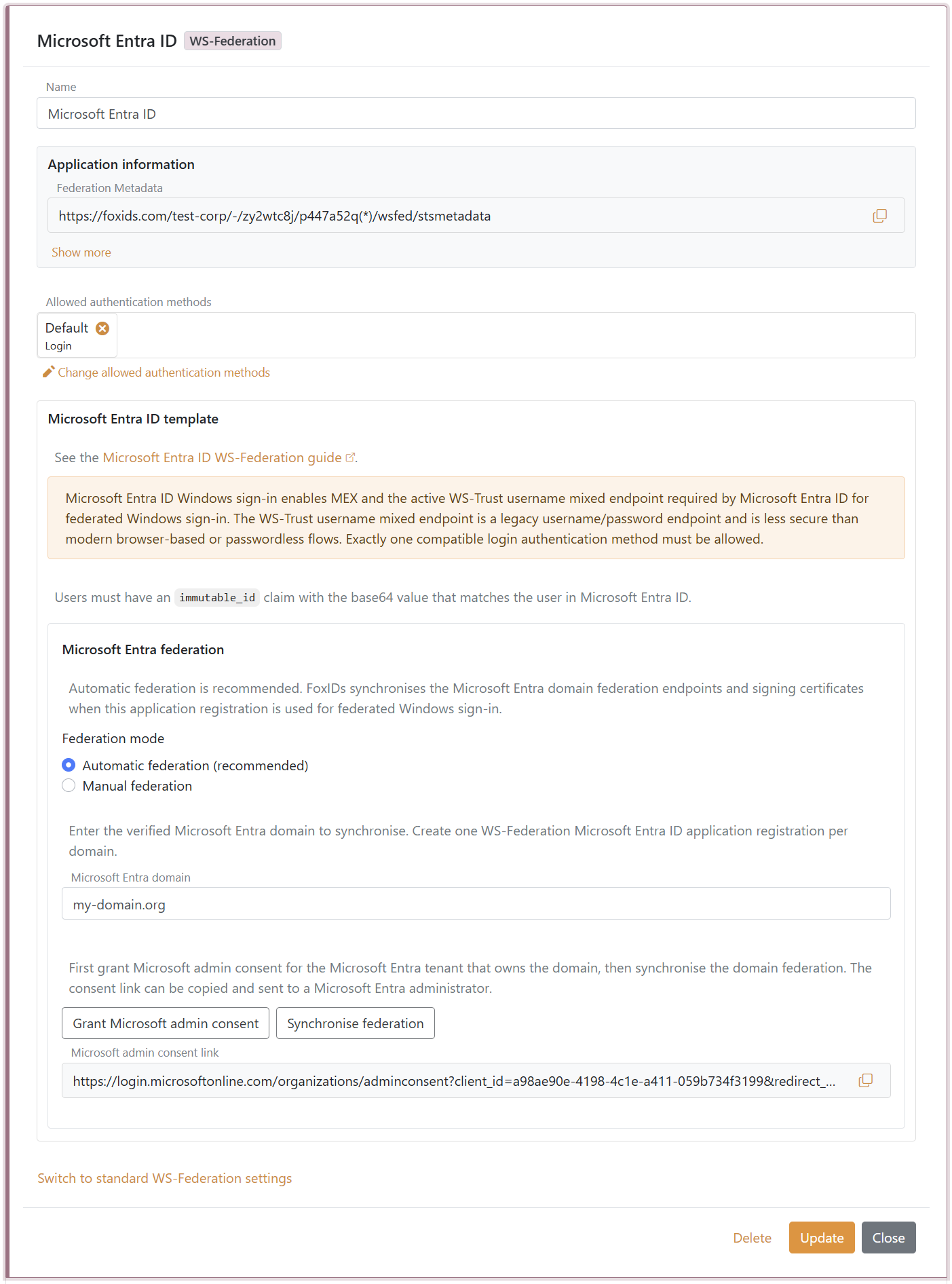
- In the Microsoft Entra ID template, click Grant Microsoft admin consent.
- Sign in as a Microsoft Entra administrator for the tenant that owns the domain and accept the consent.
- Return to FoxIDs Control.
- Click Synchronise federation.
- Verify that the synchronisation status is successful.
After the first successful synchronisation, Microsoft Entra ID trusts the FoxIDs WS-Federation application registration for the configured domain. FoxIDs also checks the federation during federated Windows sign-in and synchronises again if the signing certificate has changed or the previous synchronisation was not successful.
If synchronisation reports that the existing Microsoft Entra federation issuer does not match this FoxIDs application registration, review the domain ownership before choosing to take over the federation. Taking over changes the Microsoft Entra domain to trust this FoxIDs application registration.
3 - Configure the users' Immutable ID claims
Microsoft Entra ID expects an Immutable ID claim in the WS-Federation token. The claim value must match the user's onPremisesImmutableId in Microsoft Entra ID.
The Microsoft Entra ID template adds the required issue claims and claim transforms. You still need to make sure each user has an immutable_id claim with the base64 value that matches the user in Microsoft Entra ID.
Microsoft Entra ID documentation lists the UPN claim as part of the expected WS-Federation token claims. FoxIDs issues:
http://schemas.xmlsoap.org/ws/2005/05/identity/claims/upn
from the user's upn claim. User matching is normally based on the Immutable ID, but adding the UPN claim keeps the token aligned with Microsoft's expected WS-Federation claim set.
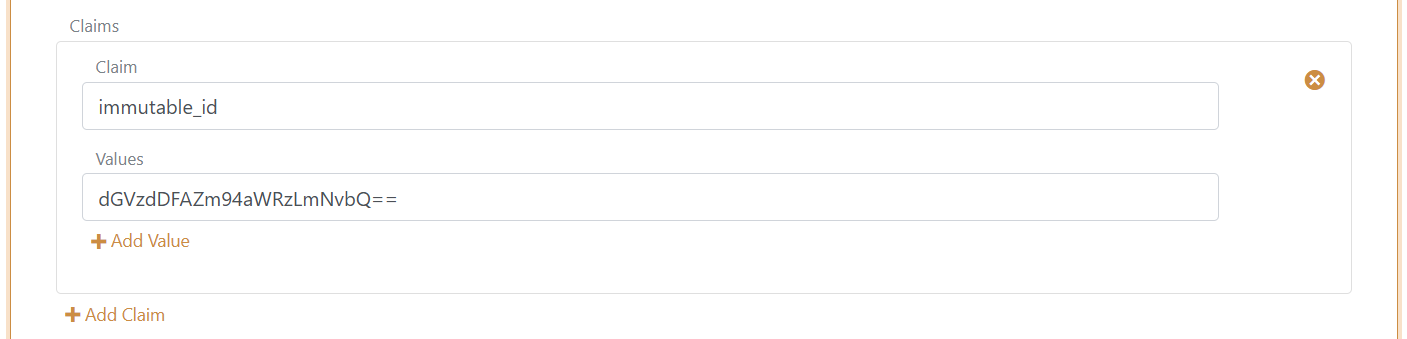
You need to set the user's Immutable ID as a claim in FoxIDs. To set the Immutable ID on an internal user, select the Users tab and then the Internal Users tab, find the user, and add a claim with the claim type
immutable_idand the value of the Immutable ID in Microsoft Entra ID. It should be base64 encoded. Theimmutable_idclaim type is mapped to the SAML claim URIhttp://schemas.foxids.com/ws/identity/claims/immutableidin FoxIDs. To issue the UPN claim for an internal user, add a claim with the claim typeupnand the user's Microsoft Entra ID user principal name, e.g.user@your-domain.com. FoxIDs maps the internalupnclaim tohttp://schemas.xmlsoap.org/ws/2005/05/identity/claims/upn.
Manual FoxIDs configuration
Use manual configuration only if you do not use the Microsoft Entra ID template.
- Select the Applications tab.
- Click Add application.
- Click Show all options.
- Click Web Application with the WS-Federation badge.
- Add the Name, e.g.
Microsoft Entra ID. - Choose manual configuration.
- Set Application realm to
urn:federation:MicrosoftOnline. - Set Reply URL to
https://login.microsoftonline.com/login.srf. - Set Sign-out URL to
https://login.microsoftonline.com/login.srf. - Keep Token type as
SAML 1.1unless Microsoft Entra ID is configured for another token type. - Click Create.
- Open the application and enable Microsoft Entra ID Windows sign-in under the advanced WS-Federation settings.
- Add the Immutable ID claim transform manually if it was not added by a template:
- New claim:
http://schemas.microsoft.com/LiveID/Federation/2008/05/ImmutableID - Select claim:
http://schemas.foxids.com/ws/identity/claims/immutableid
- New claim:
Manual Microsoft Entra ID federation values
If you select Manual federation or do not configure automatic sync, open the WS-Federation application registration and copy the values needed for Microsoft Entra ID domain federation:
- Realm / issuer
- Passive sign-in URL
- Sign-out URL
- MEX endpoint
- Active WS-Trust endpoint
- IdP signing certificate
For federated Windows sign-in, use the MEX endpoint as metadataExchangeUri and the active WS-Trust endpoint as activeSignInUri. If you configure Microsoft Entra ID manually, you are also responsible for updating the Microsoft Entra ID signing certificates when FoxIDs signing certificates roll over.
Configure the user's Immutable ID
The user's onPremisesImmutableId in Microsoft Entra ID must match the http://schemas.microsoft.com/LiveID/Federation/2008/05/ImmutableID claim issued by FoxIDs.
Microsoft describes the AD FS Immutable ID claim in the AD FS management and customisation documentation.
Configure the user's Immutable ID with PowerShell
- Connect to Microsoft Graph:
Connect-MgGraph -Scopes "User.ReadWrite.All" - Set up the variables:
$userId = "user-id@your-domain.com" $immutableId = "immutable-id" - Configure the user's Immutable ID:
Update-MgUser -UserId $userId -OnPremisesImmutableId $immutableId - Validate the value:
Get-MgUser -UserId $userId | Format-List Id, UserPrincipalName, OnPremisesImmutableId
If the user already has an Immutable ID set, you may need to move the user away from the federated domain, update the Immutable ID, and then move the user back to the federated domain.
Configure Microsoft Entra ID manually
Skip this section if you use Automatic federation and Synchronise federation from the Microsoft Entra ID template.
It is not possible to configure this type of Microsoft Entra ID domain federation in the Microsoft Entra ID admin centre. Use Microsoft Graph PowerShell or Microsoft Graph API.
The Microsoft Graph internalDomainFederation resource supports both SAML and WS-Federation. For WS-Federation, set preferredAuthenticationProtocol to wsFed. See Microsoft's Create internalDomainFederation documentation.
Open PowerShell as administrator.
Install the Microsoft Graph PowerShell module if not already installed:
Install-Module -Name Microsoft.GraphOptionally install for current user:
Install-Module Microsoft.Graph -Scope CurrentUser -ForceConnect to Microsoft Graph:
Connect-MgGraph -Scopes "Domain.ReadWrite.All,Directory.AccessAsUser.All"Set up the configuration variables:
$domainId = "your-domain.com"
$displayName = "FoxIDs"
$issuerUri = "copied Realm / issuer from FoxIDs"
$metadataExchangeUri = "copied MEX endpoint from FoxIDs"
$passiveSignInUri = "copied Passive sign-in URL from FoxIDs"
$activeSignInUri = "copied Active WS-Trust endpoint from FoxIDs"
$signOutUri = "copied Sign-out URL from FoxIDs"
$signingCertificate = "copied IdP signing certificate from FoxIDs"
Configure the domain federation:
$params = @{ "@odata.type" = "#microsoft.graph.internalDomainFederation" displayName = $displayName issuerUri = $issuerUri metadataExchangeUri = $metadataExchangeUri passiveSignInUri = $passiveSignInUri activeSignInUri = $activeSignInUri signingCertificate = $signingCertificate preferredAuthenticationProtocol = "wsFed" signOutUri = $signOutUri federatedIdpMfaBehavior = "acceptIfMfaDoneByFederatedIdp" } New-MgDomainFederationConfiguration -DomainId $domainId -BodyParameter $paramsfederatedIdpMfaBehaviorcan be set to:acceptIfMfaDoneByFederatedIdp- Microsoft Entra ID accepts MFA from FoxIDs; if FoxIDs did not do MFA, Microsoft Entra ID can do it.enforceMfaByFederatedIdp- If a policy needs MFA, Microsoft Entra ID sends the user back to FoxIDs to complete MFA.rejectMfaByFederatedIdp- Microsoft Entra ID always does MFA itself; MFA at FoxIDs is ignored.
Validate the configuration:
Get-MgDomainFederationConfiguration -DomainId $domainId | Format-List
Get-MgDomain -DomainId $domainId | Format-List Id, AuthenticationType
Microsoft Entra ID uses
passiveSignInUrifor web-based clients andactiveSignInUrifor active clients such as Microsoft Entra joined and Microsoft Entra hybrid joined Windows devices. See Microsoft's internalDomainFederation resource documentation for the full property list.
If you configure Microsoft Entra ID manually, update the Microsoft Entra ID
signingCertificateandnextSigningCertificatevalues when FoxIDs signing certificates roll over. Automatic federation handles this for you.
Configure automatic Microsoft Entra ID sync for self-hosting
FoxIDs Cloud has Microsoft Entra ID sync configured by FoxIDs. For self-hosted FoxIDs deployments, automatic Microsoft Entra ID federation sync requires a Microsoft Entra ID app registration configured in the deployment. FoxIDs uses the app registration with the client credentials flow to call Microsoft Graph and create or update the domain federationConfiguration.
The app registration must be created in Microsoft Entra ID and granted application permission to manage internal domain federation.
Open the Microsoft Entra admin centre.
In the left menu, expand Entra ID and select App registrations.
Click New registration.
Enter a name, for example
FoxIDs federation sync.Select the supported account type:
- Single tenant only for a self-hosted FoxIDs deployment that only synchronises domains in the same Microsoft Entra tenant.
- Multiple Entra ID tenants if the same FoxIDs deployment and sync app registration must synchronise domains in more than one Microsoft Entra tenant.
Click Register.
Copy the Application (client) ID.
Go to Authentication.
Add a Web redirect URI matching the FoxIDs Control admin consent callback:
https://<foxids-control-host>/-/microsoft-entra-id-sync/admin-consentThe host must match the
Settings:FoxIDsControlEndpointvalue used by the FoxIDs Control deployment. Microsoft Entra ID returns the administrator's browser to this URL after admin consent.Go to Certificates & secrets.
Prefer certificate authentication:
- Upload the public certificate to the app registration.
- Configure FoxIDs with the same certificate including the private key, either as a base64 encoded PFX or as PEM certificate and PEM private key text.
If certificate authentication is not used, create a new client secret and copy the secret value.
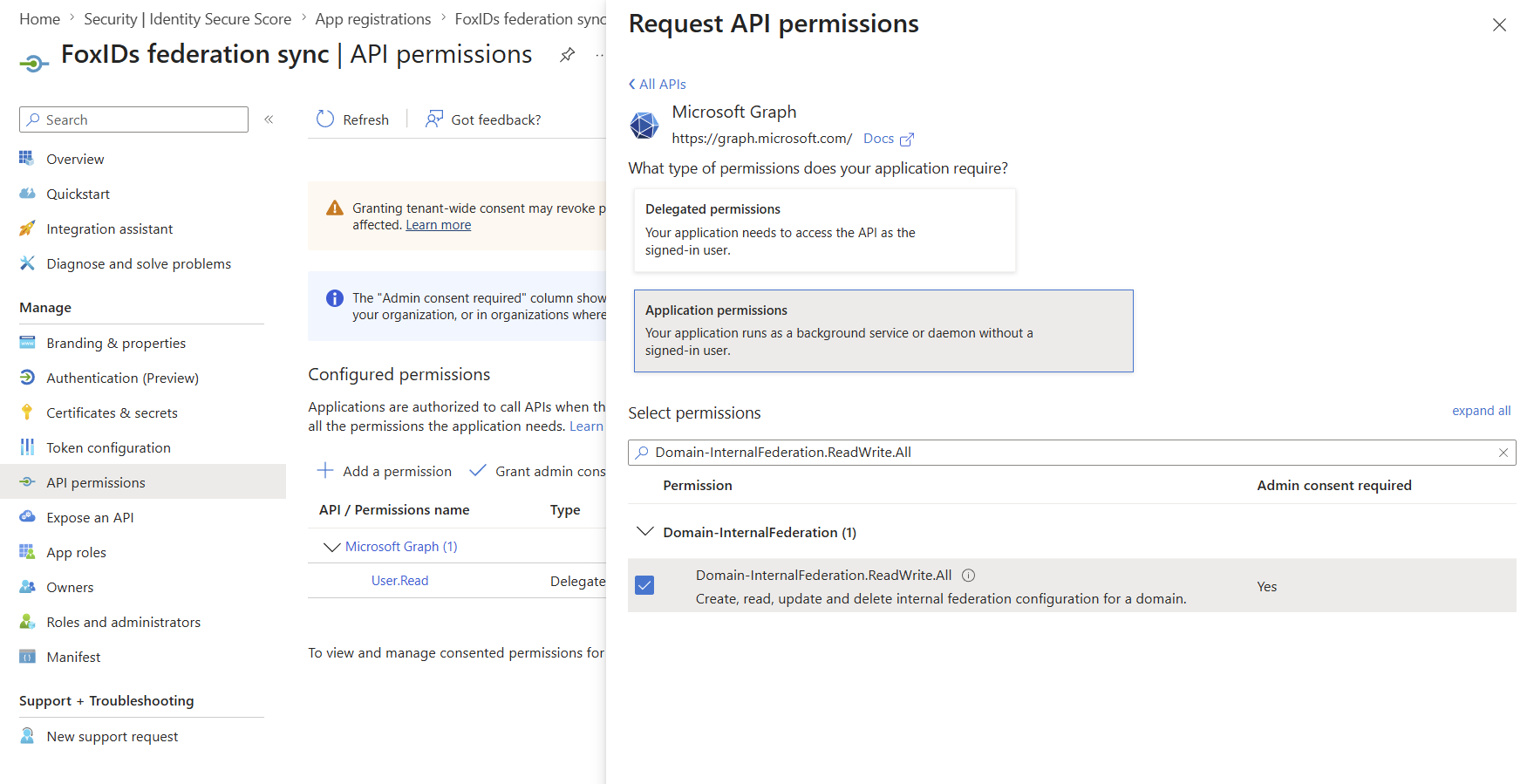
Go to API permissions.
Add Microsoft Graph Application permissions:
Domain-InternalFederation.ReadWrite.All
Configure the FoxIDs deployment with certificate authentication. PFX is convenient for deployment systems that store secrets as single-line values. The PFX password is optional; omit CertificatePfxPassword if the PFX is not password protected:
{
  "Settings": {
    "Modules": {
      "MicrosoftEntraIdSync": {
        "ClientId": "<application-client-id>",
        "CertificatePfx": "<base64-encoded-pfx>",
        "CertificatePfxPassword": "<optional-pfx-password>"
      }
    }
  }
}
In environment variable form:
Settings__Modules__MicrosoftEntraIdSync__ClientId=<application-client-id>
Settings__Modules__MicrosoftEntraIdSync__CertificatePfx=<base64-encoded-pfx>
Settings__Modules__MicrosoftEntraIdSync__CertificatePfxPassword=<optional-pfx-password>
To create the base64 encoded PFX value from a PFX certificate without a password:
$pfxPath = "C:\path\to\certificate.pfx"
$base64Pfx = [Convert]::ToBase64String([IO.File]::ReadAllBytes($pfxPath))
$base64Pfx | Set-Clipboard
PEM certificate and private key text can also be used:
{
  "Settings": {
    "Modules": {
      "MicrosoftEntraIdSync": {
        "ClientId": "<application-client-id>",
        "CertificatePemCrt": "-----BEGIN CERTIFICATE-----\n...\n-----END CERTIFICATE-----",
        "CertificatePemKey": "-----BEGIN PRIVATE KEY-----\n...\n-----END PRIVATE KEY-----"
      }
    }
  }
}
If no certificate is configured, FoxIDs uses client secret authentication:
{
  "Settings": {
    "Modules": {
      "MicrosoftEntraIdSync": {
        "ClientId": "<application-client-id>",
        "ClientSecret": "<client-secret>"
      }
    }
  }
}
In environment variable form:
Settings__Modules__MicrosoftEntraIdSync__ClientId=<application-client-id>
Settings__Modules__MicrosoftEntraIdSync__ClientSecret=<client-secret>
If a certificate is configured, FoxIDs always uses certificate authentication and does not fall back to ClientSecret if certificate authentication fails. Configure either CertificatePfx or both CertificatePemCrt and CertificatePemKey; do not configure both PFX and PEM certificate settings.
Add the same values to both the FoxIDs runtime configuration and the FoxIDs Control configuration if they are hosted as separate applications. The runtime uses the configuration when automatic sync is triggered during WS-Federation sign-in, and FoxIDs Control uses it when an administrator starts sync manually from the application registration.
After this configuration is deployed, the Microsoft Entra ID template in FoxIDs Control shows automatic federation as available. Create one WS-Federation Microsoft Entra ID application registration per verified domain. A Microsoft Entra administrator grants admin consent from the template for the Microsoft Entra tenant whose domain is synchronised. Consent is required once per Microsoft Entra tenant, not once per domain.
If synchronisation fails with AADSTS7000229, the Microsoft Entra ID sync app registration has typically not been granted admin consent in the tenant that owns the domain. Grant Microsoft admin consent from the template and synchronise again.
If admin consent fails with AADSTS500113, the sync app registration is missing the Web redirect URI used by FoxIDs Control. Add the redirect URI shown above, make sure it matches Settings:FoxIDsControlEndpoint, and grant Microsoft admin consent again.