Koble til Microsoft Entra ID med WS-Federation
Bruk FoxIDs som en WS-Federation Security Token Service (STS) for et forent Microsoft Entra ID-domene og forent Windows-pålogging.
FoxIDs kan brukes som den fødererte identitetsleverandøren for Microsoft Entra joined og Microsoft Entra hybrid joined Windows-enheter.
I et forent miljø krever Microsoft Entra ID WS-Federation og WS-Trust-støtte for Windows-pålogging. FoxIDs avslører WS-Federation-metadata, MEX-endepunkt og aktive WS-Trust UsernameMixed-endepunkt som kreves av disse Microsoft Entra ID- og Windows-flytene. FoxIDs blir ikke med eller registrerer enheter; enhetsregistrering håndteres av Microsoft Entra ID og Windows.
Organisasjoner som bruker AD FS for Microsoft Entra ID-domeneføderasjon kan bruke FoxIDs for rollen som forent identitetsleverandør beskrevet i denne veiledningen.
Konfigurer FoxIDs
Denne veiledningen beskriver hvordan du konfigurerer FoxIDs som STS for et forent Microsoft Entra ID-domene. Brukere er koblet til Microsoft Entra ID-brukere med deres Immutable ID.
1 - Create the Microsoft Entra ID WS-Federation application in FoxIDs Control Client
The recommended setup is to use the Connect to Microsoft Entra ID application template. The template enables Microsoft Entra ID Windows sign-in, configures the WS-Federation metadata URL, adds the required issue claim and claim transforms, and uses an application-specific issuer.
- Select the Applications tab.
- Click Add application.
- Select Connect to Microsoft Entra ID with the WS-Federation badge.
- Add the display name, e.g.
Microsoft Entra ID. - Select Automatic federation (recommended).
- Add the verified Microsoft Entra domain to synchronise.
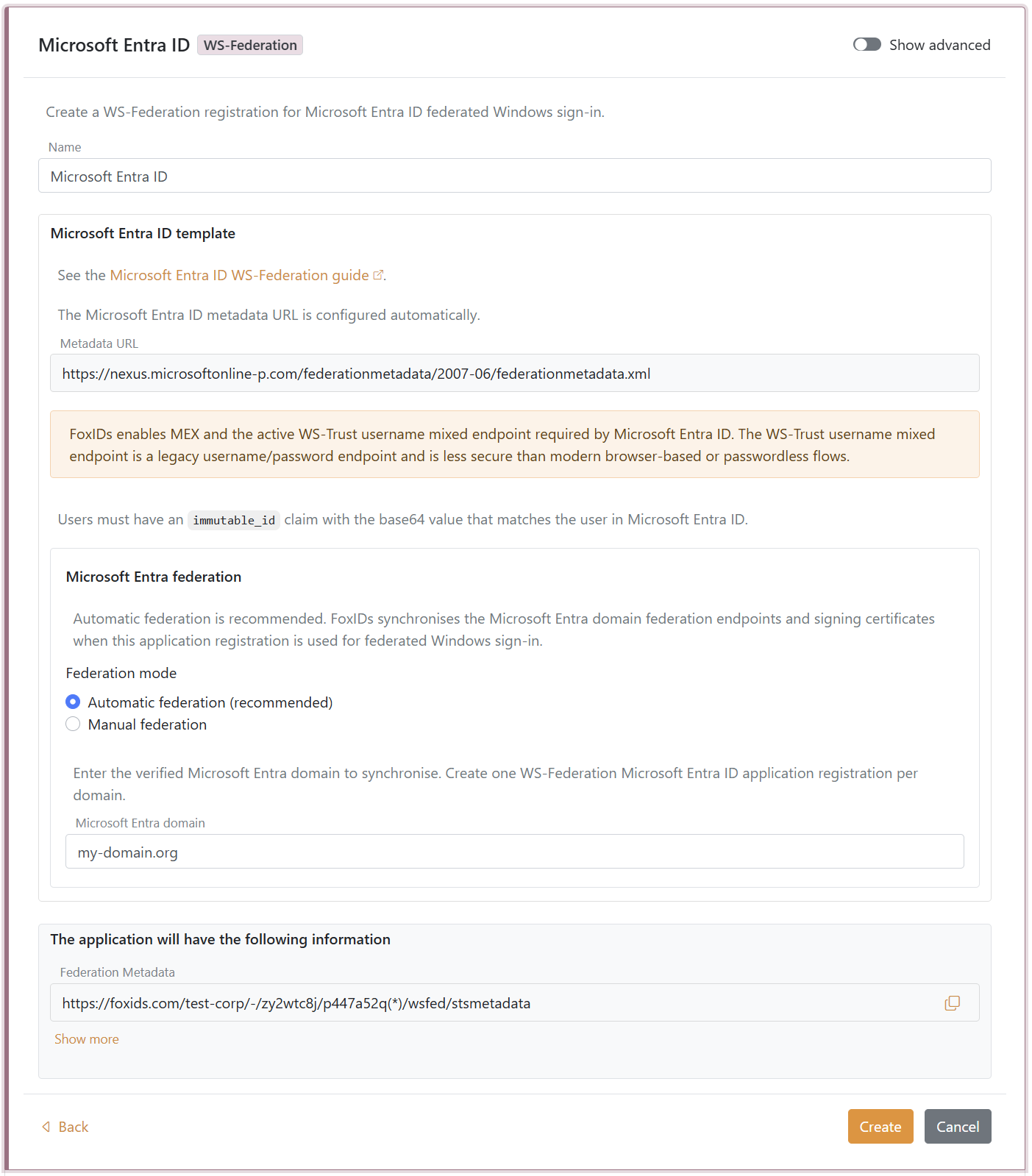
- Click Create.
- Click Set up Microsoft Entra federation.
If automatic federation is not available in a self-hosted deployment, configure the automatic Microsoft Entra ID sync app registration first or select Manual federation and configure Microsoft Entra ID manually.
2 - Grant consent and synchronise Microsoft Entra federation
Automatic federation uses Microsoft Graph to create or update the Microsoft Entra ID domain internalDomainFederation configuration. FoxIDs synchronises the WS-Federation endpoints, the MEX endpoint, the active WS-Trust endpoint, the primary signing certificate and the secondary signing certificate if one exists.
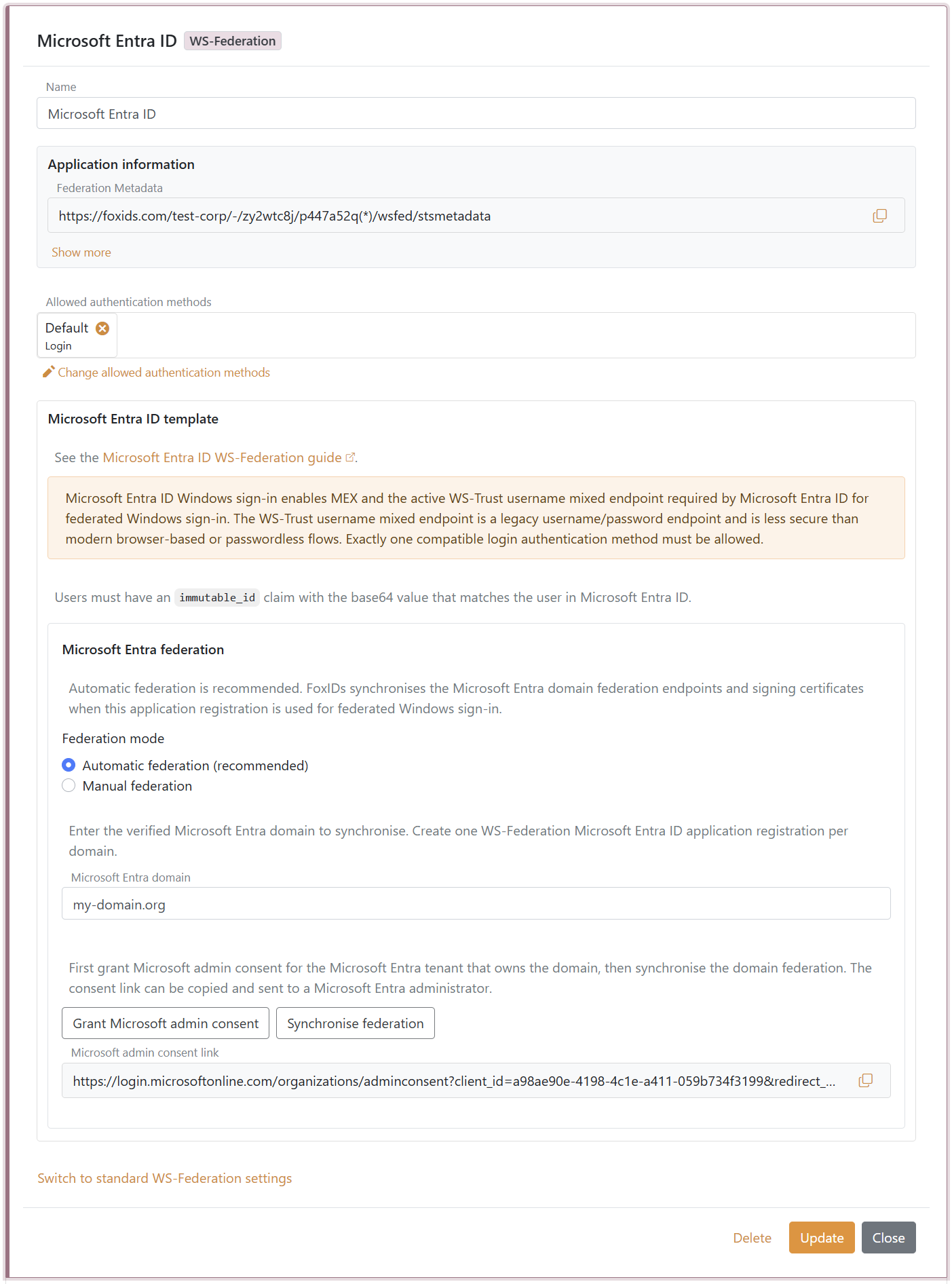
- In the Microsoft Entra ID template, click Grant Microsoft admin consent.
- Sign in as a Microsoft Entra administrator for the tenant that owns the domain and accept the consent.
- Return to FoxIDs Control.
- Click Synchronise federation.
- Verify that the synchronisation status is successful.
After the first successful synchronisation, Microsoft Entra ID trusts the FoxIDs WS-Federation application registration for the configured domain. FoxIDs also checks the federation during federated Windows sign-in and synchronises again if the signing certificate has changed or the previous synchronisation was not successful.
If synchronisation reports that the existing Microsoft Entra federation issuer does not match this FoxIDs application registration, review the domain ownership before choosing to take over the federation. Taking over changes the Microsoft Entra domain to trust this FoxIDs application registration.
3 - Configure the users' Immutable ID claims
Microsoft Entra ID expects an Immutable ID claim in the WS-Federation token. The claim value must match the user's onPremisesImmutableId in Microsoft Entra ID.
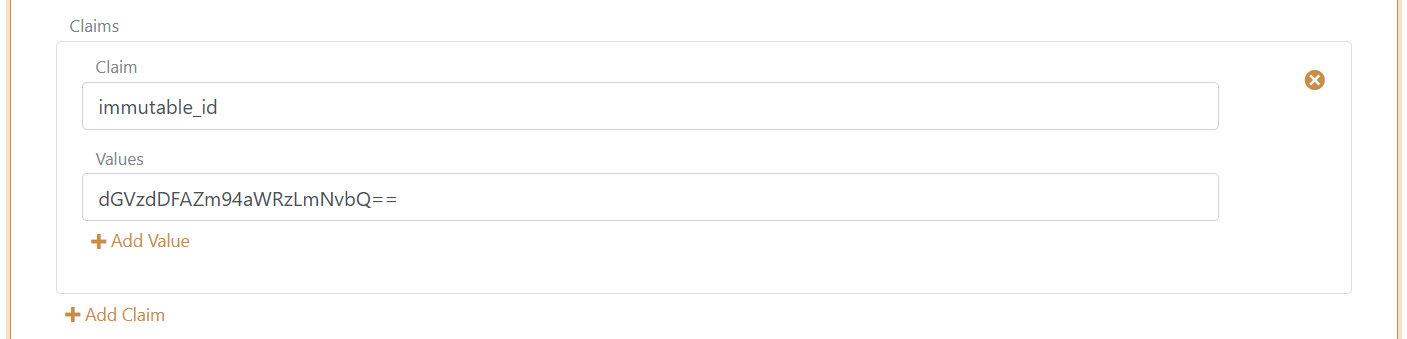
The Microsoft Entra ID template adds the required issue claims and claim transforms. You still need to make sure each user has an immutable_id claim with the base64 value that matches the user in Microsoft Entra ID.
Microsoft Entra ID documentation lists the UPN claim as part of the expected WS-Federation token claims. FoxIDs issues:
http://schemas.xmlsoap.org/ws/2005/05/identity/claims/upn
from the user's upn claim. User matching is normally based on the Immutable ID, but adding the UPN claim keeps the token aligned with Microsoft's expected WS-Federation claim set.
You need to set the user's Immutable ID as a claim in FoxIDs. To set the Immutable ID on an internal user, select the Users tab and then the Internal Users tab, find the user, and add a claim with the claim type
immutable_idand the value of the Immutable ID in Microsoft Entra ID. It should be base64 encoded. Theimmutable_idclaim type is mapped to the SAML claim URIhttp://schemas.foxids.com/ws/identity/claims/immutableidin FoxIDs. To issue the UPN claim for an internal user, add a claim with the claim typeupnand the user's Microsoft Entra ID user principal name, e.g.user@your-domain.com. FoxIDs maps the internalupnclaim tohttp://schemas.xmlsoap.org/ws/2005/05/identity/claims/upn. Manual FoxIDs configuration
Use manual configuration only if you do not use the Microsoft Entra ID template.
- Velg fanen Programmer.
- Klikk på Ny applikasjon.
- Klikk på Vis alle alternativer.
- Klikk på Nettapplikasjon med WS-Federation-merket.
- Legg til Navn, f.eks.
Microsoft Entra ID. - Velg manuell konfigurasjon.
- Sett Application realm til
urn:federation:MicrosoftOnline. - Angi Svar-URL til
https://login.microsoftonline.com/login.srf. - Angi Avloggings-URL til
https://login.microsoftonline.com/login.srf. - Behold Tokentype som
SAML 1.1med mindre Microsoft Entra ID er konfigurert for en annen tokentype. - Klikk på Opprett.
- Åpne programmet og aktiver Microsoft Entra ID Windows-pålogging under de avanserte WS-Federation-innstillingene.
Manual Immutable ID claim transform
Microsoft Entra ID forventer et Immutable ID-claims i WS-Federation-tokenet. Claimsverdien må samsvare med brukerens onPremisesImmutableId i Microsoft Entra ID.
- Klikk på Endre applikasjon for å åpne applikasjonen i redigeringsmodus.
- Velg fanen Krev transformasjoner.
- Klikk på Legg til claimstransformasjon og klikk på Kart.
- Sett Nytt claims til
http://schemas.microsoft.com/LiveID/Federation/2008/05/ImmutableID. - Sett Velg claims til
http://schemas.foxids.com/ws/identity/claims/immutableid. - Klikk på Oppdater.
Microsoft Entra ID-dokumentasjonen oppgir UPN-claimet som en del av det forventede WS-Federation-tokenclaimsettet. FoxIDs utsteder:
http://schemas.xmlsoap.org/ws/2005/05/identity/claims/upn
fra brukerens upn claim. Brukermatching baseres normalt på Immutable ID, men UPN-claimet holder tokenet i samsvar med Microsofts forventede WS-Federation-claimsett.
Du må angi brukerens Immutable ID som et claims i FoxIDs. For å angi Immutable ID på en intern bruker, velg fanen Brukere og deretter fanen Interne brukere, finn brukeren og legg til et claims med claimstypen
immutable_idog verdien av den Immutable IDen i Microsoft Entra ID. Den skal være base64-kodet.immutable_id-claimstypen er tilordnet SAML-claimset URIhttp://schemas.foxids.com/ws/identity/claims/immutableidi FoxIDs. For å utstede UPN-claimet for en intern bruker, legg til et claim med claimtypenupnog brukerens Microsoft Entra ID user principal name, for eksempeluser@your-domain.com. FoxIDs mapper det interneupnclaimet tilhttp://schemas.xmlsoap.org/ws/2005/05/identity/claims/upn.
Manual Microsoft Entra ID federation values
Åpne WS-Federation-applikasjonsregistreringen og kopier verdiene som trengs for Microsoft Entra ID-domeneføderasjon:
- Federasjonsmetadata
- Riket / utsteder
- Passiv påloggingsnettadresse
- Avloggingsadresse
- MEX-endepunkt
- Aktivt WS-Trust-endepunkt
Microsoft Entra ID leser FoxIDs signeringssertifikater fra Federation Metadata URL. Derfor kan du fortsette å bruke standard rullende FoxIDs sertifikater. For føderert Windows-pålogging, bruk MEX-endepunktet som metadataExchangeUri og det aktive WS-Trust-endepunktet som activeSignInUri.
Konfigurer brukerens Immutable ID
Brukerens onPremisesImmutableId i Microsoft Entra ID må samsvare med http://schemas.microsoft.com/LiveID/Federation/2008/05/ImmutableID-claimset utstedt av FoxIDs.
Microsoft beskriver AD FS Immutable ID-claimset i AD FS administrasjon og tilpasning-dokumentasjonen.
Konfigurer brukerens Immutable ID med PowerShell
- Koble til Microsoft Graph:
Connect-MgGraph -Scopes "User.ReadWrite.All" - Sett opp variablene:
$userId = "user-id@your-domain.com" $immutableId = "immutable-id" - Konfigurer brukerens Immutable ID:
Update-MgUser -UserId $userId -OnPremisesImmutableId $immutableId - Bekreft verdien:
Get-MgUser -UserId $userId | Format-List Id, UserPrincipalName, OnPremisesImmutableId
Hvis brukeren allerede har en Immutable ID-sett, må du kanskje flytte brukeren bort fra det forente domenet, oppdatere den Immutable IDen og deretter flytte brukeren tilbake til det forente domenet.
Konfigurer Microsoft Entra ID
Det er ikke mulig å konfigurere denne typen Microsoft Entra ID-domeneføderasjon i Microsoft Entra ID administrasjonssenter. Bruk Microsoft Graph PowerShell eller Microsoft Graph API.
Microsoft Graph internalDomainFederation-ressursen støtter både SAML og WS-Federation. For WS-Federation, sett preferredAuthenticationProtocol til wsFed. Se Microsofts Opprett internDomainFederation-dokumentasjon.
Åpne PowerShell som administrator.
Installer Microsoft Graph PowerShell-modulen hvis den ikke allerede er installert:
Install-Module -Name Microsoft.GraphEventuelt installer for gjeldende bruker:
Install-Module Microsoft.Graph -Scope CurrentUser -ForceKoble til Microsoft Graph:
Connect-MgGraph -Scopes "Domain.ReadWrite.All,Directory.AccessAsUser.All"Sett opp konfigurasjonsvariablene:
$domainId = "your-domain.com"
$displayName = FoxIDs
$issuerUri = "copied Realm / issuer from FoxIDs"
$metadataExchangeUri = "copied MEX endpoint from FoxIDs"
$passiveSignInUri = "copied Passive sign-in URL from FoxIDs"
$activeSignInUri = "copied Active WS-Trust endpoint from FoxIDs"
$signOutUri = "copied Sign-out URL from FoxIDs"
$signingCertificate = "copied IdP signing certificate from FoxIDs"
Konfigurer domeneføderasjonen:
$params = @{ "@odata.type" = "#microsoft.graph.internalDomainFederation" displayName = $displayName issuerUri = $issuerUri metadataExchangeUri = $metadataExchangeUri passiveSignInUri = $passiveSignInUri activeSignInUri = $activeSignInUri preferredAuthenticationProtocol = "wsFed" signOutUri = $signOutUri federatedIdpMfaBehavior = "acceptIfMfaDoneByFederatedIdp" } New-MgDomainFederationConfiguration -DomainId $domainId -BodyParameter $paramsfederatedIdpMfaBehaviorkan settes til:acceptIfMfaDoneByFederatedIdp- Microsoft Entra ID godtar MFA fra FoxIDs; hvis FoxIDs ikke gjorde MFA, kan Microsoft Entra ID gjøre det.enforceMfaByFederatedIdp– Hvis en policy trenger MFA, sender Microsoft Entra ID brukeren tilbake til FoxIDs for å fullføre MFA.rejectMfaByFederatedIdp- Microsoft Entra ID gjør alltid MFA selv; MFA ved FoxIDs ignoreres.
Bekreft konfigurasjonen:
Get-MgDomainFederationConfiguration -DomainId $domainId | Format-List
Get-MgDomain -DomainId $domainId | Format-List Id, AuthenticationType
Microsoft Entra ID bruker
passiveSignInUrifor nettbaserte klienter ogactiveSignInUrifor aktive klienter som Microsoft Entra joined og Microsoft Entra hybrid joined Windows-enheter. Se Microsofts internDomainFederation-ressurs-dokumentasjon for hele eiendomslisten.
If you configure Microsoft Entra ID manually, update the Microsoft Entra ID
signingCertificateandnextSigningCertificatevalues when FoxIDs signing certificates roll over. Automatic federation handles this for you.
Konfigurer automatisk Microsoft Entra ID-sync for self-hosting
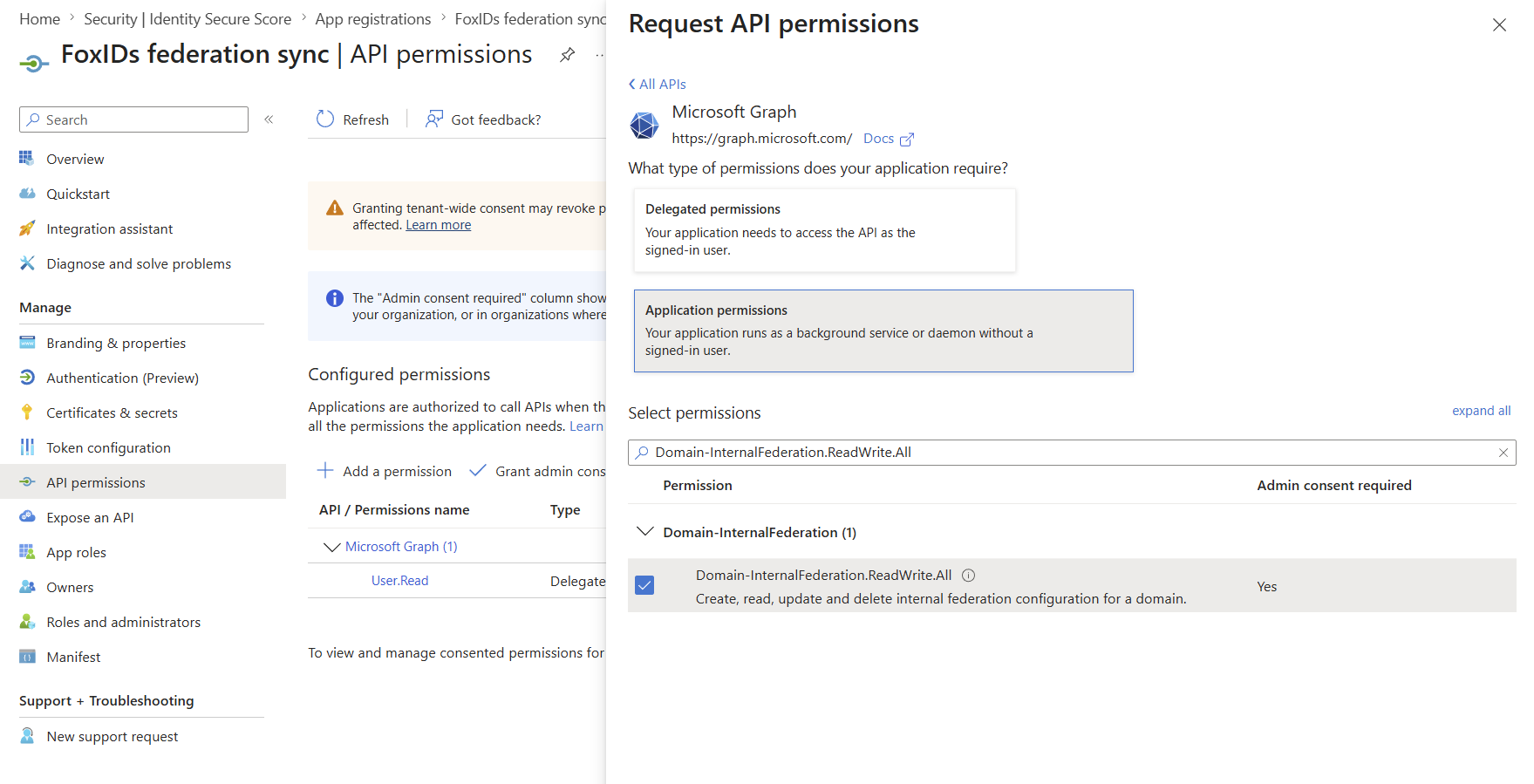
For self-hostede FoxIDs-deployments krever automatisk Microsoft Entra ID federation sync en Microsoft Entra ID app registration som er konfigurert i både FoxIDs runtime- og FoxIDs Control deployment-konfigurasjonen. FoxIDs bruker app registrationen med client credentials flowet til å kalle Microsoft Graph og opprette eller oppdatere domenets federationConfiguration.
App registrationen må ha Microsoft Graph application permission Domain-InternalFederation.ReadWrite.All. Foretrekk certificate authentication ved å laste opp det offentlige sertifikatet til app registrationen og konfigurere FoxIDs med samme sertifikat inkludert privat nøkkel.
PFX er praktisk for deployment-systemer som lagrer secrets som enkeltlinjeverdier. PFX-passordet er valgfritt; utelat CertificatePfxPassword hvis PFX-en ikke er passordbeskyttet:
{
  "Settings": {
    "Modules": {
      "MicrosoftEntraIdSync": {
        "ClientId": "<application-client-id>",
        "CertificatePfx": "<base64-encoded-pfx>",
        "CertificatePfxPassword": "<optional-pfx-password>"
      }
    }
  }
}
Som environment variables:
Settings__Modules__MicrosoftEntraIdSync__ClientId=<application-client-id>
Settings__Modules__MicrosoftEntraIdSync__CertificatePfx=<base64-encoded-pfx>
Settings__Modules__MicrosoftEntraIdSync__CertificatePfxPassword=<optional-pfx-password>
Slik oppretter du den base64-kodede PFX-verdien fra et PFX-sertifikat uten passord:
$pfxPath = "C:\path\to\certificate.pfx"
$base64Pfx = [Convert]::ToBase64String([IO.File]::ReadAllBytes($pfxPath))
$base64Pfx | Set-Clipboard
PEM-sertifikat og private key tekst kan også brukes:
{
  "Settings": {
    "Modules": {
      "MicrosoftEntraIdSync": {
        "ClientId": "<application-client-id>",
        "CertificatePemCrt": "-----BEGIN CERTIFICATE-----\n...\n-----END CERTIFICATE-----",
        "CertificatePemKey": "-----BEGIN PRIVATE KEY-----\n...\n-----END PRIVATE KEY-----"
      }
    }
  }
}
Hvis det ikke er konfigurert et sertifikat, bruker FoxIDs client secret authentication:
{
  "Settings": {
    "Modules": {
      "MicrosoftEntraIdSync": {
        "ClientId": "<application-client-id>",
        "ClientSecret": "<client-secret>"
      }
    }
  }
}
Som environment variables:
Settings__Modules__MicrosoftEntraIdSync__ClientId=<application-client-id>
Settings__Modules__MicrosoftEntraIdSync__ClientSecret=<client-secret>
Hvis et sertifikat er konfigurert, bruker FoxIDs alltid certificate authentication og faller ikke tilbake til ClientSecret hvis certificate authentication feiler. Konfigurer enten CertificatePfx eller både CertificatePemCrt og CertificatePemKey; ikke konfigurer både PFX- og PEM-sertifikatinnstillinger.