Opret forbindelse til Microsoft Entra ID med WS-Federation
Brug FoxIDs som en WS-Federation Security Token Service (STS) for et fødereret Microsoft Entra ID-domæne og fødereret Windows-logon.
FoxIDs kan bruges som den fødererede identitetsudbyder for Microsoft Entra joined og Microsoft Entra hybrid joined Windows-enheder.
I et fødereret miljø kræver Microsoft Entra ID understøttelse af WS-Federation og WS-Trust til Windows-login. FoxIDs eksponerer de WS-Federation Metadata, det MEX endpoint og det aktive WS-Trust UsernameMixed endpoint, som disse Microsoft Entra ID- og Windows-flows kræver. FoxIDs joiner eller registrerer ikke enheder; enhedsregistreringen håndteres af Microsoft Entra ID og Windows.
Organisationer, der bruger AD FS til Microsoft Entra ID-domæneføderation, kan bruge FoxIDs til rollen som fødereret identitetsudbyder beskrevet i denne vejledning.
Konfigurer FoxIDs
Denne vejledning beskriver, hvordan du konfigurerer FoxIDs som STS for et fødereret Microsoft Entra ID-domæne. Brugere er forbundet til Microsoft Entra ID-brugere med deres Immutable ID.
1 - Create the Microsoft Entra ID WS-Federation application in FoxIDs Control Client
The recommended setup is to use the Connect to Microsoft Entra ID application template. The template enables Microsoft Entra ID Windows sign-in, configures the WS-Federation metadata URL, adds the required issue claim and claim transforms, and uses an application-specific issuer.
- Select the Applications tab.
- Click Add application.
- Select Connect to Microsoft Entra ID with the WS-Federation badge.
- Add the display name, e.g.
Microsoft Entra ID. - Select Automatic federation (recommended).
- Add the verified Microsoft Entra domain to synchronise.
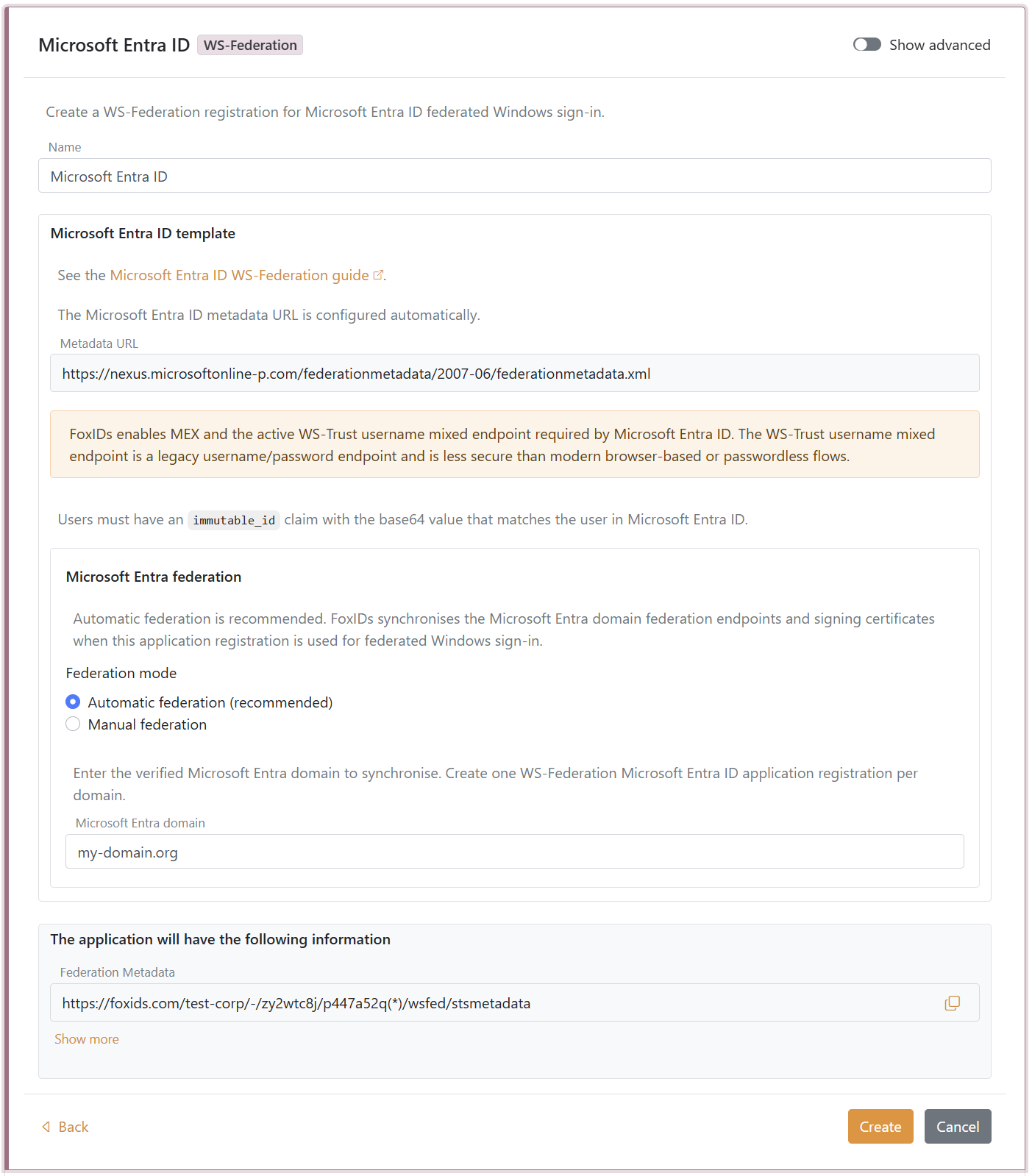
- Click Create.
- Click Set up Microsoft Entra federation.
If automatic federation is not available in a self-hosted deployment, configure the automatic Microsoft Entra ID sync app registration first or select Manual federation and configure Microsoft Entra ID manually.
2 - Grant consent and synchronise Microsoft Entra federation
Automatic federation uses Microsoft Graph to create or update the Microsoft Entra ID domain internalDomainFederation configuration. FoxIDs synchronises the WS-Federation endpoints, the MEX endpoint, the active WS-Trust endpoint, the primary signing certificate and the secondary signing certificate if one exists.
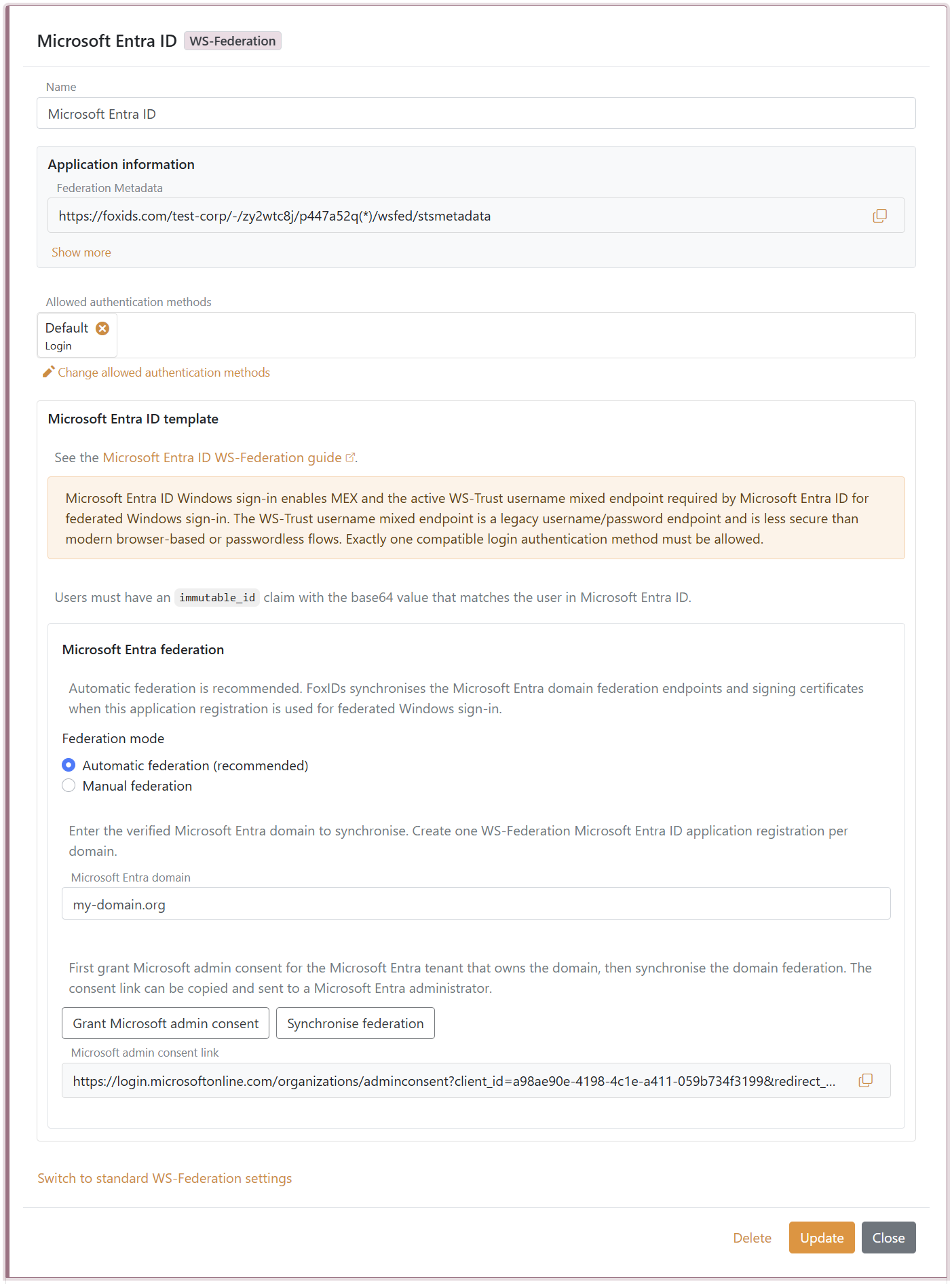
- In the Microsoft Entra ID template, click Grant Microsoft admin consent.
- Sign in as a Microsoft Entra administrator for the tenant that owns the domain and accept the consent.
- Return to FoxIDs Control.
- Click Synchronise federation.
- Verify that the synchronisation status is successful.
After the first successful synchronisation, Microsoft Entra ID trusts the FoxIDs WS-Federation application registration for the configured domain. FoxIDs also checks the federation during federated Windows sign-in and synchronises again if the signing certificate has changed or the previous synchronisation was not successful.
If synchronisation reports that the existing Microsoft Entra federation issuer does not match this FoxIDs application registration, review the domain ownership before choosing to take over the federation. Taking over changes the Microsoft Entra domain to trust this FoxIDs application registration.
3 - Configure the users' Immutable ID claims
Microsoft Entra ID expects an Immutable ID claim in the WS-Federation token. The claim value must match the user's onPremisesImmutableId in Microsoft Entra ID.
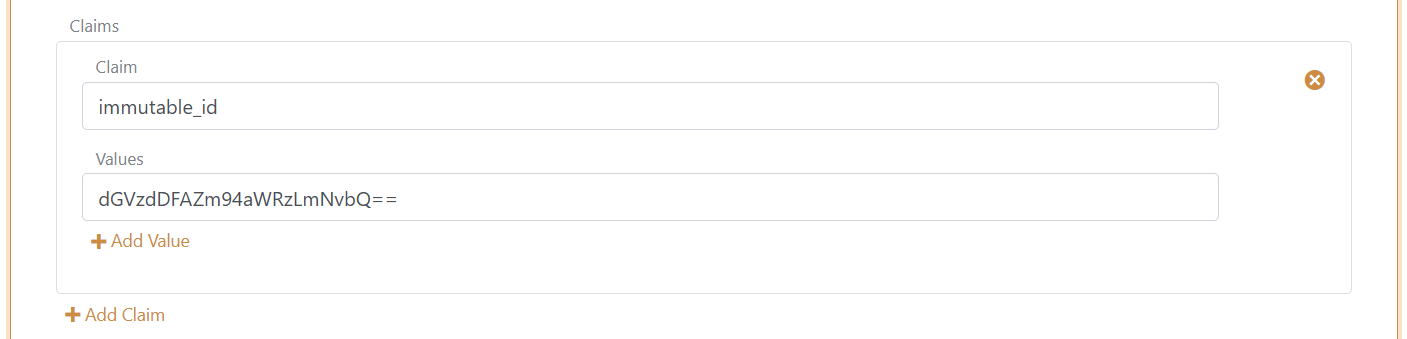
The Microsoft Entra ID template adds the required issue claims and claim transforms. You still need to make sure each user has an immutable_id claim with the base64 value that matches the user in Microsoft Entra ID.
Microsoft Entra ID documentation lists the UPN claim as part of the expected WS-Federation token claims. FoxIDs issues:
http://schemas.xmlsoap.org/ws/2005/05/identity/claims/upn
from the user's upn claim. User matching is normally based on the Immutable ID, but adding the UPN claim keeps the token aligned with Microsoft's expected WS-Federation claim set.
You need to set the user's Immutable ID as a claim in FoxIDs. To set the Immutable ID on an internal user, select the Users tab and then the Internal Users tab, find the user, and add a claim with the claim type
immutable_idand the value of the Immutable ID in Microsoft Entra ID. It should be base64 encoded. Theimmutable_idclaim type is mapped to the SAML claim URIhttp://schemas.foxids.com/ws/identity/claims/immutableidin FoxIDs. To issue the UPN claim for an internal user, add a claim with the claim typeupnand the user's Microsoft Entra ID user principal name, e.g.user@your-domain.com. FoxIDs maps the internalupnclaim tohttp://schemas.xmlsoap.org/ws/2005/05/identity/claims/upn. Manual FoxIDs configuration
Use manual configuration only if you do not use the Microsoft Entra ID template.
- Vælg fanen Applikationer.
- Klik på Ny applikation.
- Klik på Vis alle muligheder.
- Klik på Webapplikation med WS-Federation-mærket.
- Tilføj navnet, f.eks.
Microsoft Entra ID. - Vælg manuel konfiguration.
- Indstil Application realm til
urn:federation:MicrosoftOnline. - Indstil Svar-URL til
https://login.microsoftonline.com/login.srf. - Indstil Sign-out URL til
https://login.microsoftonline.com/login.srf. - Behold Tokentype som
SAML 1.1, medmindre Microsoft Entra ID er konfigureret til en anden tokentype. - Klik på Opret.
- Åbn applikationen og aktivér Microsoft Entra ID Windows-login under de avancerede WS-Federation-indstillinger.
Manual Immutable ID claim transform
Microsoft Entra ID forventer et Immutable ID claim i WS-Federation-tokenet. Claimværdien skal matche brugerens onPremisesImmutableId i Microsoft Entra ID.
- Klik på Skift applikation for at åbne applikationen i redigeringstilstand.
- Vælg fanen Claim transforms.
- Klik på Tilføj claim transform, og klik på Map.
- Indstil Nyt claim til
http://schemas.microsoft.com/LiveID/Federation/2008/05/ImmutableID. - Indstil Vælg claim til
http://schemas.foxids.com/ws/identity/claims/immutableid. - Klik på Opdater.
Microsoft Entra ID-dokumentationen angiver UPN-claimet som en del af det forventede WS-Federation-tokenclaimset. FoxIDs udsteder:
http://schemas.xmlsoap.org/ws/2005/05/identity/claims/upn
fra brugerens upn claim. Brugermatch sker normalt ud fra Immutable ID, men UPN-claimet holder tokenet på linje med Microsofts forventede WS-Federation-claimset.
Du skal angive brugerens Immutable ID som et claim i FoxIDs. For at angive Immutable ID på en intern bruger skal du vælge fanen Brugere og derefter Interne brugere, finde brugeren og tilføje et claim med claimtypen
immutable_idog værdien af Immutable ID i Microsoft Entra ID. Værdien skal være base64-kodet. Claimtypenimmutable_idmappes til SAML claim URI'enhttp://schemas.foxids.com/ws/identity/claims/immutableidi FoxIDs. For at udstede UPN-claimet for en intern bruger skal du tilføje et claim med claimtypenupnog brugerens Microsoft Entra ID user principal name, f.eks.user@your-domain.com. FoxIDs mapper det interneupnclaim tilhttp://schemas.xmlsoap.org/ws/2005/05/identity/claims/upn.
Manual Microsoft Entra ID federation values
Åbn WS-Federation-applikationsregistreringen, og kopier de nødvendige værdier til Microsoft Entra ID-domæneføderation:
- Federation Metadata
- Realm / issuer
- Passive sign-in URL
- Sign-out URL
- MEX endpoint
- Active WS-Trust endpoint
Microsoft Entra ID læser FoxIDs signeringscertifikater fra Federation Metadata URL'en. Derfor kan du fortsætte med at bruge FoxIDs' standardcertifikater med automatisk rotation. Til fødereret Windows-login skal MEX endpointet bruges som metadataExchangeUri og det aktive WS-Trust endpoint som activeSignInUri.
Konfigurer brugerens Immutable ID
Brugerens onPremisesImmutableId i Microsoft Entra ID skal matche claimet http://schemas.microsoft.com/LiveID/Federation/2008/05/ImmutableID, som FoxIDs udsteder.
Microsoft beskriver AD FS Immutable ID claimet i dokumentationen om AD FS-administration og -tilpasning.
Konfigurer brugerens Immutable ID med PowerShell
- Opret forbindelse til Microsoft Graph:
Connect-MgGraph -Scopes "User.ReadWrite.All" - Opsæt variablerne:
$userId = "user-id@your-domain.com" $immutableId = "immutable-id" - Konfigurer brugerens Immutable ID:
Update-MgUser -UserId $userId -OnPremisesImmutableId $immutableId - Valider værdien:
Get-MgUser -UserId $userId | Format-List Id, UserPrincipalName, OnPremisesImmutableId
Hvis brugeren allerede har en Immutable ID-værdi, kan det være nødvendigt at flytte brugeren væk fra det fødererede domæne, opdatere Immutable ID og derefter flytte brugeren tilbage til domænet.
Konfigurer Microsoft Entra ID
Det er ikke muligt at konfigurere denne type Microsoft Entra ID-domæneføderation i Microsoft Entra ID administrationscenter. Brug Microsoft Graph PowerShell eller Microsoft Graph API.
Microsoft Graph-ressourcen internalDomainFederation understøtter både SAML og WS-Federation. For WS-Federation skal preferredAuthenticationProtocol sættes til wsFed. Se Microsofts dokumentation om oprettelse af internalDomainFederation.
Åbn PowerShell som administrator.
Installer Microsoft Graph PowerShell-modulet, hvis det ikke allerede er installeret:
Install-Module -Name Microsoft.GraphInstaller eventuelt for nuværende bruger:
Install-Module Microsoft.Graph -Scope CurrentUser -ForceOpret forbindelse til Microsoft Graph:
Connect-MgGraph -Scopes "Domain.ReadWrite.All,Directory.AccessAsUser.All"Indstil konfigurationsvariablerne:
$domainId = "your-domain.com"
$displayName = FoxIDs
$issuerUri = "copied Realm / issuer from FoxIDs"
$metadataExchangeUri = "copied MEX endpoint from FoxIDs"
$passiveSignInUri = "copied Passive sign-in URL from FoxIDs"
$activeSignInUri = "copied Active WS-Trust endpoint from FoxIDs"
$signOutUri = "copied Sign-out URL from FoxIDs"
$signingCertificate = "copied IdP signing certificate from FoxIDs"
Konfigurer domæneføderationen:
$params = @{ "@odata.type" = "#microsoft.graph.internalDomainFederation" displayName = $displayName issuerUri = $issuerUri metadataExchangeUri = $metadataExchangeUri passiveSignInUri = $passiveSignInUri activeSignInUri = $activeSignInUri preferredAuthenticationProtocol = "wsFed" signOutUri = $signOutUri federatedIdpMfaBehavior = "acceptIfMfaDoneByFederatedIdp" } New-MgDomainFederationConfiguration -DomainId $domainId -BodyParameter $paramsfederatedIdpMfaBehaviorkan indstilles til:acceptIfMfaDoneByFederatedIdp- Microsoft Entra ID accepterer MFA fra FoxIDs; hvis FoxIDs ikke gjorde MFA, kan Microsoft Entra ID gøre det.enforceMfaByFederatedIdp- Hvis en politik kræver MFA, sender Microsoft Entra ID brugeren tilbage til FoxIDs for at gennemføre MFA.rejectMfaByFederatedIdp- Microsoft Entra ID udfører altid MFA selv; MFA på FoxIDs ignoreres.
Valider konfigurationen:
Get-MgDomainFederationConfiguration -DomainId $domainId | Format-List
Get-MgDomain -DomainId $domainId | Format-List Id, AuthenticationType
Microsoft Entra ID bruger
passiveSignInUritil webbaserede klienter ogactiveSignInUritil aktive klienter såsom Microsoft Entra joined og Microsoft Entra hybrid joined Windows-enheder. Se Microsofts dokumentation om internalDomainFederation-ressourcen for den fulde liste over egenskaber.
If you configure Microsoft Entra ID manually, update the Microsoft Entra ID
signingCertificateandnextSigningCertificatevalues when FoxIDs signing certificates roll over. Automatic federation handles this for you.
Konfigurer automatisk Microsoft Entra ID sync til self-hosting
For self-hostede FoxIDs deployments kræver automatisk Microsoft Entra ID federation sync en Microsoft Entra ID app registration, som er konfigureret i både FoxIDs runtime- og FoxIDs Control deployment-konfigurationen. FoxIDs bruger app registrationen med client credentials flowet til at kalde Microsoft Graph og oprette eller opdatere domænets federationConfiguration.
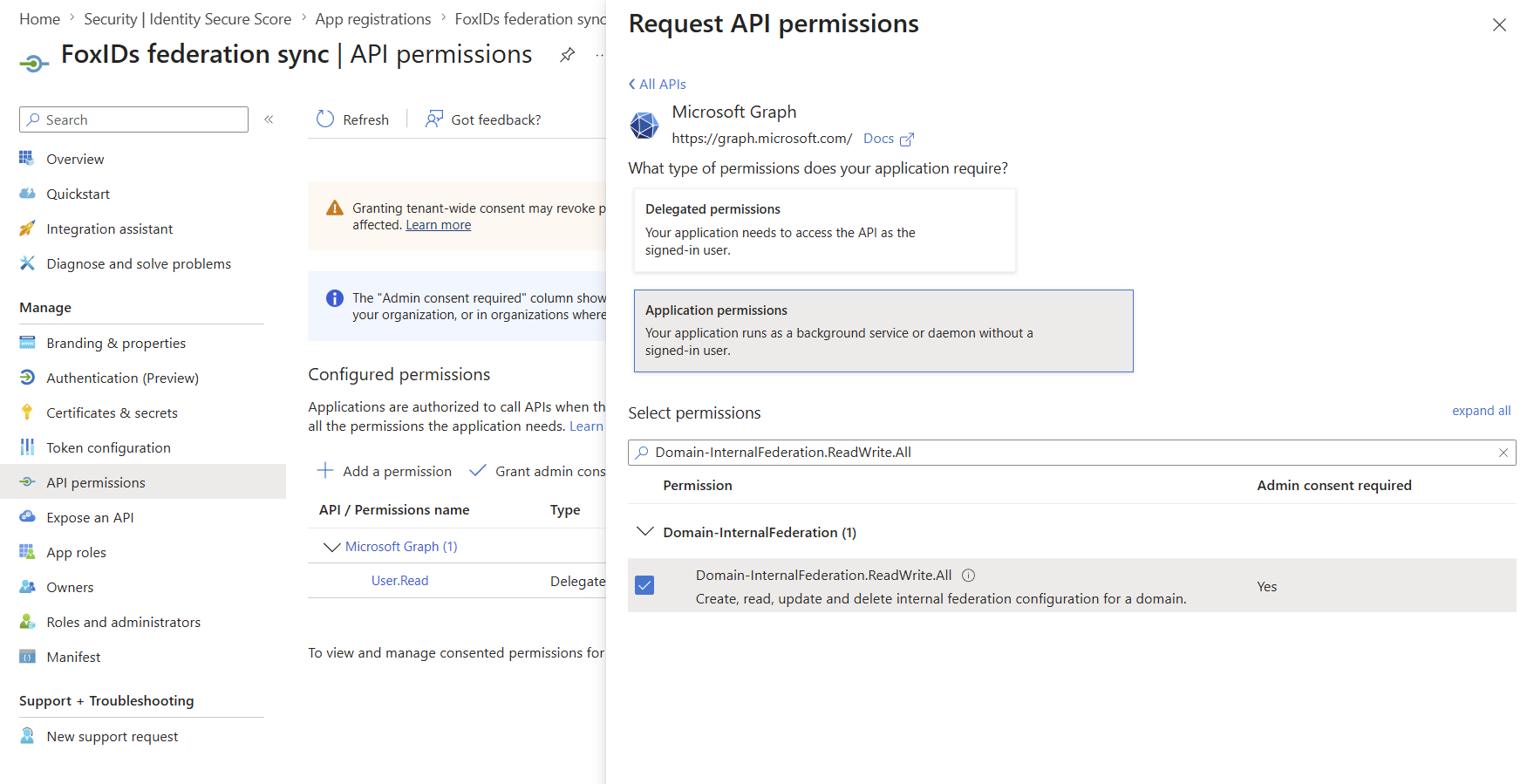
App registrationen skal have Microsoft Graph application permission Domain-InternalFederation.ReadWrite.All. Foretræk certificate authentication ved at uploade det offentlige certifikat til app registrationen og konfigurere FoxIDs med samme certifikat inklusive den private nøgle.
PFX er praktisk til deployment-systemer, der gemmer secrets som enkeltlinjeværdier. PFX-password er valgfrit; udelad CertificatePfxPassword, hvis PFX ikke er passwordbeskyttet:
{
  "Settings": {
    "Modules": {
      "MicrosoftEntraIdSync": {
        "ClientId": "<application-client-id>",
        "CertificatePfx": "<base64-encoded-pfx>",
        "CertificatePfxPassword": "<optional-pfx-password>"
      }
    }
  }
}
Som environment variables:
Settings__Modules__MicrosoftEntraIdSync__ClientId=<application-client-id>
Settings__Modules__MicrosoftEntraIdSync__CertificatePfx=<base64-encoded-pfx>
Settings__Modules__MicrosoftEntraIdSync__CertificatePfxPassword=<optional-pfx-password>
Sådan opretter du den base64-kodede PFX-værdi fra et PFX-certifikat uden password:
$pfxPath = "C:\path\to\certificate.pfx"
$base64Pfx = [Convert]::ToBase64String([IO.File]::ReadAllBytes($pfxPath))
$base64Pfx | Set-Clipboard
PEM-certifikat og private key tekst kan også bruges:
{
  "Settings": {
    "Modules": {
      "MicrosoftEntraIdSync": {
        "ClientId": "<application-client-id>",
        "CertificatePemCrt": "-----BEGIN CERTIFICATE-----\n...\n-----END CERTIFICATE-----",
        "CertificatePemKey": "-----BEGIN PRIVATE KEY-----\n...\n-----END PRIVATE KEY-----"
      }
    }
  }
}
Hvis der ikke er konfigureret et certifikat, bruger FoxIDs client secret authentication:
{
  "Settings": {
    "Modules": {
      "MicrosoftEntraIdSync": {
        "ClientId": "<application-client-id>",
        "ClientSecret": "<client-secret>"
      }
    }
  }
}
Som environment variables:
Settings__Modules__MicrosoftEntraIdSync__ClientId=<application-client-id>
Settings__Modules__MicrosoftEntraIdSync__ClientSecret=<client-secret>
Hvis et certifikat er konfigureret, bruger FoxIDs altid certificate authentication og falder ikke tilbage til ClientSecret, hvis certificate authentication fejler. Konfigurer enten CertificatePfx eller både CertificatePemCrt og CertificatePemKey; konfigurer ikke både PFX- og PEM-certifikatindstillinger.