Anslut till Microsoft Entra ID med WS-Federation
Använd FoxIDs som en WS-Federation Security Token Service (STS) för en federerad Microsoft Entra ID-domän och federerad Windows-inloggning.
FoxIDs kan användas som federerad identitetsleverantör för Microsoft Entra-anslutna och Microsoft Entra hybrid-anslutna Windows-enheter.
I en federerad miljö kräver Microsoft Entra ID WS-Federation och WS-Trust-stöd för Windows-inloggning. FoxIDs exponerar WS-Federation-metadata, MEX-ändpunkt och aktiva WS-Trust UsernameMixed-slutpunkt som krävs av dessa Microsoft Entra ID- och Windows-flöden. FoxIDs går inte med i eller registrerar enheter; enhetsregistrering hanteras av Microsoft Entra ID och Windows.
Organisationer som använder AD FS för Microsoft Entra ID-domänfederation kan använda FoxIDs för rollen som federerad identitetsleverantör som beskrivs i den här guiden.
Konfigurera FoxIDs
Den här guiden beskriver hur du konfigurerar FoxIDs som STS för en federerad Microsoft Entra ID-domän. Användare är anslutna till Microsoft Entra ID-användare med sitt Immutable ID.
1 - Create the Microsoft Entra ID WS-Federation application in FoxIDs Control Client
The recommended setup is to use the Connect to Microsoft Entra ID application template. The template enables Microsoft Entra ID Windows sign-in, configures the WS-Federation metadata URL, adds the required issue claim and claim transforms, and uses an application-specific issuer.
- Select the Applications tab.
- Click Add application.
- Select Connect to Microsoft Entra ID with the WS-Federation badge.
- Add the display name, e.g.
Microsoft Entra ID. - Select Automatic federation (recommended).
- Add the verified Microsoft Entra domain to synchronise.
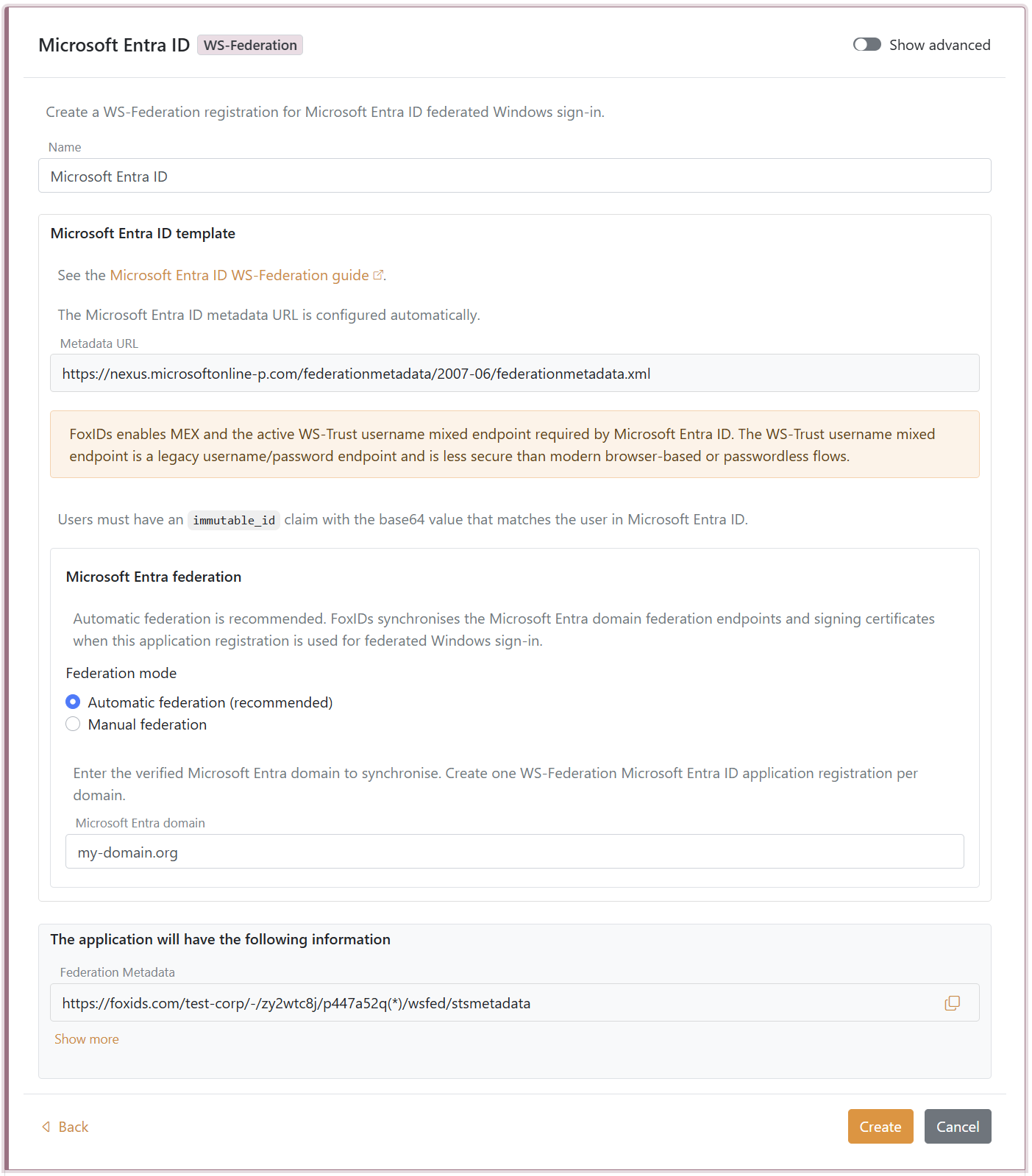
- Click Create.
- Click Set up Microsoft Entra federation.
If automatic federation is not available in a self-hosted deployment, configure the automatic Microsoft Entra ID sync app registration first or select Manual federation and configure Microsoft Entra ID manually.
2 - Grant consent and synchronise Microsoft Entra federation
Automatic federation uses Microsoft Graph to create or update the Microsoft Entra ID domain internalDomainFederation configuration. FoxIDs synchronises the WS-Federation endpoints, the MEX endpoint, the active WS-Trust endpoint, the primary signing certificate and the secondary signing certificate if one exists.
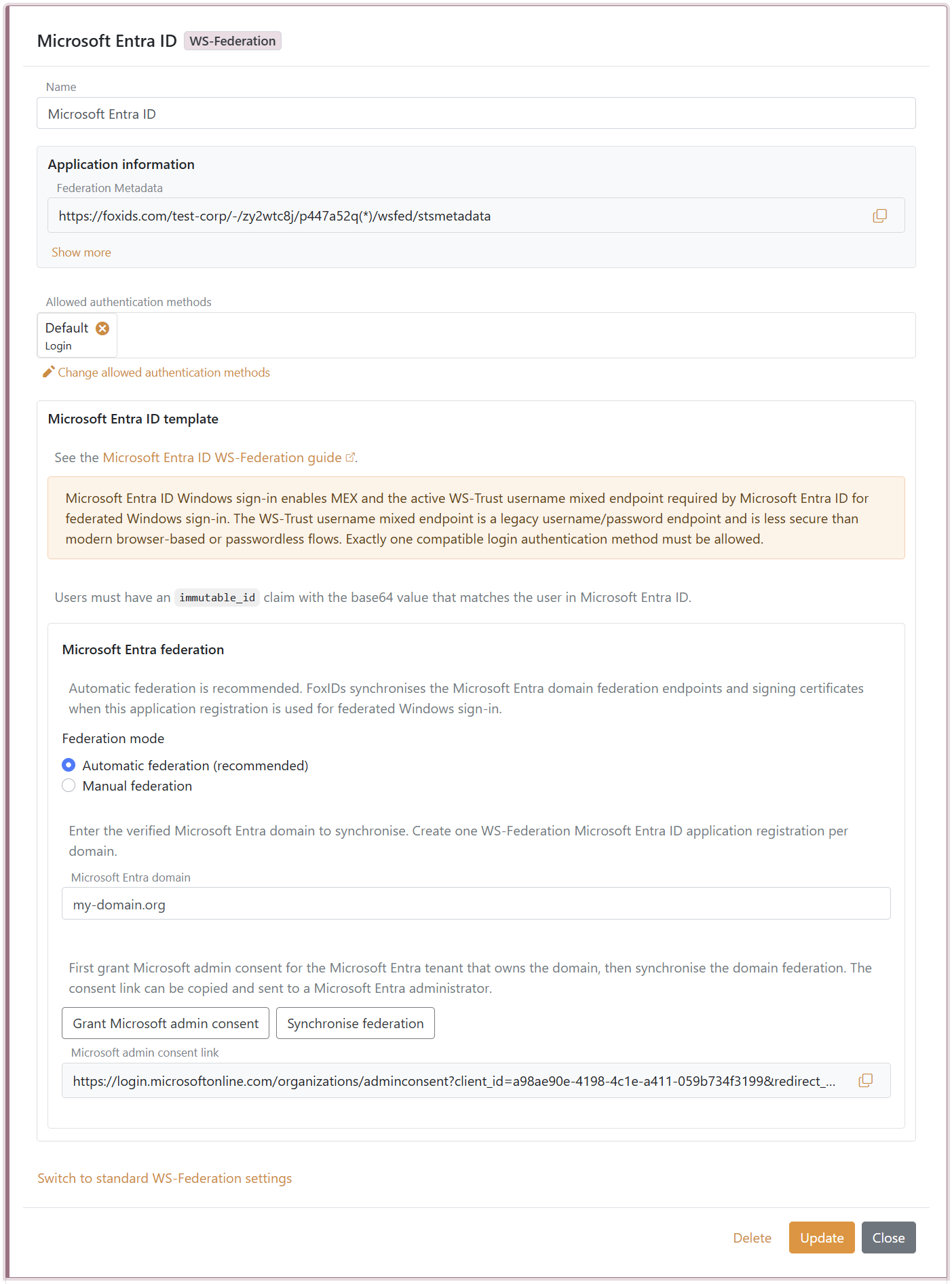
- In the Microsoft Entra ID template, click Grant Microsoft admin consent.
- Sign in as a Microsoft Entra administrator for the tenant that owns the domain and accept the consent.
- Return to FoxIDs Control.
- Click Synchronise federation.
- Verify that the synchronisation status is successful.
After the first successful synchronisation, Microsoft Entra ID trusts the FoxIDs WS-Federation application registration for the configured domain. FoxIDs also checks the federation during federated Windows sign-in and synchronises again if the signing certificate has changed or the previous synchronisation was not successful.
If synchronisation reports that the existing Microsoft Entra federation issuer does not match this FoxIDs application registration, review the domain ownership before choosing to take over the federation. Taking over changes the Microsoft Entra domain to trust this FoxIDs application registration.
3 - Configure the users' Immutable ID claims
Microsoft Entra ID expects an Immutable ID claim in the WS-Federation token. The claim value must match the user's onPremisesImmutableId in Microsoft Entra ID.
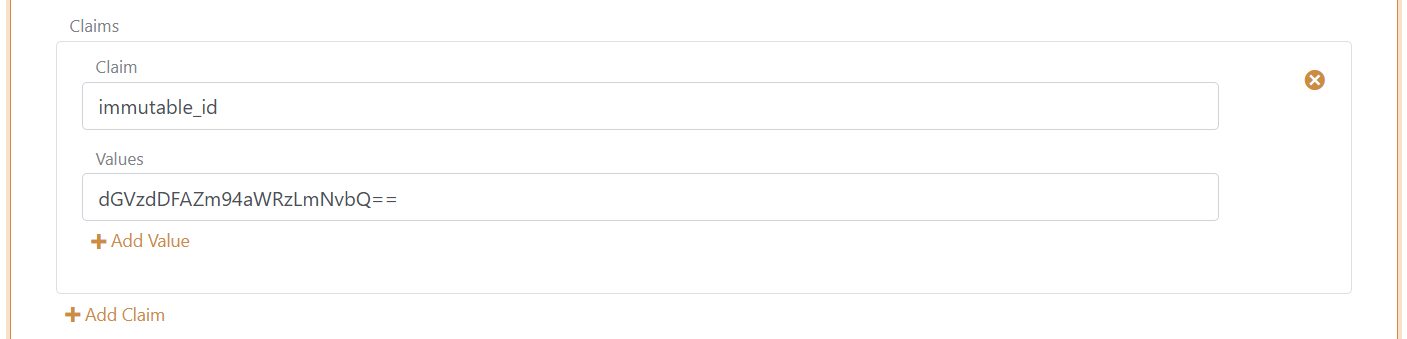
The Microsoft Entra ID template adds the required issue claims and claim transforms. You still need to make sure each user has an immutable_id claim with the base64 value that matches the user in Microsoft Entra ID.
Microsoft Entra ID documentation lists the UPN claim as part of the expected WS-Federation token claims. FoxIDs issues:
http://schemas.xmlsoap.org/ws/2005/05/identity/claims/upn
from the user's upn claim. User matching is normally based on the Immutable ID, but adding the UPN claim keeps the token aligned with Microsoft's expected WS-Federation claim set.
You need to set the user's Immutable ID as a claim in FoxIDs. To set the Immutable ID on an internal user, select the Users tab and then the Internal Users tab, find the user, and add a claim with the claim type
immutable_idand the value of the Immutable ID in Microsoft Entra ID. It should be base64 encoded. Theimmutable_idclaim type is mapped to the SAML claim URIhttp://schemas.foxids.com/ws/identity/claims/immutableidin FoxIDs. To issue the UPN claim for an internal user, add a claim with the claim typeupnand the user's Microsoft Entra ID user principal name, e.g.user@your-domain.com. FoxIDs maps the internalupnclaim tohttp://schemas.xmlsoap.org/ws/2005/05/identity/claims/upn. Manual FoxIDs configuration
Use manual configuration only if you do not use the Microsoft Entra ID template.
- Välj fliken Applikationer.
- Klicka på Ny applikation.
- Klicka på Visa alla alternativ.
- Klicka på Webbapplikation med märket WS-Federation.
- Lägg till Namn, t.ex.
Microsoft Entra ID. - Välj manuell konfiguration.
- Ställ in Application realm till
urn:federation:MicrosoftOnline. - Ställ in Svars-URL till
https://login.microsoftonline.com/login.srf. - Ställ in Utloggningsadress till
https://login.microsoftonline.com/login.srf. - Behåll Tokentyp som
SAML 1.1om inte Microsoft Entra ID är konfigurerat för en annan tokentyp. - Klicka på Skapa.
- Öppna programmet och aktivera Microsoft Entra ID Windows-inloggning under de avancerade WS-Federation-inställningarna.
Manual Immutable ID claim transform
Microsoft Entra ID förväntar sig ett Immutable ID-claims i WS-Federation-token. Claimssvärdet måste matcha användarens onPremisesImmutableId i Microsoft Entra ID.
- Klicka på Ändra applikation för att öppna applikationen i redigeringsläge.
- Välj fliken Claimsstransformer.
- Klicka på Lägg till claimssomvandling och klicka på Karta.
- Ställ in Nytt claims på
http://schemas.microsoft.com/LiveID/Federation/2008/05/ImmutableID. - Ställ in Välj claims till
http://schemas.foxids.com/ws/identity/claims/immutableid. - Klicka på Uppdatera.
Microsoft Entra ID-dokumentationen anger UPN-claimet som en del av den förväntade claimuppsättningen i WS-Federation-tokenet. FoxIDs utfärdar:
http://schemas.xmlsoap.org/ws/2005/05/identity/claims/upn
från användarens upn claim. Användarmatchning baseras normalt på Immutable ID, men UPN-claimet håller tokenet i linje med Microsofts förväntade WS-Federation-claimuppsättning.
Du måste ställa in användarens Immutable ID som ett claims i FoxIDs. För att ställa in det Immutable ID:t på en intern användare, välj fliken Användare och sedan fliken Interna användare, hitta användaren och lägg till ett claims med claimsstypen
immutable_idoch värdet på det Immutable ID:t i Microsoft Entra ID. Den ska vara base64-kodad.immutable_id-claimsstypen är mappad till SAML-claimss-URIhttp://schemas.foxids.com/ws/identity/claims/immutableidi FoxIDs. För att utfärda UPN-claimet för en intern användare, lägg till ett claim med claimtypenupnoch användarens Microsoft Entra ID user principal name, till exempeluser@your-domain.com. FoxIDs mappar det internaupnclaimet tillhttp://schemas.xmlsoap.org/ws/2005/05/identity/claims/upn.
Manual Microsoft Entra ID federation values
Öppna WS-Federation-applikationsregistreringen och kopiera de värden som behövs för Microsoft Entra ID-domänfederation:
- Federationsmetadata
- Realm / utfärdare
- Passiv inloggningsadress
- Utloggningsadress
- MEX slutpunkt
- Aktiv WS-Trust slutpunkt
Microsoft Entra ID läser FoxIDs signeringscertifikat från Federation Metadata URL. Därför kan du fortsätta att använda standard rullande FoxIDs certifikat. För federerad Windows-inloggning, använd MEX-slutpunkten som metadataExchangeUri och den aktiva WS-Trust-slutpunkten som activeSignInUri.
Konfigurera användarens Immutable ID
Användarens onPremisesImmutableId i Microsoft Entra ID måste matcha http://schemas.microsoft.com/LiveID/Federation/2008/05/ImmutableID-claimset som utfärdats av FoxIDs.
Microsoft beskriver AD FS Immutable ID-claimset i AD FS-hantering och anpassning-dokumentationen.
Konfigurera användarens Immutable ID med PowerShell
- Anslut till Microsoft Graph:
Connect-MgGraph -Scopes "User.ReadWrite.All" - Ställ in variablerna:
$userId = "user-id@your-domain.com" $immutableId = "immutable-id" - Konfigurera användarens Immutable ID:
Update-MgUser -UserId $userId -OnPremisesImmutableId $immutableId - Validera värdet:
Get-MgUser -UserId $userId | Format-List Id, UserPrincipalName, OnPremisesImmutableId
Om användaren redan har ett Immutable ID-uppsättning kan du behöva flytta bort användaren från den förenade domänen, uppdatera det Immutable ID:t och sedan flytta tillbaka användaren till den förenade domänen.
Konfigurera Microsoft Entra ID
Det är inte möjligt att konfigurera den här typen av Microsoft Entra ID-domänfederation i Microsoft Entra ID administratörscenter. Använd Microsoft Graph PowerShell eller Microsoft Graph API.
Microsoft Graph internalDomainFederation-resursen stöder både SAML och WS-Federation. För WS-Federation, ställ in preferredAuthenticationProtocol till wsFed. Se Microsofts Skapa internDomainFederation dokumentation.
Öppna PowerShell som administratör.
Installera Microsoft Graph PowerShell-modulen om den inte redan är installerad:
Install-Module -Name Microsoft.GraphInstallera valfritt för nuvarande användare:
Install-Module Microsoft.Graph -Scope CurrentUser -ForceAnslut till Microsoft Graph:
Connect-MgGraph -Scopes "Domain.ReadWrite.All,Directory.AccessAsUser.All"Ställ in konfigurationsvariablerna:
$domainId = "your-domain.com"
$displayName = FoxIDs
$issuerUri = "copied Realm / issuer from FoxIDs"
$metadataExchangeUri = "copied MEX endpoint from FoxIDs"
$passiveSignInUri = "copied Passive sign-in URL from FoxIDs"
$activeSignInUri = "copied Active WS-Trust endpoint from FoxIDs"
$signOutUri = "copied Sign-out URL from FoxIDs"
$signingCertificate = "copied IdP signing certificate from FoxIDs"
Konfigurera domänfederationen:
$params = @{ "@odata.type" = "#microsoft.graph.internalDomainFederation" displayName = $displayName issuerUri = $issuerUri metadataExchangeUri = $metadataExchangeUri passiveSignInUri = $passiveSignInUri activeSignInUri = $activeSignInUri preferredAuthenticationProtocol = "wsFed" signOutUri = $signOutUri federatedIdpMfaBehavior = "acceptIfMfaDoneByFederatedIdp" } New-MgDomainFederationConfiguration -DomainId $domainId -BodyParameter $paramsfederatedIdpMfaBehaviorkan ställas in på:acceptIfMfaDoneByFederatedIdp- Microsoft Entra ID accepterar MFA från FoxIDs; om FoxIDs inte gjorde MFA kan Microsoft Entra ID göra det.enforceMfaByFederatedIdp- Om en policy behöver MFA, skickar Microsoft Entra ID användaren tillbaka till FoxIDs för att slutföra MFA.rejectMfaByFederatedIdp- Microsoft Entra ID gör alltid MFA själv; MFA på FoxIDs ignoreras.
Validera konfigurationen:
Get-MgDomainFederationConfiguration -DomainId $domainId | Format-List
Get-MgDomain -DomainId $domainId | Format-List Id, AuthenticationType
Microsoft Entra ID använder
passiveSignInUriför webbaserade klienter ochactiveSignInUriför aktiva klienter som Microsoft Entra joined och Microsoft Entra hybrid joined Windows-enheter. Se Microsofts internDomainFederation-resurs-dokumentation för hela fastighetslistan.
If you configure Microsoft Entra ID manually, update the Microsoft Entra ID
signingCertificateandnextSigningCertificatevalues when FoxIDs signing certificates roll over. Automatic federation handles this for you.
Konfigurera automatisk Microsoft Entra ID-sync för self-hosting
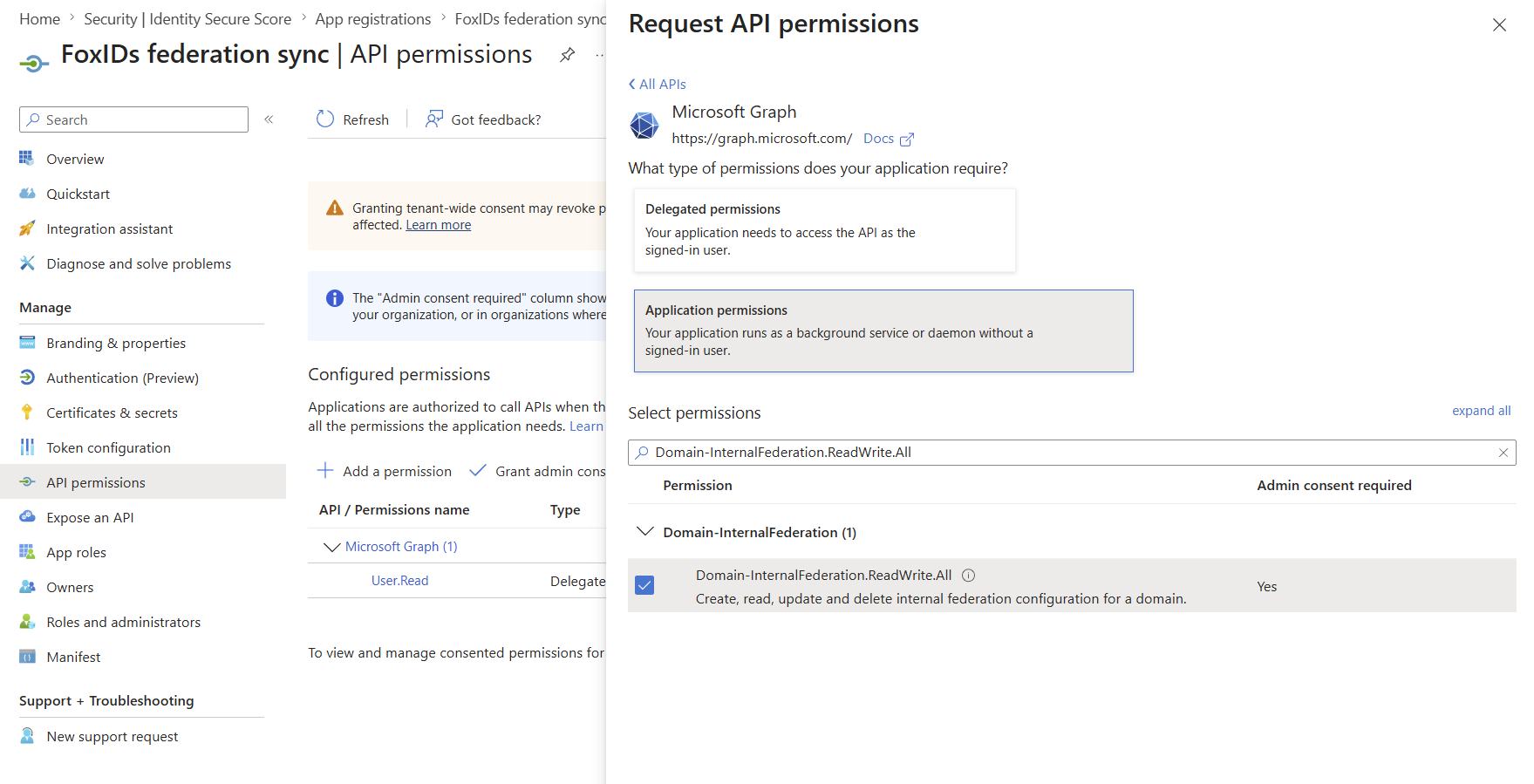
För self-hostade FoxIDs-deployments kräver automatisk Microsoft Entra ID federation sync en Microsoft Entra ID app registration som är konfigurerad i både FoxIDs runtime- och FoxIDs Control deployment-konfigurationen. FoxIDs använder app registrationen med client credentials flow för att anropa Microsoft Graph och skapa eller uppdatera domänens federationConfiguration.
App registrationen måste ha Microsoft Graph application permission Domain-InternalFederation.ReadWrite.All. Föredra certificate authentication genom att ladda upp det publika certifikatet till app registrationen och konfigurera FoxIDs med samma certifikat inklusive privat nyckel.
PFX är praktiskt för deployment-system som lagrar secrets som enradsvärden. PFX-lösenordet är valfritt; utelämna CertificatePfxPassword om PFX:en inte är lösenordsskyddad:
{
  "Settings": {
    "Modules": {
      "MicrosoftEntraIdSync": {
        "ClientId": "<application-client-id>",
        "CertificatePfx": "<base64-encoded-pfx>",
        "CertificatePfxPassword": "<optional-pfx-password>"
      }
    }
  }
}
Som environment variables:
Settings__Modules__MicrosoftEntraIdSync__ClientId=<application-client-id>
Settings__Modules__MicrosoftEntraIdSync__CertificatePfx=<base64-encoded-pfx>
Settings__Modules__MicrosoftEntraIdSync__CertificatePfxPassword=<optional-pfx-password>
Så här skapar du det base64-kodade PFX-värdet från ett PFX-certifikat utan lösenord:
$pfxPath = "C:\path\to\certificate.pfx"
$base64Pfx = [Convert]::ToBase64String([IO.File]::ReadAllBytes($pfxPath))
$base64Pfx | Set-Clipboard
PEM-certifikat och private key text kan också användas:
{
  "Settings": {
    "Modules": {
      "MicrosoftEntraIdSync": {
        "ClientId": "<application-client-id>",
        "CertificatePemCrt": "-----BEGIN CERTIFICATE-----\n...\n-----END CERTIFICATE-----",
        "CertificatePemKey": "-----BEGIN PRIVATE KEY-----\n...\n-----END PRIVATE KEY-----"
      }
    }
  }
}
Om inget certifikat är konfigurerat använder FoxIDs client secret authentication:
{
  "Settings": {
    "Modules": {
      "MicrosoftEntraIdSync": {
        "ClientId": "<application-client-id>",
        "ClientSecret": "<client-secret>"
      }
    }
  }
}
Som environment variables:
Settings__Modules__MicrosoftEntraIdSync__ClientId=<application-client-id>
Settings__Modules__MicrosoftEntraIdSync__ClientSecret=<client-secret>
Om ett certifikat är konfigurerat använder FoxIDs alltid certificate authentication och faller inte tillbaka till ClientSecret om certificate authentication misslyckas. Konfigurera antingen CertificatePfx eller både CertificatePemCrt och CertificatePemKey; konfigurera inte både PFX- och PEM-certifikatinställningar.