Connettiti a Microsoft Entra ID con WS-Federation
Utilizza FoxIDs come WS-Federation Security Token Service (STS) per un dominio Microsoft Entra ID federato e un accesso Windows federato.
I FoxIDs possono essere utilizzati come provider di identità federato per i dispositivi Windows aggiunti a Microsoft Entra e ibridi a Microsoft Entra.
In un ambiente federato, Microsoft Entra ID richiede il supporto WS-Federation e WS-Trust per l'accesso a Windows. FoxIDs espone i metadati WS-Federation, l'endpoint MEX e l'endpoint WS-Trust UsernameMixed attivo richiesto da questi flussi Windows e ID Entra di Microsoft. FoxIDs non unisce né registra dispositivi; la registrazione del dispositivo è gestita da Microsoft Entra ID e Windows.
Le organizzazioni che utilizzano AD FS per la federazione del dominio Microsoft Entra ID possono utilizzare FoxIDs per il ruolo di provider di identità federato descritto in questa guida.
Configura FoxIDs
Questa guida descrive come configurare i FoxIDs come servizio token di sicurezza per un dominio Microsoft Entra ID federato. Gli utenti sono connessi agli utenti Microsoft Entra ID con il loro Immutable ID.
1 - Create the Microsoft Entra ID WS-Federation application in FoxIDs Control Client
The recommended setup is to use the Connect to Microsoft Entra ID application template. The template enables Microsoft Entra ID Windows sign-in, configures the WS-Federation metadata URL, adds the required issue claim and claim transforms, and uses an application-specific issuer.
- Select the Applications tab.
- Click Add application.
- Select Connect to Microsoft Entra ID with the WS-Federation badge.
- Add the display name, e.g.
Microsoft Entra ID. - Select Automatic federation (recommended).
- Add the verified Microsoft Entra domain to synchronise.
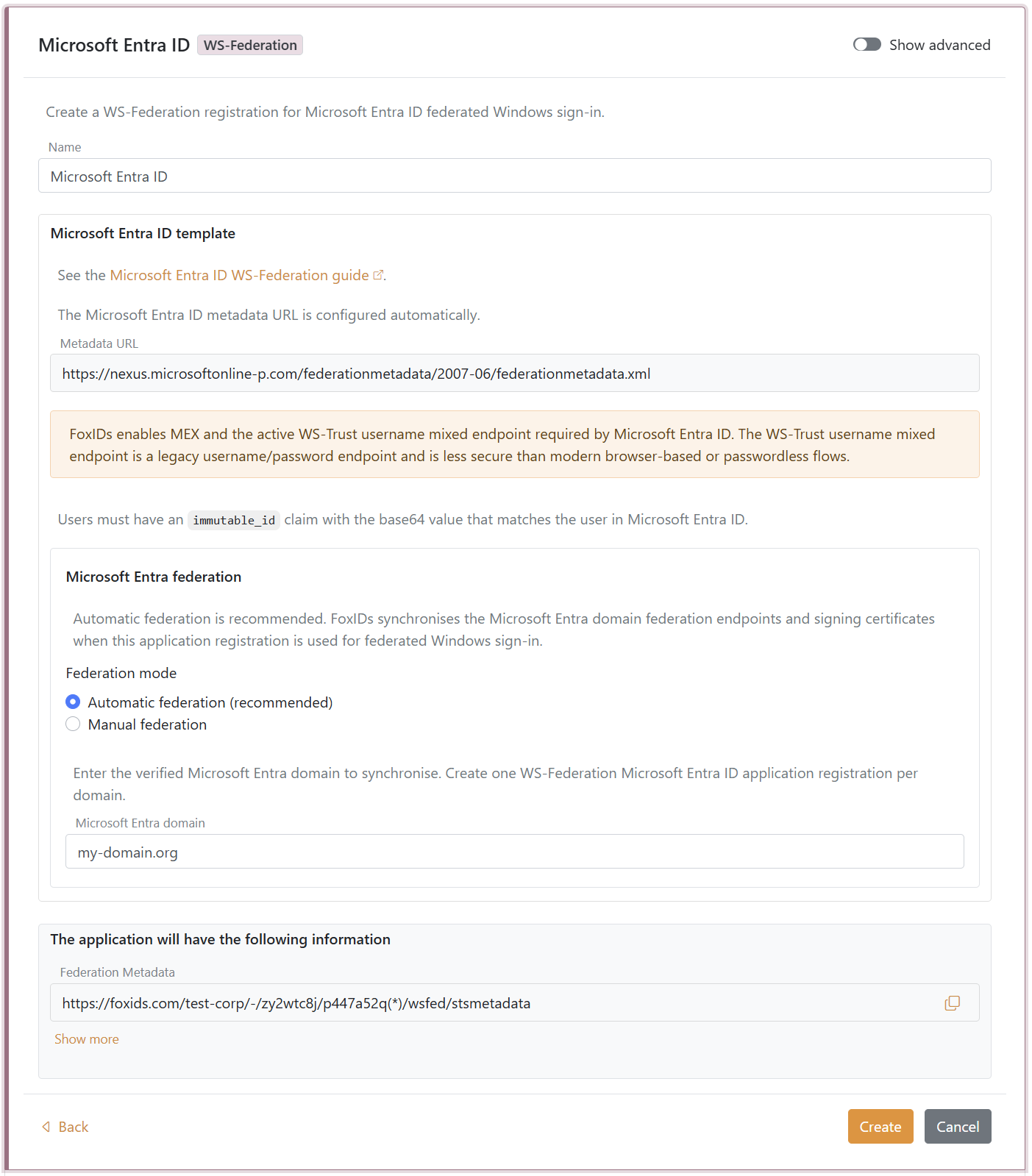
- Click Create.
- Click Set up Microsoft Entra federation.
If automatic federation is not available in a self-hosted deployment, configure the automatic Microsoft Entra ID sync app registration first or select Manual federation and configure Microsoft Entra ID manually.
2 - Grant consent and synchronise Microsoft Entra federation
Automatic federation uses Microsoft Graph to create or update the Microsoft Entra ID domain internalDomainFederation configuration. FoxIDs synchronises the WS-Federation endpoints, the MEX endpoint, the active WS-Trust endpoint, the primary signing certificate and the secondary signing certificate if one exists.
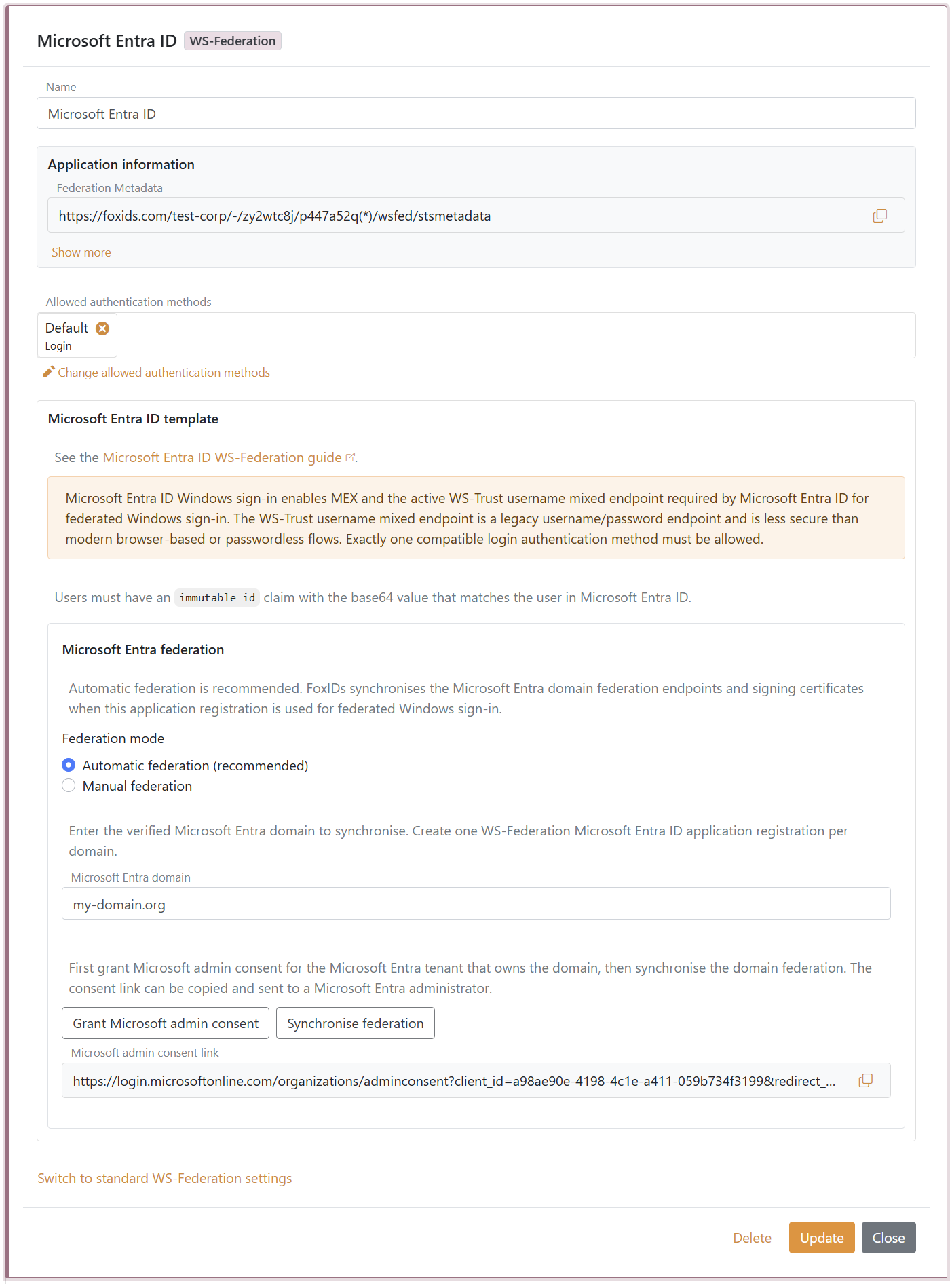
- In the Microsoft Entra ID template, click Grant Microsoft admin consent.
- Sign in as a Microsoft Entra administrator for the tenant that owns the domain and accept the consent.
- Return to FoxIDs Control.
- Click Synchronise federation.
- Verify that the synchronisation status is successful.
After the first successful synchronisation, Microsoft Entra ID trusts the FoxIDs WS-Federation application registration for the configured domain. FoxIDs also checks the federation during federated Windows sign-in and synchronises again if the signing certificate has changed or the previous synchronisation was not successful.
If synchronisation reports that the existing Microsoft Entra federation issuer does not match this FoxIDs application registration, review the domain ownership before choosing to take over the federation. Taking over changes the Microsoft Entra domain to trust this FoxIDs application registration.
3 - Configure the users' Immutable ID claims
Microsoft Entra ID expects an Immutable ID claim in the WS-Federation token. The claim value must match the user's onPremisesImmutableId in Microsoft Entra ID.
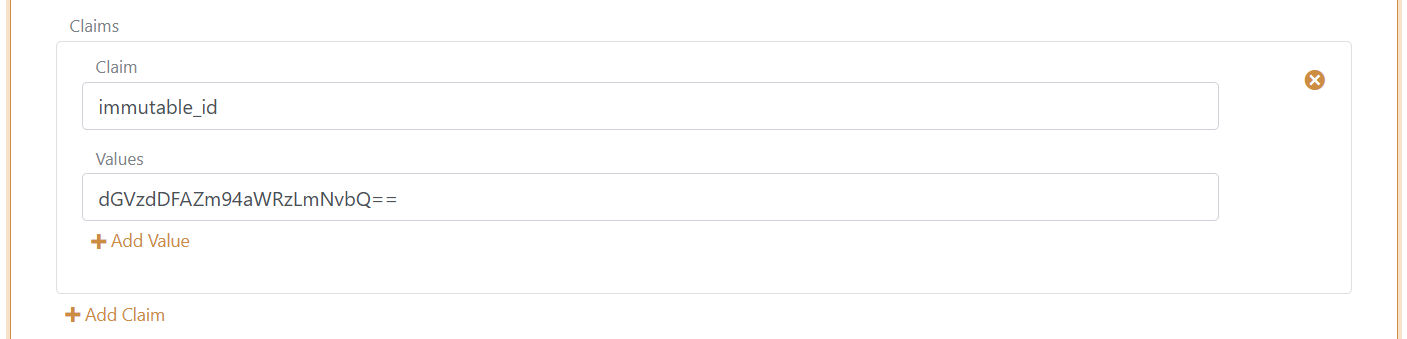
The Microsoft Entra ID template adds the required issue claims and claim transforms. You still need to make sure each user has an immutable_id claim with the base64 value that matches the user in Microsoft Entra ID.
Microsoft Entra ID documentation lists the UPN claim as part of the expected WS-Federation token claims. FoxIDs issues:
http://schemas.xmlsoap.org/ws/2005/05/identity/claims/upn
from the user's upn claim. User matching is normally based on the Immutable ID, but adding the UPN claim keeps the token aligned with Microsoft's expected WS-Federation claim set.
You need to set the user's Immutable ID as a claim in FoxIDs. To set the Immutable ID on an internal user, select the Users tab and then the Internal Users tab, find the user, and add a claim with the claim type
immutable_idand the value of the Immutable ID in Microsoft Entra ID. It should be base64 encoded. Theimmutable_idclaim type is mapped to the SAML claim URIhttp://schemas.foxids.com/ws/identity/claims/immutableidin FoxIDs. To issue the UPN claim for an internal user, add a claim with the claim typeupnand the user's Microsoft Entra ID user principal name, e.g.user@your-domain.com. FoxIDs maps the internalupnclaim tohttp://schemas.xmlsoap.org/ws/2005/05/identity/claims/upn. Manual FoxIDs configuration
Use manual configuration only if you do not use the Microsoft Entra ID template.
- Seleziona la scheda Applicazioni.
- Fai clic su Nuova applicazione.
- Fai clic su Mostra tutte le opzioni.
- Fai clic su Applicazione Web con il badge WS-Federation.
- Aggiungi il Nome, ad es.
Microsoft Entra ID. - Scegli la configurazione manuale.
- Imposta Ambito applicazione su
urn:federation:MicrosoftOnline. - Imposta URL di risposta su
https://login.microsoftonline.com/login.srf. - Imposta URL di disconnessione su
https://login.microsoftonline.com/login.srf. - Mantieni il Tipo token come
SAML 1.1a meno che l'Microsoft Entra ID non sia configurato per un altro tipo di token. - Fare clic su Crea.
- Apri l'applicazione e abilita Accesso Windows con Microsoft Entra ID nelle impostazioni avanzate di WS-Federation.
Manual Immutable ID claim transform
Microsoft Entra ID prevede un'attestazione Immutable ID nel token WS-Federation. Il valore dell'attestazione deve corrispondere al onPremisesImmutableId dell'utente nell'Microsoft Entra ID.
- Fai clic su Cambia applicazione per aprire l'applicazione in modalità di modifica.
- Selezionare la scheda Trasformazioni di attestazione.
- Fai clic su Aggiungi trasformazione attestazione e poi su Mappa.
- Imposta Nuova richiesta su
http://schemas.microsoft.com/LiveID/Federation/2008/05/ImmutableID. - Imposta Seleziona reclamo su
http://schemas.foxids.com/ws/identity/claims/immutableid. - Fai clic su Aggiorna.
La documentazione di Microsoft Entra ID elenca l'attestazione UPN come parte del set di attestazioni previsto per il token WS-Federation. FoxIDs emette:
http://schemas.xmlsoap.org/ws/2005/05/identity/claims/upn
dall'attestazione upn dell'utente. La corrispondenza dell'utente normalmente si basa sull'Immutable ID, ma l'aggiunta dell'attestazione UPN mantiene il token allineato al set di attestazioni WS-Federation previsto da Microsoft.
È necessario impostare l'Immutable ID dell'utente come attestazione in FoxIDs. Per impostare l'Immutable ID su un utente interno, selezionare la scheda Utenti e quindi la scheda Utenti interni, trovare l'utente e aggiungere un'attestazione con il tipo di attestazione
immutable_ide il valore dell'Immutable ID in Microsoft Entra ID. Dovrebbe essere codificato base64. Il tipo di attestazioneimmutable_idè mappato all'URI dell'attestazione SAMLhttp://schemas.foxids.com/ws/identity/claims/immutableidnei FoxIDs. Per emettere l'attestazione UPN per un utente interno, aggiungi un'attestazione con tipoupne il user principal name Microsoft Entra ID dell'utente, ad esempiouser@your-domain.com. FoxIDs mappa l'attestazione internaupnahttp://schemas.xmlsoap.org/ws/2005/05/identity/claims/upn.
Manual Microsoft Entra ID federation values
Apri la registrazione dell'applicazione WS-Federation e copia i valori necessari per la federazione del dominio ID Entra Microsoft:
- Metadati della federazione
- Regno / emittente
- URL di accesso passivo
- URL di uscita
- Endpoint MEX
- Endpoint WS-Trust attivo
Microsoft Entra ID legge i certificati di firma FoxIDs dall'URL dei metadati della federazione. Pertanto, puoi continuare a utilizzare i certificati FoxIDs predefiniti. Per l'accesso Windows federato, utilizzare l'endpoint MEX come metadataExchangeUri e l'endpoint WS-Trust attivo come activeSignInUri.
Configura l'Immutable ID dell'utente
L'onPremisesImmutableId dell'utente nell'Microsoft Entra ID deve corrispondere all'attestazione http://schemas.microsoft.com/LiveID/Federation/2008/05/ImmutableID emessa da FoxIDs.
Microsoft descrive l'attestazione Immutable ID di AD FS nella documentazione Gestione e personalizzazione di ADFS.
Configura l'Immutable ID dell'utente con PowerShell
- Connettiti a Microsoft Graph:
Connect-MgGraph -Scopes "User.ReadWrite.All" - Imposta le variabili:
$userId = "user-id@your-domain.com" $immutableId = "immutable-id" - Configura l'Immutable ID dell'utente:
Update-MgUser -UserId $userId -OnPremisesImmutableId $immutableId - Convalidare il valore:
Get-MgUser -UserId $userId | Format-List Id, UserPrincipalName, OnPremisesImmutableId
Se l'utente dispone già di un Immutable ID impostato, potrebbe essere necessario allontanare l'utente dal dominio federato, aggiornare l'Immutable ID e quindi riportare l'utente nel dominio federato.
Configura Microsoft Entra ID
Non è possibile configurare questo tipo di federazione del dominio Microsoft Entra ID in Interfaccia di amministrazione dell'Microsoft Entra ID. Utilizza Microsoft Graph PowerShell o Microsoft Graph API.
La risorsa Microsoft Graph internalDomainFederation supporta sia SAML che WS-Federation. Per WS-Federation, impostare preferredAuthenticationProtocol su wsFed. Consulta la documentazione Crea una federazione di domini interni di Microsoft.
Apri PowerShell come amministratore.
Installa il modulo Microsoft Graph PowerShell se non è già installato:
Install-Module -Name Microsoft.GraphFacoltativamente installa per l'utente corrente:
Install-Module Microsoft.Graph -Scope CurrentUser -ForceConnettiti a Microsoft Graph:
Connect-MgGraph -Scopes "Domain.ReadWrite.All,Directory.AccessAsUser.All"Imposta le variabili di configurazione:
$domainId = "your-domain.com"
$displayName = FoxIDs
$issuerUri = "copied Realm / issuer from FoxIDs"
$metadataExchangeUri = "copied MEX endpoint from FoxIDs"
$passiveSignInUri = "copied Passive sign-in URL from FoxIDs"
$activeSignInUri = "copied Active WS-Trust endpoint from FoxIDs"
$signOutUri = "copied Sign-out URL from FoxIDs"
$signingCertificate = "copied IdP signing certificate from FoxIDs"
Configura la federazione del dominio:
$params = @{ "@odata.type" = "#microsoft.graph.internalDomainFederation" displayName = $displayName issuerUri = $issuerUri metadataExchangeUri = $metadataExchangeUri passiveSignInUri = $passiveSignInUri activeSignInUri = $activeSignInUri preferredAuthenticationProtocol = "wsFed" signOutUri = $signOutUri federatedIdpMfaBehavior = "acceptIfMfaDoneByFederatedIdp" } New-MgDomainFederationConfiguration -DomainId $domainId -BodyParameter $paramsfederatedIdpMfaBehaviorpuò essere impostato su:acceptIfMfaDoneByFederatedIdp: Microsoft Entra ID accetta MFA da FoxIDs; se FoxIDs non ha eseguito l'MFA, Microsoft Entra ID può farlo.enforceMfaByFederatedIdp: se un criterio necessita di MFA, Microsoft Entra ID rimanda l'utente a FoxIDs per completare l'AMF.rejectMfaByFederatedIdp: Microsoft Entra ID esegue sempre l'AMF stessa; L'MFA su FoxIDs viene ignorata.
Convalidare la configurazione:
Get-MgDomainFederationConfiguration -DomainId $domainId | Format-List
Get-MgDomain -DomainId $domainId | Format-List Id, AuthenticationType
L'Microsoft Entra ID utilizza
passiveSignInUriper i client basati sul Web eactiveSignInUriper i client attivi come i dispositivi Windows aggiunti a Microsoft Entra e i dispositivi Windows aggiunti a Microsoft Entra. Consulta la documentazione risorsa internalDomainFederation di Microsoft per l'elenco completo delle proprietà.
If you configure Microsoft Entra ID manually, update the Microsoft Entra ID
signingCertificateandnextSigningCertificatevalues when FoxIDs signing certificates roll over. Automatic federation handles this for you.
Configurare la sincronizzazione automatica di Microsoft Entra ID per self-hosting
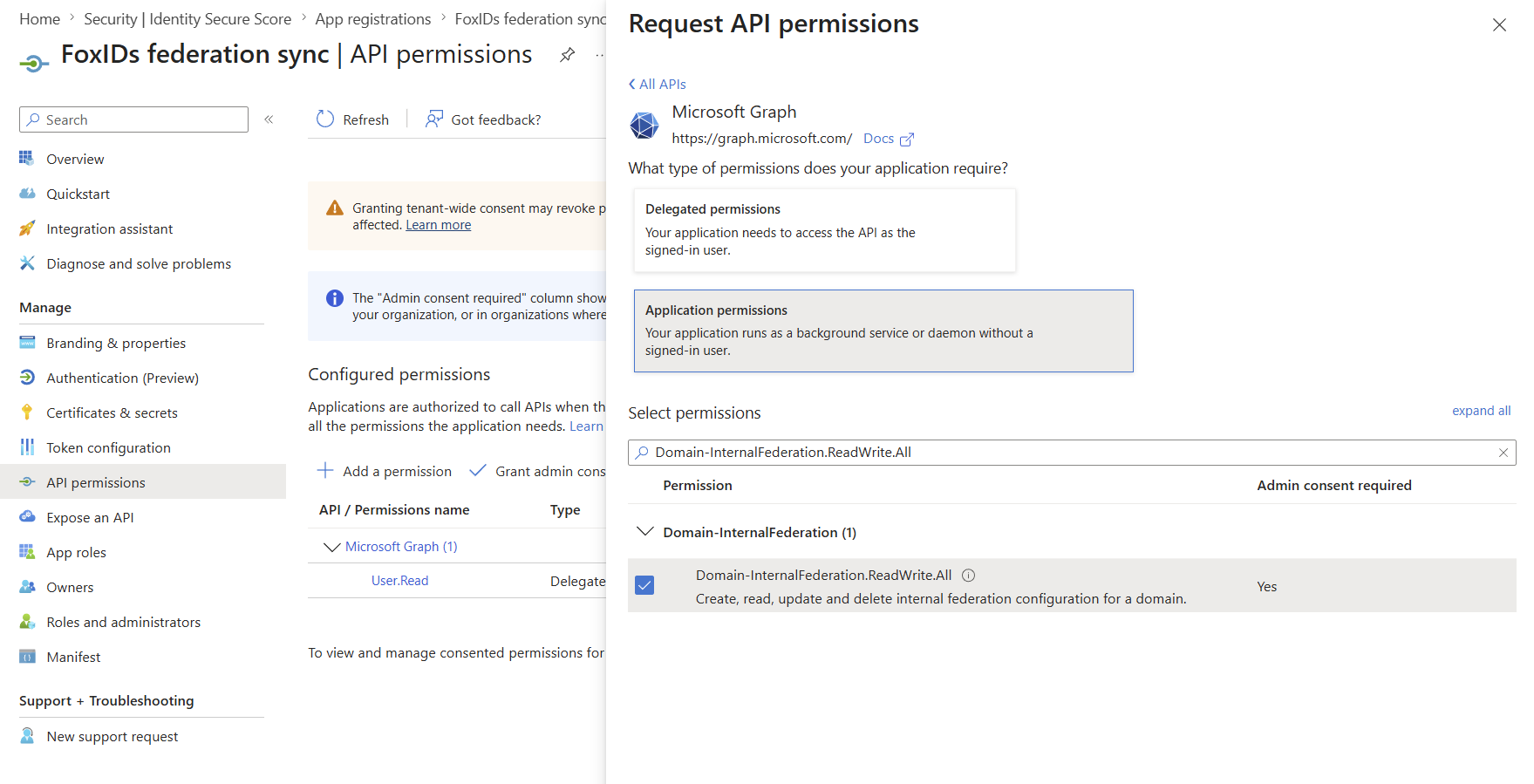
Per deployment FoxIDs self-hosted, la Microsoft Entra ID federation sync automatica richiede una Microsoft Entra ID app registration configurata sia nella configurazione del deployment FoxIDs runtime sia in quella di FoxIDs Control. FoxIDs usa l'app registration con il client credentials flow per chiamare Microsoft Graph e creare o aggiornare la federationConfiguration del dominio.
L'app registration deve avere la Microsoft Graph application permission Domain-InternalFederation.ReadWrite.All. Preferire certificate authentication caricando il certificato pubblico nell'app registration e configurando FoxIDs con lo stesso certificato incluso il private key.
PFX è pratico per i sistemi di deployment che archiviano secrets come valori su una sola riga. La password PFX è facoltativa; omettere CertificatePfxPassword se il PFX non è protetto da password:
{
  "Settings": {
    "Modules": {
      "MicrosoftEntraIdSync": {
        "ClientId": "<application-client-id>",
        "CertificatePfx": "<base64-encoded-pfx>",
        "CertificatePfxPassword": "<optional-pfx-password>"
      }
    }
  }
}
Come environment variables:
Settings__Modules__MicrosoftEntraIdSync__ClientId=<application-client-id>
Settings__Modules__MicrosoftEntraIdSync__CertificatePfx=<base64-encoded-pfx>
Settings__Modules__MicrosoftEntraIdSync__CertificatePfxPassword=<optional-pfx-password>
Per creare il valore PFX codificato in base64 da un certificato PFX senza password:
$pfxPath = "C:\path\to\certificate.pfx"
$base64Pfx = [Convert]::ToBase64String([IO.File]::ReadAllBytes($pfxPath))
$base64Pfx | Set-Clipboard
È possibile usare anche certificato PEM e testo del private key:
{
  "Settings": {
    "Modules": {
      "MicrosoftEntraIdSync": {
        "ClientId": "<application-client-id>",
        "CertificatePemCrt": "-----BEGIN CERTIFICATE-----\n...\n-----END CERTIFICATE-----",
        "CertificatePemKey": "-----BEGIN PRIVATE KEY-----\n...\n-----END PRIVATE KEY-----"
      }
    }
  }
}
Se non è configurato alcun certificato, FoxIDs usa client secret authentication:
{
  "Settings": {
    "Modules": {
      "MicrosoftEntraIdSync": {
        "ClientId": "<application-client-id>",
        "ClientSecret": "<client-secret>"
      }
    }
  }
}
Come environment variables:
Settings__Modules__MicrosoftEntraIdSync__ClientId=<application-client-id>
Settings__Modules__MicrosoftEntraIdSync__ClientSecret=<client-secret>
Se è configurato un certificato, FoxIDs usa sempre certificate authentication e non torna a ClientSecret se certificate authentication fallisce. Configurare CertificatePfx oppure sia CertificatePemCrt sia CertificatePemKey; non configurare insieme impostazioni certificato PFX e PEM.