Połącz z Microsoft Entra ID za pomocą WS-Federation
Używaj identyfikatorów FoxIDs jako usługi WS-Federation Security Token Service (STS) dla federacyjnej domeny Microsoft Entra ID i federacyjnego logowania do systemu Windows.
FoxIDs może być używany jako federacyjny dostawca tożsamości dla urządzeń z systemem Windows przyłączonych do Microsoft Entra i hybrydowych Microsoft Entra.
W środowisku stowarzyszonym Microsoft Entra ID wymaga obsługi WS-Federation i WS-Trust do logowania się w systemie Windows. FoxIDs udostępnia metadane WS-Federation, punkt końcowy MEX i aktywny punkt końcowy WS-Trust UsernameMixed wymagane przez te Microsoft Entra ID i przepływy systemu Windows. FoxIDs nie łączy ani nie rejestruje urządzeń; rejestracja urządzenia obsługiwana jest przez Microsoft Entra ID i Windows.
Organizacje korzystające z usług AD FS dla federacji domen Microsoft Entra ID mogą używać identyfikatorów FoxIDs dla roli dostawcy tożsamości federacyjnej opisanej w tym przewodniku.
Skonfiguruj FoxIDs
W tym przewodniku opisano sposób konfigurowania identyfikatorów FoxIDs jako STS dla federacyjnej domeny Microsoft Entra ID. Użytkownicy są połączeni z użytkownikami Microsoft Entra ID za pomocą ich Immutable ID.
1 - Create the Microsoft Entra ID WS-Federation application in FoxIDs Control Client
The recommended setup is to use the Connect to Microsoft Entra ID application template. The template enables Microsoft Entra ID Windows sign-in, configures the WS-Federation metadata URL, adds the required issue claim and claim transforms, and uses an application-specific issuer.
- Select the Applications tab.
- Click Add application.
- Select Connect to Microsoft Entra ID with the WS-Federation badge.
- Add the display name, e.g.
Microsoft Entra ID. - Select Automatic federation (recommended).
- Add the verified Microsoft Entra domain to synchronise.
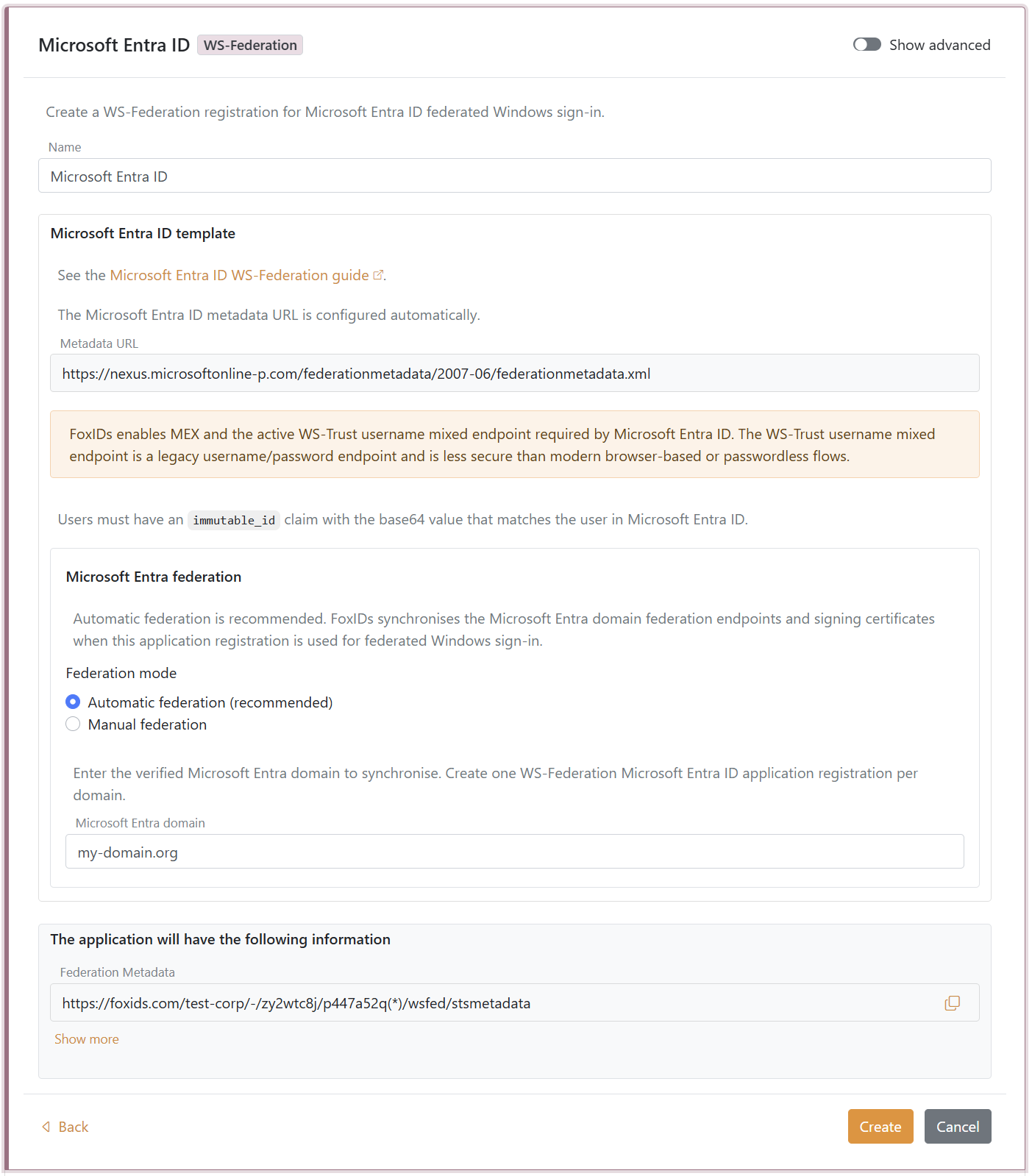
- Click Create.
- Click Set up Microsoft Entra federation.
If automatic federation is not available in a self-hosted deployment, configure the automatic Microsoft Entra ID sync app registration first or select Manual federation and configure Microsoft Entra ID manually.
2 - Grant consent and synchronise Microsoft Entra federation
Automatic federation uses Microsoft Graph to create or update the Microsoft Entra ID domain internalDomainFederation configuration. FoxIDs synchronises the WS-Federation endpoints, the MEX endpoint, the active WS-Trust endpoint, the primary signing certificate and the secondary signing certificate if one exists.
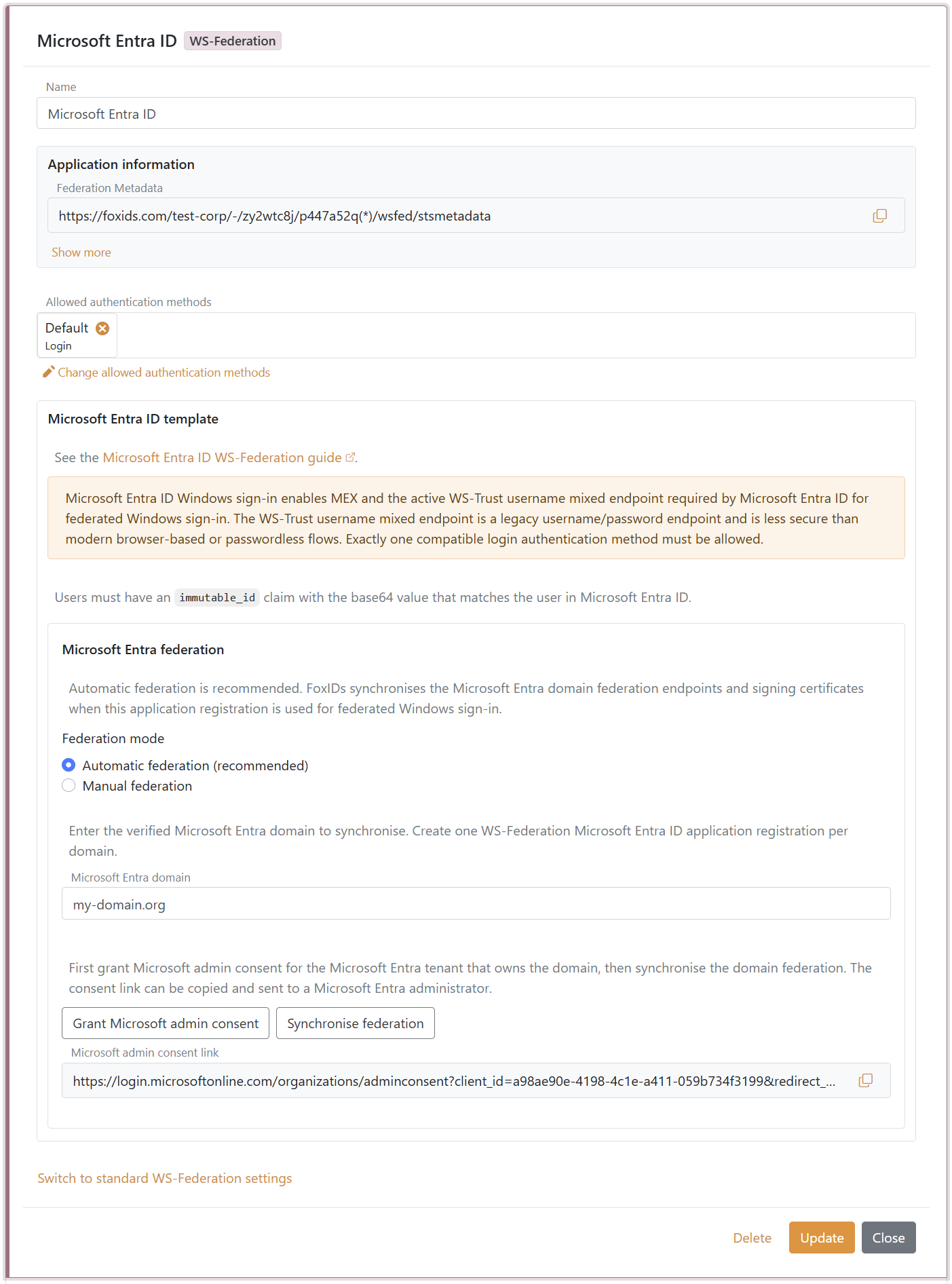
- In the Microsoft Entra ID template, click Grant Microsoft admin consent.
- Sign in as a Microsoft Entra administrator for the tenant that owns the domain and accept the consent.
- Return to FoxIDs Control.
- Click Synchronise federation.
- Verify that the synchronisation status is successful.
After the first successful synchronisation, Microsoft Entra ID trusts the FoxIDs WS-Federation application registration for the configured domain. FoxIDs also checks the federation during federated Windows sign-in and synchronises again if the signing certificate has changed or the previous synchronisation was not successful.
If synchronisation reports that the existing Microsoft Entra federation issuer does not match this FoxIDs application registration, review the domain ownership before choosing to take over the federation. Taking over changes the Microsoft Entra domain to trust this FoxIDs application registration.
3 - Configure the users' Immutable ID claims
Microsoft Entra ID expects an Immutable ID claim in the WS-Federation token. The claim value must match the user's onPremisesImmutableId in Microsoft Entra ID.
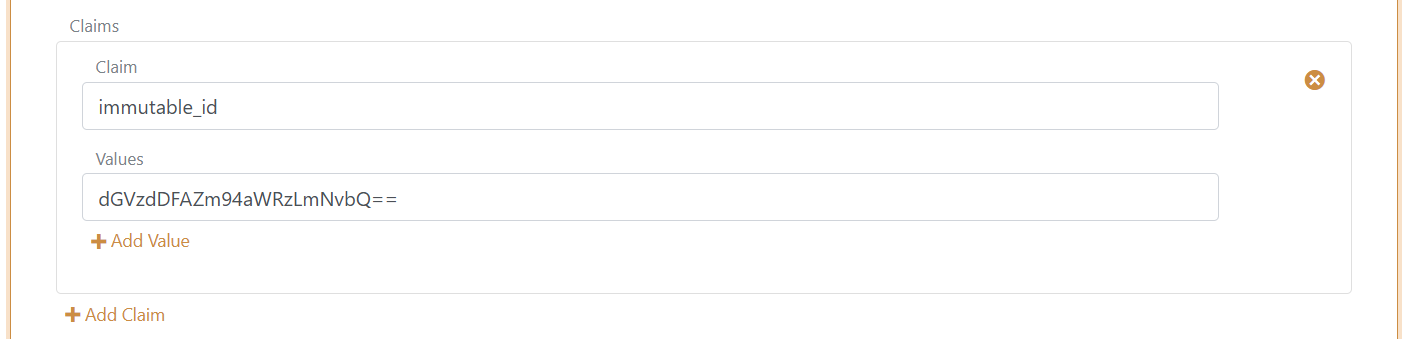
The Microsoft Entra ID template adds the required issue claims and claim transforms. You still need to make sure each user has an immutable_id claim with the base64 value that matches the user in Microsoft Entra ID.
Microsoft Entra ID documentation lists the UPN claim as part of the expected WS-Federation token claims. FoxIDs issues:
http://schemas.xmlsoap.org/ws/2005/05/identity/claims/upn
from the user's upn claim. User matching is normally based on the Immutable ID, but adding the UPN claim keeps the token aligned with Microsoft's expected WS-Federation claim set.
You need to set the user's Immutable ID as a claim in FoxIDs. To set the Immutable ID on an internal user, select the Users tab and then the Internal Users tab, find the user, and add a claim with the claim type
immutable_idand the value of the Immutable ID in Microsoft Entra ID. It should be base64 encoded. Theimmutable_idclaim type is mapped to the SAML claim URIhttp://schemas.foxids.com/ws/identity/claims/immutableidin FoxIDs. To issue the UPN claim for an internal user, add a claim with the claim typeupnand the user's Microsoft Entra ID user principal name, e.g.user@your-domain.com. FoxIDs maps the internalupnclaim tohttp://schemas.xmlsoap.org/ws/2005/05/identity/claims/upn. Manual FoxIDs configuration
Use manual configuration only if you do not use the Microsoft Entra ID template.
- Wybierz zakładkę Aplikacje.
- Kliknij Nowa aplikacja.
- Kliknij Pokaż wszystkie opcje.
- Kliknij Aplikacja internetowa ze znaczkiem WS-Federation.
- Dodaj Nazwę, np.
Microsoft Entra ID. - Wybierz konfigurację ręczną.
- Ustaw Dziedzina aplikacji na
urn:federation:MicrosoftOnline. - Ustaw Adres URL odpowiedzi na
https://login.microsoftonline.com/login.srf. - Ustaw URL wylogowania na
https://login.microsoftonline.com/login.srf. - Zachowaj Typ tokena jako
SAML 1.1, chyba że Microsoft Entra ID jest skonfigurowany dla innego typu tokena. - Kliknij Utwórz.
- Otwórz aplikację i włącz Logowanie Microsoft Entra ID Windows w zaawansowanych ustawieniach WS-Federation.
Manual Immutable ID claim transform
Microsoft Entra ID oczekuje żądania Immutable ID w tokenie WS-Federation. Wartość oświadczenia musi odpowiadać onPremisesImmutableId użytkownika w Microsoft Entra ID.
- Kliknij Zmień aplikację, aby otworzyć aplikację w trybie edycji.
- Wybierz zakładkę Przekształcenia roszczeń.
- Kliknij Dodaj transformację oświadczenia i kliknij Mapa.
- Ustaw Nowe roszczenie na
http://schemas.microsoft.com/LiveID/Federation/2008/05/ImmutableID. - Ustaw Wybierz roszczenie na
http://schemas.foxids.com/ws/identity/claims/immutableid. - Kliknij Aktualizuj.
Dokumentacja Microsoft Entra ID wymienia oświadczenie UPN jako część oczekiwanego zestawu oświadczeń tokenu WS-Federation. FoxIDs wystawia:
http://schemas.xmlsoap.org/ws/2005/05/identity/claims/upn
z oświadczenia upn użytkownika. Dopasowanie użytkownika zwykle opiera się na Immutable ID, ale dodanie oświadczenia UPN utrzymuje token zgodny z oczekiwanym przez Microsoft zestawem oświadczeń WS-Federation.
Musisz ustawić Immutable ID użytkownika jako żądanie w identyfikatorach FoxIDs. Aby ustawić Niezmienny ID dla użytkownika wewnętrznego, wybierz zakładkę Użytkownicy, a następnie zakładkę Użytkownicy wewnętrzni, znajdź użytkownika i dodaj roszczenie z typem oświadczenia
immutable_idi wartością Niezmiennego ID w Microsoft Entra ID. Powinien być zakodowany w formacie Base64. Typ żądaniaimmutable_idjest mapowany na identyfikator URI oświadczenia SAMLhttp://schemas.foxids.com/ws/identity/claims/immutableidw identyfikatorach FoxIDs. Aby wystawić oświadczenie UPN dla użytkownika wewnętrznego, dodaj oświadczenie z typemupnoraz user principal name użytkownika w Microsoft Entra ID, na przykładuser@your-domain.com. FoxIDs mapuje wewnętrzne oświadczenieupnnahttp://schemas.xmlsoap.org/ws/2005/05/identity/claims/upn.
Manual Microsoft Entra ID federation values
Otwórz rejestrację aplikacji WS-Federation i skopiuj wartości potrzebne do federacji domeny Microsoft Entra ID:
- Metadane Federacji
- Kraina / emitent
- Pasywny adres URL logowania
- Adres URL wylogowania
- Punkt końcowy MEX
- Aktywny punkt końcowy WS-Trust
Microsoft Entra ID odczytuje certyfikaty podpisywania FoxIDs z adresu URL metadanych federacji. Dlatego możesz nadal korzystać z domyślnych, kroczących certyfikatów FoxIDs. W przypadku federacyjnego logowania do systemu Windows użyj punktu końcowego MEX jako metadataExchangeUri i aktywnego punktu końcowego WS-Trust jako activeSignInUri.
Skonfiguruj Immutable ID użytkownika
Identyfikator onPremisesImmutableId użytkownika w Microsoft Entra ID musi odpowiadać twierdzeniu http://schemas.microsoft.com/LiveID/Federation/2008/05/ImmutableID wydanemu przez FoxIDs.
Firma Microsoft opisuje roszczenie o Immutable ID programu AD FS w dokumentacji Zarządzanie i dostosowywanie usług AD FS.
Skonfiguruj Immutable ID użytkownika za pomocą programu PowerShell
- Połącz się z Microsoft Graph:
Connect-MgGraph -Scopes "User.ReadWrite.All" - Skonfiguruj zmienne:
$userId = "user-id@your-domain.com" $immutableId = "immutable-id" - Skonfiguruj Immutable ID użytkownika:
Update-MgUser -UserId $userId -OnPremisesImmutableId $immutableId - Zatwierdź wartość:
Get-MgUser -UserId $userId | Format-List Id, UserPrincipalName, OnPremisesImmutableId
Jeśli użytkownik ma już ustawiony Immutable ID, może być konieczne przeniesienie go z domeny stowarzyszonej, zaktualizowanie Immutable ID, a następnie przeniesienie użytkownika z powrotem do domeny stowarzyszonej.
Skonfiguruj Microsoft Entra ID
Nie ma możliwości skonfigurowania tego typu federacji domeny Microsoft Entra ID w Centrum administracyjne Microsoft Entra ID. Użyj Microsoft Graph PowerShell lub Microsoft Graph API.
Zasób Microsoft Graph internalDomainFederation obsługuje zarówno SAML, jak i WS-Federation. W przypadku WS-Federation ustaw preferredAuthenticationProtocol na wsFed. Zobacz dokumentację Utwórz wewnętrzną federację domeny firmy Microsoft.
Otwórz PowerShell jako administrator.
Zainstaluj moduł Wykres Microsoftu PowerShell, jeśli nie został jeszcze zainstalowany:
Install-Module -Name Microsoft.GraphOpcjonalnie zainstaluj dla bieżącego użytkownika:
Install-Module Microsoft.Graph -Scope CurrentUser -ForcePołącz się z Microsoft Graph:
Connect-MgGraph -Scopes "Domain.ReadWrite.All,Directory.AccessAsUser.All"Skonfiguruj zmienne konfiguracyjne:
$domainId = "your-domain.com"
$displayName = FoxIDs
$issuerUri = "copied Realm / issuer from FoxIDs"
$metadataExchangeUri = "copied MEX endpoint from FoxIDs"
$passiveSignInUri = "copied Passive sign-in URL from FoxIDs"
$activeSignInUri = "copied Active WS-Trust endpoint from FoxIDs"
$signOutUri = "copied Sign-out URL from FoxIDs"
$signingCertificate = "copied IdP signing certificate from FoxIDs"
Skonfiguruj federację domeny:
$params = @{ "@odata.type" = "#microsoft.graph.internalDomainFederation" displayName = $displayName issuerUri = $issuerUri metadataExchangeUri = $metadataExchangeUri passiveSignInUri = $passiveSignInUri activeSignInUri = $activeSignInUri preferredAuthenticationProtocol = "wsFed" signOutUri = $signOutUri federatedIdpMfaBehavior = "acceptIfMfaDoneByFederatedIdp" } New-MgDomainFederationConfiguration -DomainId $domainId -BodyParameter $paramsfederatedIdpMfaBehaviormożna ustawić na:acceptIfMfaDoneByFederatedIdp— Microsoft Entra ID akceptuje MFA od FoxIDs; jeśli FoxIDs nie wykonał MFA, Microsoft Entra ID może to zrobić.enforceMfaByFederatedIdp— jeśli zasada wymaga MFA, Microsoft Entra ID odsyła użytkownika z powrotem do FoxIDs w celu dokończenia MFA.rejectMfaByFederatedIdp- Microsoft Entra ID zawsze sam wykonuje MFA; Usługa MFA w FoxIDs jest ignorowana.
Zatwierdź konfigurację:
Get-MgDomainFederationConfiguration -DomainId $domainId | Format-List
Get-MgDomain -DomainId $domainId | Format-List Id, AuthenticationType
Microsoft Entra ID używa
passiveSignInUriw przypadku klientów internetowych iactiveSignInUriw przypadku aktywnych klientów, takich jak podłączone do Microsoft Entra i urządzenia z systemem Windows dołączone do hybrydowej Microsoft Entra. Pełną listę właściwości można znaleźć w dokumentacji zasób internalDomainFederation firmy Microsoft.
If you configure Microsoft Entra ID manually, update the Microsoft Entra ID
signingCertificateandnextSigningCertificatevalues when FoxIDs signing certificates roll over. Automatic federation handles this for you.
Konfigurowanie automatycznej synchronizacji Microsoft Entra ID dla self-hostingu
W self-hosted wdrożeniach FoxIDs automatyczna Microsoft Entra ID federation sync wymaga Microsoft Entra ID app registration skonfigurowanej zarówno w konfiguracji wdrożenia FoxIDs runtime, jak i FoxIDs Control. FoxIDs używa app registration z client credentials flow do wywoływania Microsoft Graph oraz tworzenia lub aktualizowania domenowej federationConfiguration.
App registration musi mieć Microsoft Graph application permission Domain-InternalFederation.ReadWrite.All. Zalecane jest certificate authentication: prześlij certyfikat publiczny do app registration i skonfiguruj FoxIDs z tym samym certyfikatem wraz z kluczem prywatnym.
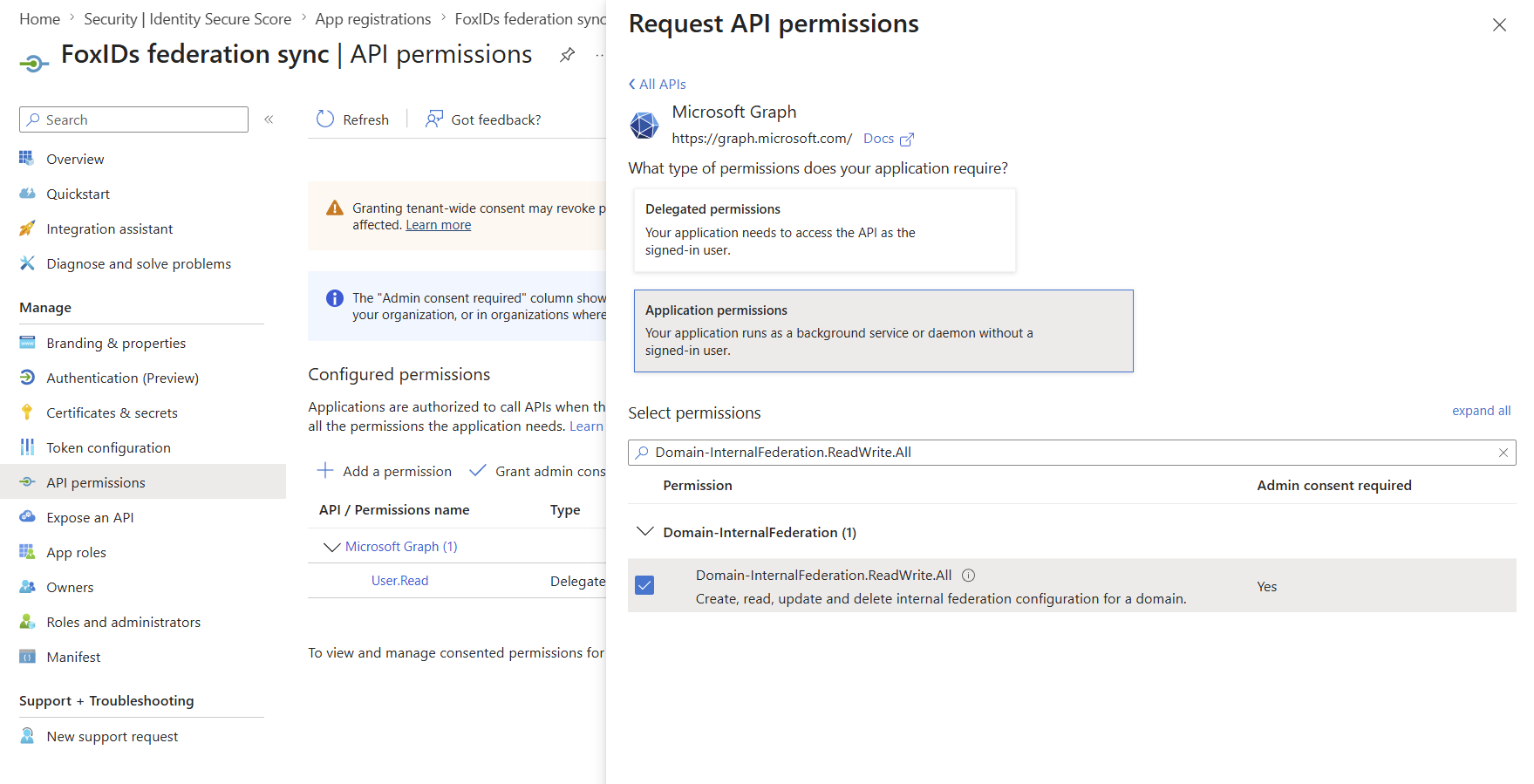
PFX jest wygodny dla systemów deployment, które przechowują secrets jako wartości jednoliniowe. Hasło PFX jest opcjonalne; pomiń CertificatePfxPassword, jeśli PFX nie jest chroniony hasłem:
{
  "Settings": {
    "Modules": {
      "MicrosoftEntraIdSync": {
        "ClientId": "<application-client-id>",
        "CertificatePfx": "<base64-encoded-pfx>",
        "CertificatePfxPassword": "<optional-pfx-password>"
      }
    }
  }
}
Jako environment variables:
Settings__Modules__MicrosoftEntraIdSync__ClientId=<application-client-id>
Settings__Modules__MicrosoftEntraIdSync__CertificatePfx=<base64-encoded-pfx>
Settings__Modules__MicrosoftEntraIdSync__CertificatePfxPassword=<optional-pfx-password>
Aby utworzyć zakodowaną w base64 wartość PFX z certyfikatu PFX bez hasła:
$pfxPath = "C:\path\to\certificate.pfx"
$base64Pfx = [Convert]::ToBase64String([IO.File]::ReadAllBytes($pfxPath))
$base64Pfx | Set-Clipboard
Można również użyć certyfikatu PEM i tekstu private key:
{
  "Settings": {
    "Modules": {
      "MicrosoftEntraIdSync": {
        "ClientId": "<application-client-id>",
        "CertificatePemCrt": "-----BEGIN CERTIFICATE-----\n...\n-----END CERTIFICATE-----",
        "CertificatePemKey": "-----BEGIN PRIVATE KEY-----\n...\n-----END PRIVATE KEY-----"
      }
    }
  }
}
Jeśli certyfikat nie jest skonfigurowany, FoxIDs używa client secret authentication:
{
  "Settings": {
    "Modules": {
      "MicrosoftEntraIdSync": {
        "ClientId": "<application-client-id>",
        "ClientSecret": "<client-secret>"
      }
    }
  }
}
Jako environment variables:
Settings__Modules__MicrosoftEntraIdSync__ClientId=<application-client-id>
Settings__Modules__MicrosoftEntraIdSync__ClientSecret=<client-secret>
Jeśli certyfikat jest skonfigurowany, FoxIDs zawsze używa certificate authentication i nie wraca do ClientSecret, gdy certificate authentication się nie powiedzie. Skonfiguruj albo CertificatePfx, albo zarówno CertificatePemCrt, jak i CertificatePemKey; nie konfiguruj jednocześnie ustawień certyfikatu PFX i PEM.