Maak verbinding met Microsoft Entra ID met WS-Federation
Gebruik FoxIDs als WS-Federation Security Token Service (STS) voor een federatief Microsoft Entra ID-domein en federatieve Windows-aanmelding.
FoxIDs kunnen worden gebruikt als federatieve identiteitsprovider voor Microsoft Entra-aangesloten en Microsoft Entra-hybride aangesloten Windows-apparaten.
In een federatieve omgeving vereist Microsoft Entra ID ondersteuning voor WS-Federation en WS-Trust voor aanmelding bij Windows. FoxIDs onthult de WS-Federation-metagegevens, het MEX-eindpunt en het actieve WS-Trust UsernameMixed-eindpunt dat vereist is voor deze Microsoft Entra ID- en Windows-stromen. FoxIDs voegt geen apparaten toe en registreert deze niet; apparaatregistratie wordt afgehandeld door Microsoft Entra ID en Windows.
Organisaties die AD FS gebruiken voor Microsoft Entra ID-domeinfederatie kunnen FoxIDs gebruiken voor de rol van federatieve identiteitsprovider die in deze handleiding wordt beschreven.
Configureer FoxIDs
In deze handleiding wordt beschreven hoe u FoxIDs configureert als de STS voor een federatief Microsoft Entra ID-domein. Gebruikers zijn verbonden met Microsoft Entra ID-gebruikers met hun Immutable ID.
1 - Create the Microsoft Entra ID WS-Federation application in FoxIDs Control Client
The recommended setup is to use the Connect to Microsoft Entra ID application template. The template enables Microsoft Entra ID Windows sign-in, configures the WS-Federation metadata URL, adds the required issue claim and claim transforms, and uses an application-specific issuer.
- Select the Applications tab.
- Click Add application.
- Select Connect to Microsoft Entra ID with the WS-Federation badge.
- Add the display name, e.g.
Microsoft Entra ID. - Select Automatic federation (recommended).
- Add the verified Microsoft Entra domain to synchronise.
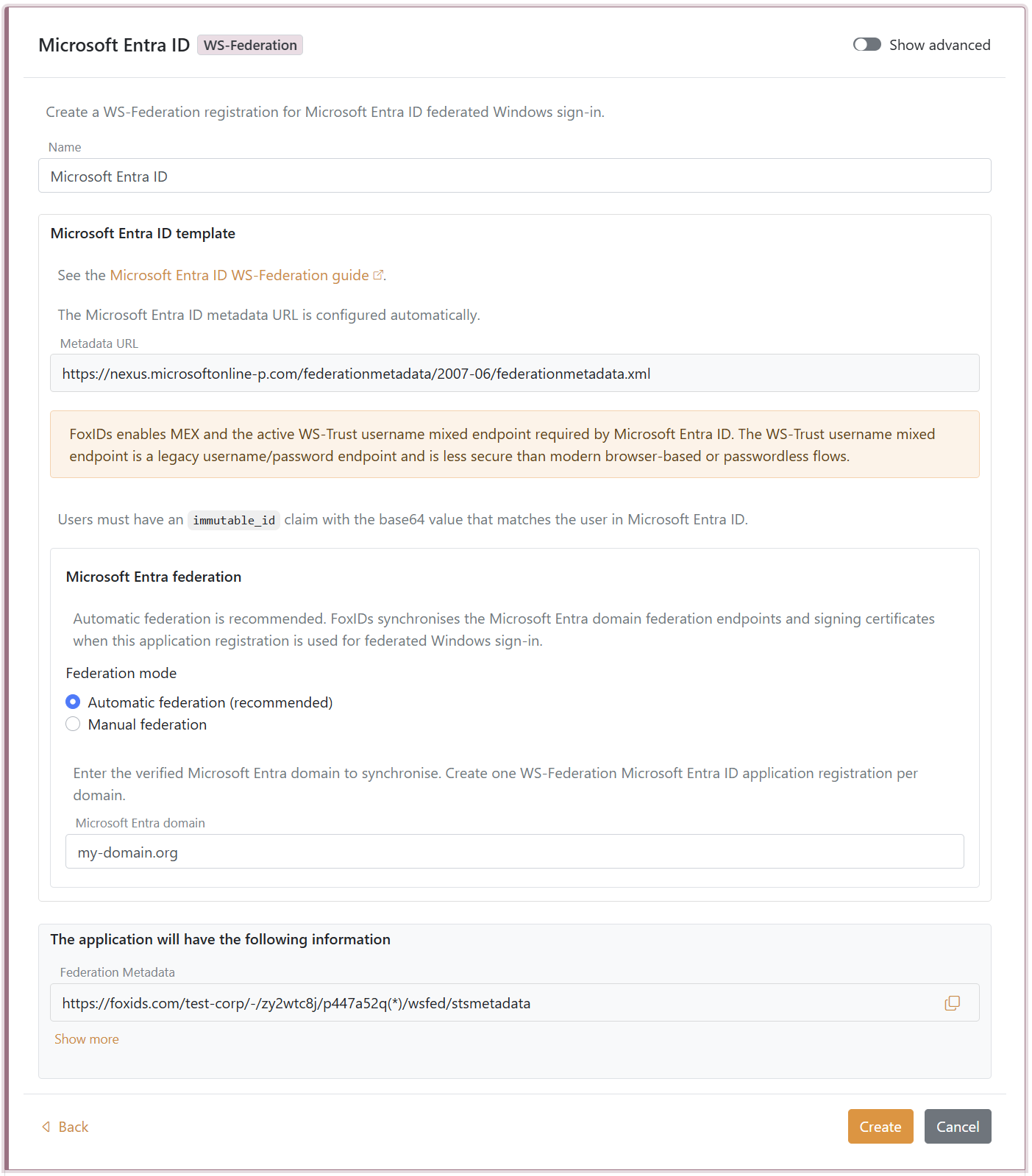
- Click Create.
- Click Set up Microsoft Entra federation.
If automatic federation is not available in a self-hosted deployment, configure the automatic Microsoft Entra ID sync app registration first or select Manual federation and configure Microsoft Entra ID manually.
2 - Grant consent and synchronise Microsoft Entra federation
Automatic federation uses Microsoft Graph to create or update the Microsoft Entra ID domain internalDomainFederation configuration. FoxIDs synchronises the WS-Federation endpoints, the MEX endpoint, the active WS-Trust endpoint, the primary signing certificate and the secondary signing certificate if one exists.
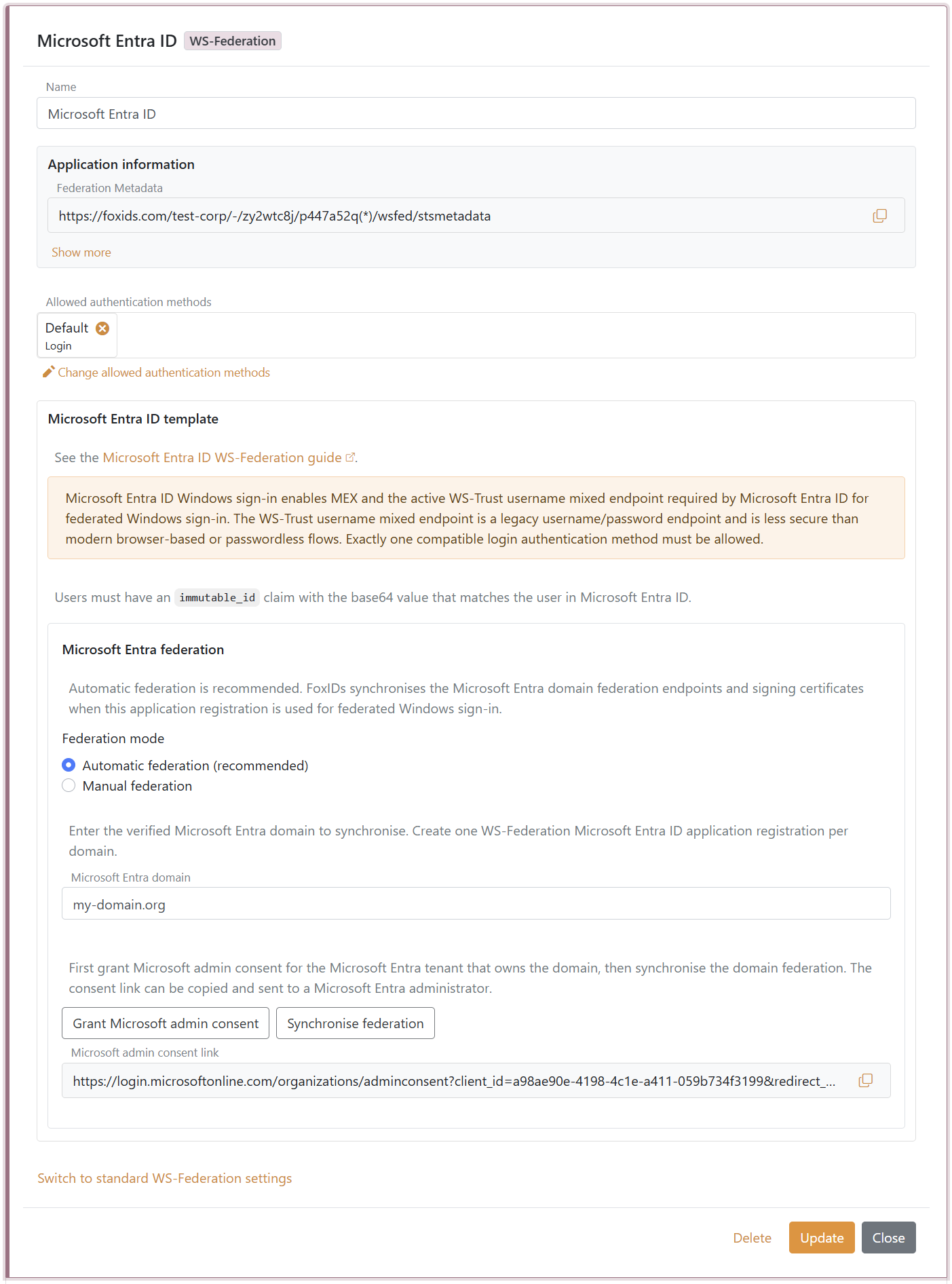
- In the Microsoft Entra ID template, click Grant Microsoft admin consent.
- Sign in as a Microsoft Entra administrator for the tenant that owns the domain and accept the consent.
- Return to FoxIDs Control.
- Click Synchronise federation.
- Verify that the synchronisation status is successful.
After the first successful synchronisation, Microsoft Entra ID trusts the FoxIDs WS-Federation application registration for the configured domain. FoxIDs also checks the federation during federated Windows sign-in and synchronises again if the signing certificate has changed or the previous synchronisation was not successful.
If synchronisation reports that the existing Microsoft Entra federation issuer does not match this FoxIDs application registration, review the domain ownership before choosing to take over the federation. Taking over changes the Microsoft Entra domain to trust this FoxIDs application registration.
3 - Configure the users' Immutable ID claims
Microsoft Entra ID expects an Immutable ID claim in the WS-Federation token. The claim value must match the user's onPremisesImmutableId in Microsoft Entra ID.
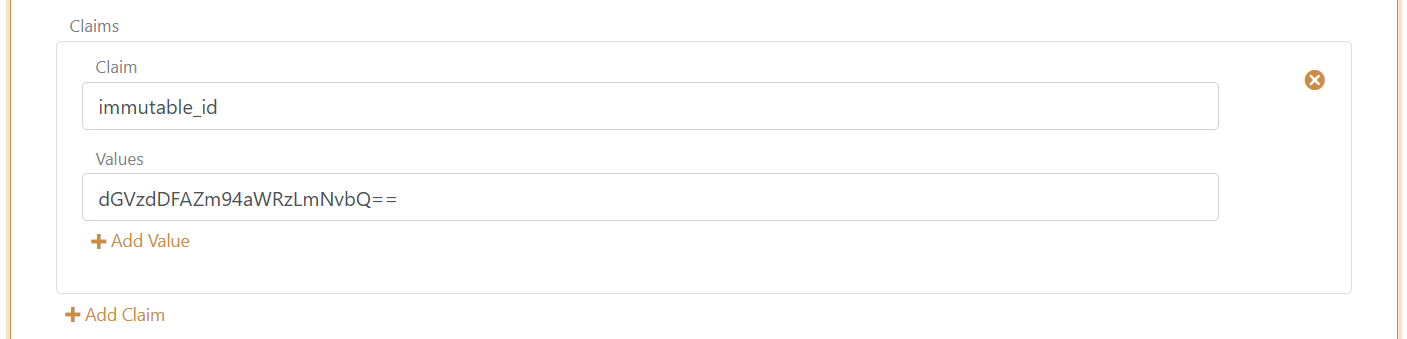
The Microsoft Entra ID template adds the required issue claims and claim transforms. You still need to make sure each user has an immutable_id claim with the base64 value that matches the user in Microsoft Entra ID.
Microsoft Entra ID documentation lists the UPN claim as part of the expected WS-Federation token claims. FoxIDs issues:
http://schemas.xmlsoap.org/ws/2005/05/identity/claims/upn
from the user's upn claim. User matching is normally based on the Immutable ID, but adding the UPN claim keeps the token aligned with Microsoft's expected WS-Federation claim set.
You need to set the user's Immutable ID as a claim in FoxIDs. To set the Immutable ID on an internal user, select the Users tab and then the Internal Users tab, find the user, and add a claim with the claim type
immutable_idand the value of the Immutable ID in Microsoft Entra ID. It should be base64 encoded. Theimmutable_idclaim type is mapped to the SAML claim URIhttp://schemas.foxids.com/ws/identity/claims/immutableidin FoxIDs. To issue the UPN claim for an internal user, add a claim with the claim typeupnand the user's Microsoft Entra ID user principal name, e.g.user@your-domain.com. FoxIDs maps the internalupnclaim tohttp://schemas.xmlsoap.org/ws/2005/05/identity/claims/upn. Manual FoxIDs configuration
Use manual configuration only if you do not use the Microsoft Entra ID template.
- Selecteer het tabblad Toepassingen.
- Klik op Nieuwe aanvraag.
- Klik op Alle opties weergeven.
- Klik op Webapplicatie met de badge WS-Federation.
- Voeg de Naam toe, b.v.
Microsoft Entra ID. - Kies handmatige configuratie.
- Stel Applicatiedomein in op
urn:federation:MicrosoftOnline. - Stel Antwoord-URL in op
https://login.microsoftonline.com/login.srf. - Stel Uitlog-URL in op
https://login.microsoftonline.com/login.srf. - Behoud Tokentype als
SAML 1.1, tenzij Microsoft Entra ID is geconfigureerd voor een ander tokentype. - Klik op Maken.
- Open de applicatie en schakel Microsoft Entra ID Windows sign-in in onder de geavanceerde WS-Federation-instellingen.
Manual Immutable ID claim transform
Microsoft Entra ID verwacht een Immutable ID-claim in het WS-Federation-token. De claimwaarde moet overeenkomen met onPremisesImmutableId van de gebruiker in Microsoft Entra ID.
- Klik op Applicatie wijzigen om de applicatie in de bewerkingsmodus te openen.
- Selecteer het tabblad Claimtransformaties.
- Klik op Claimtransformatie toevoegen en klik op Kaart.
- Stel Nieuwe claim in op
http://schemas.microsoft.com/LiveID/Federation/2008/05/ImmutableID. - Stel Selecteer claim in op
http://schemas.foxids.com/ws/identity/claims/immutableid. - Klik op Bijwerken.
De Microsoft Entra ID-documentatie vermeldt de UPN-claim als onderdeel van de verwachte WS-Federation-tokenclaims. FoxIDs geeft uit:
http://schemas.xmlsoap.org/ws/2005/05/identity/claims/upn
vanuit de upn-claim van de gebruiker. Gebruikersmatching is normaal gebaseerd op de Immutable ID, maar het toevoegen van de UPN-claim houdt het token in lijn met de door Microsoft verwachte WS-Federation-claims.
U moet de Immutable ID van de gebruiker instellen als claim in FoxIDs. Als u de Immutable ID voor een interne gebruiker wilt instellen, selecteert u het tabblad Gebruikers en vervolgens het tabblad Interne gebruikers, zoekt u de gebruiker en voegt u een claim toe met het claimtype
immutable_iden de waarde van de Immutable ID in Microsoft Entra ID. Het moet base64-gecodeerd zijn. Het claimtypeimmutable_idwordt toegewezen aan de SAML-claim-URIhttp://schemas.foxids.com/ws/identity/claims/immutableidin FoxIDs. Om de UPN-claim voor een interne gebruiker uit te geven, voegt u een claim toe met claimtypeupnen de Microsoft Entra ID user principal name van de gebruiker, bijvoorbeelduser@your-domain.com. FoxIDs mapt de interneupn-claim naarhttp://schemas.xmlsoap.org/ws/2005/05/identity/claims/upn.
Manual Microsoft Entra ID federation values
Open de registratie van de WS-Federation-applicatie en kopieer de waarden die nodig zijn voor Microsoft Entra ID-domeinfederatie:
- Federatie-metagegevens
- Realm / uitgever
- Passieve inlog-URL
- Uitlog-URL
- MEX-eindpunt
- Actief WS-Trust-eindpunt
Microsoft Entra ID leest de FoxIDs ondertekeningscertificaten van de Federatie Metadata-URL. Daarom kunt u de standaard rollende FoxIDs certificaten blijven gebruiken. Voor federatieve Windows-aanmelding gebruikt u het MEX-eindpunt als metadataExchangeUri en het actieve WS-Trust-eindpunt als activeSignInUri.
Configureer de Immutable ID van de gebruiker
De onPremisesImmutableId van de gebruiker in Microsoft Entra ID moet overeenkomen met de http://schemas.microsoft.com/LiveID/Federation/2008/05/ImmutableID claim uitgegeven door FoxIDs.
Microsoft beschrijft de AD FS Immutable ID-claim in de AD FS-beheer en maatwerk-documentatie.
Configureer de Immutable ID van de gebruiker met PowerShell
- Verbinding maken met Microsoft Graph:
Connect-MgGraph -Scopes "User.ReadWrite.All" - Stel de variabelen in:
$userId = "user-id@your-domain.com" $immutableId = "immutable-id" - Configureer de Immutable ID van de gebruiker:
Update-MgUser -UserId $userId -OnPremisesImmutableId $immutableId - Valideer de waarde:
Get-MgUser -UserId $userId | Format-List Id, UserPrincipalName, OnPremisesImmutableId
Als de gebruiker al een Immutable ID heeft ingesteld, moet u de gebruiker mogelijk uit het federatieve domein verplaatsen, de Immutable ID bijwerken en de gebruiker vervolgens terugverplaatsen naar het federatieve domein.
Configureer Microsoft Entra ID
Het is niet mogelijk om dit type Microsoft Entra ID-domeinfederatie te configureren in de Microsoft Entra ID-beheercentrum.. Gebruik Microsoft Graph PowerShell of Microsoft Graph API.
De Microsoft Graph internalDomainFederation bron ondersteunt zowel SAML als WS-Federation. Voor WS-Federation stelt u preferredAuthenticationProtocol in op wsFed. Zie de Maak een interneDomainFederation-documentatie van Microsoft.
Open PowerShell als beheerder.
Installeer de Microsoft Grafiek PowerShell-module als deze nog niet is geïnstalleerd:
Install-Module -Name Microsoft.GraphOptioneel installeren voor huidige gebruiker:
Install-Module Microsoft.Graph -Scope CurrentUser -ForceVerbinding maken met Microsoft Graph:
Connect-MgGraph -Scopes "Domain.ReadWrite.All,Directory.AccessAsUser.All"Stel de configuratievariabelen in:
$domainId = "your-domain.com"
$displayName = FoxIDs
$issuerUri = "copied Realm / issuer from FoxIDs"
$metadataExchangeUri = "copied MEX endpoint from FoxIDs"
$passiveSignInUri = "copied Passive sign-in URL from FoxIDs"
$activeSignInUri = "copied Active WS-Trust endpoint from FoxIDs"
$signOutUri = "copied Sign-out URL from FoxIDs"
$signingCertificate = "copied IdP signing certificate from FoxIDs"
Configureer de domeinfederatie:
$params = @{ "@odata.type" = "#microsoft.graph.internalDomainFederation" displayName = $displayName issuerUri = $issuerUri metadataExchangeUri = $metadataExchangeUri passiveSignInUri = $passiveSignInUri activeSignInUri = $activeSignInUri preferredAuthenticationProtocol = "wsFed" signOutUri = $signOutUri federatedIdpMfaBehavior = "acceptIfMfaDoneByFederatedIdp" } New-MgDomainFederationConfiguration -DomainId $domainId -BodyParameter $paramsfederatedIdpMfaBehaviorkan worden ingesteld op:acceptIfMfaDoneByFederatedIdp- Microsoft Entra ID accepteert MFA van FoxIDs; als FoxIDs geen MFA deden, kan Microsoft Entra ID het wel doen.enforceMfaByFederatedIdp- Als een beleid MFA nodig heeft, stuurt Microsoft Entra ID de gebruiker terug naar FoxIDs om MFA te voltooien.rejectMfaByFederatedIdp- Microsoft Entra ID doet MFA altijd zelf; MFA bij FoxIDs wordt genegeerd.
Valideer de configuratie:
Get-MgDomainFederationConfiguration -DomainId $domainId | Format-List
Get-MgDomain -DomainId $domainId | Format-List Id, AuthenticationType
Microsoft Entra ID gebruikt
passiveSignInUrivoor webgebaseerde clients enactiveSignInUrivoor actieve clients zoals Microsoft Entra aangesloten en Microsoft Entra hybride aangesloten Windows-apparaten. Zie de internalDomainFederation-bron-documentatie van Microsoft voor de volledige lijst met eigenschappen.
If you configure Microsoft Entra ID manually, update the Microsoft Entra ID
signingCertificateandnextSigningCertificatevalues when FoxIDs signing certificates roll over. Automatic federation handles this for you.
Automatische Microsoft Entra ID-sync voor self-hosting configureren
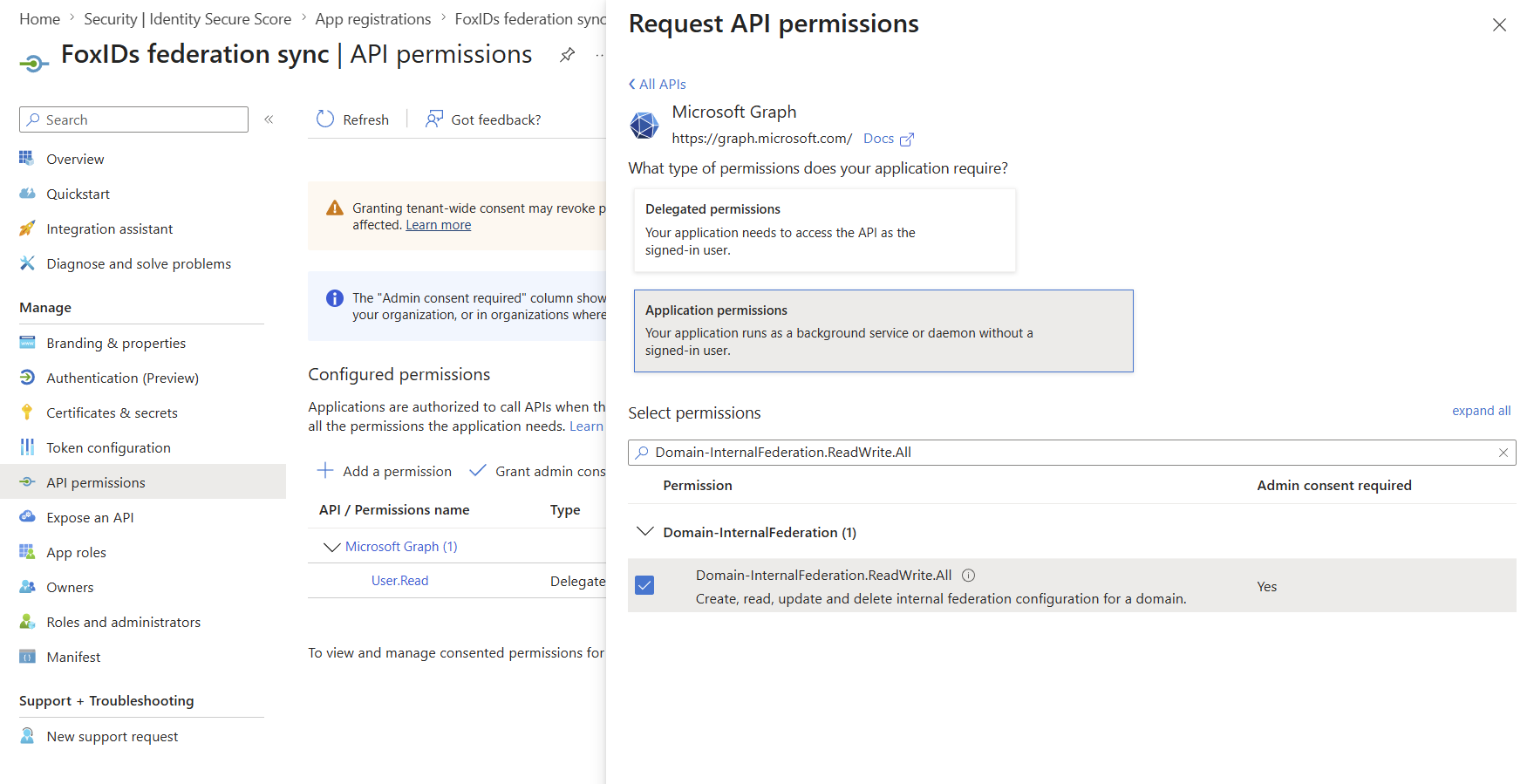
Voor self-hosted FoxIDs-deployments vereist automatische Microsoft Entra ID federation sync een Microsoft Entra ID app registration die is geconfigureerd in zowel de FoxIDs runtime- als FoxIDs Control deploymentconfiguratie. FoxIDs gebruikt de app registration met de client credentials flow om Microsoft Graph aan te roepen en de domein-federationConfiguration te maken of bij te werken.
De app registration moet de Microsoft Graph application permission Domain-InternalFederation.ReadWrite.All hebben. Gebruik bij voorkeur certificate authentication door het openbare certificaat naar de app registration te uploaden en FoxIDs met hetzelfde certificaat inclusief private key te configureren.
PFX is handig voor deployment-systemen die secrets als waarden op één regel opslaan. Het PFX-wachtwoord is optioneel; laat CertificatePfxPassword weg als de PFX niet met een wachtwoord is beveiligd:
{
  "Settings": {
    "Modules": {
      "MicrosoftEntraIdSync": {
        "ClientId": "<application-client-id>",
        "CertificatePfx": "<base64-encoded-pfx>",
        "CertificatePfxPassword": "<optional-pfx-password>"
      }
    }
  }
}
Als environment variables:
Settings__Modules__MicrosoftEntraIdSync__ClientId=<application-client-id>
Settings__Modules__MicrosoftEntraIdSync__CertificatePfx=<base64-encoded-pfx>
Settings__Modules__MicrosoftEntraIdSync__CertificatePfxPassword=<optional-pfx-password>
Zo maakt u de base64-gecodeerde PFX-waarde van een PFX-certificaat zonder wachtwoord:
$pfxPath = "C:\path\to\certificate.pfx"
$base64Pfx = [Convert]::ToBase64String([IO.File]::ReadAllBytes($pfxPath))
$base64Pfx | Set-Clipboard
PEM-certificaat en private key tekst kunnen ook worden gebruikt:
{
  "Settings": {
    "Modules": {
      "MicrosoftEntraIdSync": {
        "ClientId": "<application-client-id>",
        "CertificatePemCrt": "-----BEGIN CERTIFICATE-----\n...\n-----END CERTIFICATE-----",
        "CertificatePemKey": "-----BEGIN PRIVATE KEY-----\n...\n-----END PRIVATE KEY-----"
      }
    }
  }
}
Als er geen certificaat is geconfigureerd, gebruikt FoxIDs client secret authentication:
{
  "Settings": {
    "Modules": {
      "MicrosoftEntraIdSync": {
        "ClientId": "<application-client-id>",
        "ClientSecret": "<client-secret>"
      }
    }
  }
}
Als environment variables:
Settings__Modules__MicrosoftEntraIdSync__ClientId=<application-client-id>
Settings__Modules__MicrosoftEntraIdSync__ClientSecret=<client-secret>
Als een certificaat is geconfigureerd, gebruikt FoxIDs altijd certificate authentication en valt het niet terug op ClientSecret als certificate authentication mislukt. Configureer CertificatePfx of zowel CertificatePemCrt als CertificatePemKey; configureer niet zowel PFX- als PEM-certificaatinstellingen.