Directory Connector for Active Directory
The Directory Connector for Active Directory is a FoxIDs component that implements the Directory Connector API for one AD/LDAP domain.
Use it when existing Active Directory users should sign in to OpenID Connect and SAML 2.0 applications through FoxIDs, while AD remains the authoritative directory for password validation, password changes, selected user attributes, and group-based claims.
AD remains authoritative for the password, but FoxIDs still creates and updates an internal FoxIDs user bound to the AD account. This makes it possible to add FoxIDs multi-factor authentication (MFA) handling to AD users, including MFA requirements and the allowed second-factor methods, while the users continue to authenticate their password against AD.
Install the component inside the customer's Windows environment where it can reach the domain controllers. FoxIDs calls the component over HTTPS, and the component validates users, changes passwords, sets passwords, and returns user properties and claims from Active Directory.

The Directory Connector for Active Directory is installed and configured on the Windows/IIS server close to Active Directory. In FoxIDs, the connector is then enabled on the FoxIDs environment under Settings > Environment > Directory connector settings, where you configure the connector API URL and secret.
The component is released as a Windows zip together with FoxIDs releases:
FoxIDs.DirectoryConnector.ActiveDirectory-{version}-win-x64.zip
Endpoints
The component exposes:
GET /healthPOST /authenticationPOST /change-passwordPOST /set-password
The /health endpoint is unauthenticated and returns minimal status only. It checks required configuration, AD bind, user search-base access, and optional group search-base access. It does not test delegated set-password / reset-password permissions. Detailed errors and stack traces are logged on the server and are not returned by the endpoint.
Example response:
{
  "status": "ok",
  "adBind": "ok",
  "userSearch": "ok",
  "groupSearch": "not_configured"
}
The response only includes status, adBind, userSearch, and groupSearch. The status is ok only when required configuration is valid, AD bind succeeds, user search-base access succeeds, and group search-base access is not failed. groupSearch is not_configured when no group search base is configured. If a check cannot be performed because an earlier check failed or configuration is missing, the field is returned as unknown.
Requirements
- Windows Server with IIS.
- ASP.NET Core Hosting Bundle for .NET 10.
- Network access from the IIS server to the configured domain controller.
- LDAPS or another secure channel for password operations.
- One AD domain per connector deployment.
- A domain service account if configured credentials are used.
- Delegated AD password reset permission if
set-passwordshould be supported.
A domain-joined IIS server running the application pool as a domain service account is the recommended setup. Configured bind credentials are also supported through appsettings.json or environment variables.
Authentication
Configure a strong API key in appsettings.json.
FoxIDs sends HTTP Basic authentication with API ID directory_connector and the configured secret.
Only use the X-FoxIDs-Api-Key: <api-key> header if a reverse proxy in front of the Directory Connector handles Basic authentication before the request reaches the component and rewrites the api-key.
AD lookup and binding
The component first searches AD with the configured service identity. It supports lookup by:
- phone
- username
directoryUserIdwhen FoxIDs already knows it
The user is identified in FoxIDs with the AD objectGUID encoded as base64. This value is returned as directoryUserId and remains stable if email, phone, or username changes.
For password authentication, the component finds the user's distinguished name and then binds to AD as that user with the submitted password. This avoids ambiguous user lookup and supports all configured identifier types.
For password change, AD validates the current password and password policy.
If FoxIDs password policy is enabled for the Directory Connector, FoxIDs pre-validates password length, character complexity, user identifiers, context, and password history before calling the connector, according to the configured checks. This gives the user more precise feedback for those checks. AD remains authoritative and can still reject the password afterwards with password_not_accepted, for example because of minimum password length, complexity, password history, minimum password age, fine-grained password policy, or a custom password filter.
For set-password, the configured service identity must have delegated reset-password rights.
AD service account access
The connector should run with a dedicated AD service identity. Do not make this identity a domain administrator. Use a normal domain user, or a custom security group containing the connector user, and delegate only the required permissions on the OUs the connector uses.
For user lookup and authentication, the connector identity must be allowed to search each configured UserSearchBases OU and read the user objects and attributes used by the connector. A new dedicated AD service identity often already has this read access by default, unless the AD ACLs have been restricted.
For password authentication, the connector first finds the user with the service identity and then binds to AD as the user with the submitted password. This does not require the service identity to know or reset the user's password.
For password change, where the user supplies the current password, the connector uses AD password change behavior and AD validates the current password and password policy.
For set-password / password reset, delegate password reset rights on the user objects in each configured UserSearchBases OU where the connector should support password reset. In Active Directory Users and Computers, right-click the user OU used by the connector, select Delegate Control..., select the connector identity, and on the Tasks to Delegate step, select Reset user passwords and force password change at next logon.
The connector does not create users in Active Directory, so the connector identity does not need permissions to create AD user objects.

Also delegate any additional password-related permissions required by the domain policy, only if the environment uses those operations.
For group role claims, grant the connector identity read access on the configured GroupSearchBases. It must be able to list the group OU and read group attributes such as cn, distinguishedName, and member.
Configuration
Configuration uses standard .NET configuration. Values can be set in appsettings.json, environment variables, IIS configuration, or another .NET configuration provider.
Example:
{
  "DirectoryConnector": {
    "ApiKey": "change-me",
    "ActiveDirectory": {
      "Domain": "example.local",
      "Server": "dc01.example.local",
      "Port": 636,
      "UseSsl": true,
      "Bind": {
        "Mode": "Integrated",
        "Username": "",
        "Password": ""
      },
      "UserSearchBases": [
        "OU=Users,DC=example,DC=local"
      ],
      "GroupSearchBases": [
        "OU=Groups,DC=example,DC=local"
      ],
      "UserIdentifiers": {
        "Username": "sAMAccountName",
        "Email": "mail",
        "Phone": "telephoneNumber"
      },
      "Claims": [
        {
          "Claim": "name",
          "Attribute": "displayName"
        },
        {
          "Claim": "given_name",
          "Attribute": "givenName"
        },
        {
          "Claim": "family_name",
          "Attribute": "sn"
        }
      ],
      "GroupClaims": [
        {
          "Claim": "role",
          "GroupDistinguishedName": "CN=Employees,OU=Groups,DC=example,DC=local",
          "IncludeNestedGroups": true,
          "Value": "employees"
        }
      ]
    }
  }
}
directoryUserId is always mapped from the AD objectGUID and is returned base64-encoded. It is not configurable.
UserIdentifiers controls which AD attributes can be used for email, phone, and username lookup and returned as top-level user identifiers. At least one of Email, Phone, or Username must be configured and returned from AD for a valid connector response. The complete username is escaped as an LDAP filter value and used for the AD lookup. Remove an identifier mapping if that field should not be used for lookup or returned at top level. The same AD attribute can still be configured as a claim in Claims.
If Phone is mapped to AD telephoneNumber, the telephoneNumber value must include the country calling code in international format, for example +4511223344.
The configured user identifier attributes must uniquely identify a single user within the configured UserSearchBases. Do not enable username, email, or phone lookup unless the corresponding AD attribute values are unique for the users covered by the connector.
Important settings:
ApiKey: Shared secret used by FoxIDs to authenticate to the connector. FoxIDs sends this as HTTP Basic authentication with API IDdirectory_connector. Use a strong unique value and store it as an environment variable or IIS setting where possible.ActiveDirectory:Domain: AD domain name used when connecting to the domain, for exampleexample.local.ActiveDirectory:Server: Optional domain controller or LDAP endpoint. If omitted, the connector usesDomain.ActiveDirectory:Port: LDAP port. Use636for LDAPS.ActiveDirectory:UseSsl: Enables LDAPS. Keep this enabled for password operations unless another secure channel is guaranteed.ActiveDirectory:Bind:Mode:Integrateduses the IIS application pool identity or process identity.ConfiguredCredentialsuses the configuredUsernameandPassword.ActiveDirectory:Bind:UsernameandActiveDirectory:Bind:Password: Credentials used only whenModeisConfiguredCredentials. Prefer environment variables or IIS configuration for the password.ActiveDirectory:UserSearchBases: One or more distinguished names where users are searched, for exampleOU=Users,DC=example,DC=local.ActiveDirectory:GroupSearchBases: One or more distinguished names where configured role groups are searched.ActiveDirectory:UserIdentifiers: Optional AD attributes used for top-level user identifiers:Email,Phone, andUsername. Configure at least one. Remove a mapping to stop returning that top-level identifier.ActiveDirectory:Claims: User attributes returned as claims to FoxIDs. Use this for profile claims such asname,given_name,family_name, oremail.ActiveDirectory:GroupClaims: AD group memberships returned as claims, typicallyroleclaims. See Group claims for configuration details.
Group claims
Group claims are disabled by default. To enable them, add one or more entries to ActiveDirectory:GroupClaims.
Each GroupClaims entry defines the claim type to return and which AD group memberships should produce that claim. Claim is required and is typically role.
There are three common configurations:
"GroupClaims": [
  {
    "Claim": "role",
    "IncludeNestedGroups": true,
    "ValueAttribute": "cn"
  },
  {
    "Claim": "role",
    "GroupDistinguishedName": "CN=Employees,OU=Groups,DC=example,DC=local",
    "IncludeNestedGroups": true,
    "Value": "employees"
  },
  {
    "Claim": "role",
    "GroupName": "Administrators",
    "IncludeNestedGroups": true,
    "ValueAttribute": "cn"
  }
]
If neither GroupDistinguishedName nor GroupName is configured, the connector searches the configured GroupSearchBases and returns one claim for each matching group the user is a member of. In this mode, do not configure Value; the claim value must come from ValueAttribute. With the default ValueAttribute of cn, a group named admin_access returns:
{ "type": "role", "value": "admin_access" }
Use GroupDistinguishedName when you know the exact AD group DN. This avoids searching by name and is the most precise option.
Use GroupName when the connector should find a single group by its cn value in GroupSearchBases. The search must match exactly one group. If more than one group with the same cn exists in the configured group search bases, the request fails because the group mapping is ambiguous.
Use Value only when GroupDistinguishedName or GroupName is configured and the returned claim should have a fixed value that is independent of the AD group name. For example, a group with DN CN=Employees,OU=Groups,DC=example,DC=local can return the role value employees.
If Value is not set, the connector reads the configured ValueAttribute from the matched AD group. The default ValueAttribute is cn, which returns the AD group name as the claim value. Configure another group attribute only if that attribute exists on the group object and contains the value that should be sent to FoxIDs.
IncludeNestedGroups controls how membership is checked:
trueuses AD's recursive matching rule, so the claim is returned if the user is a direct member or is a member through nested groups.falseonly checks direct membership in the matched group.
IIS installation
The component is Xcopy deployed. It has no database and no installer; updating or rolling back is done by replacing the files in the IIS website folder while keeping the environment-specific configuration.
- Install the ASP.NET Core Hosting Bundle for .NET 10 (direct download) on the Windows server.
- Create a folder for the component, for example
C:\inetpub\FoxIDs.DirectoryConnector.ActiveDirectory. - Extract the release zip into the folder.
- Configure
appsettings.jsonor environment variables. - Create an IIS application pool.
- Set the app pool identity to a domain service account, or configure bind credentials in
appsettings.json. - Create an IIS site or application pointing to the extracted folder.
- Bind the site to HTTPS.
- Create the log folder
C:\inetpub\logs\LogFiles\foxids-adand grant the application pool identity write access. For example, if the IIS application pool is namedFoxIDs.DirectoryConnector.AD, grant write access toIIS AppPool\FoxIDs.DirectoryConnector.AD. - Verify
GET /health.
For a FoxIDs API URL, use the connector base URL, for example:
https://connector.example.com
FoxIDs appends authentication, change-password, and set-password to that base URL.
TLS certificate
FoxIDs calls the connector over HTTPS, so the IIS site should have a trusted TLS certificate. You can either use your own certificate or optionally create a free Let's Encrypt certificate with win-acme.
With win-acme, download the latest win-acme.v2.x.x.x64.pluggable.zip release, unpack it to a permanent folder, run wacs.exe from an elevated Command Prompt, and select the IIS site hosting the Directory Connector. Win-acme adds the HTTPS binding and registers automatic certificate renewal in Windows Task Scheduler.
See the FoxIDs Windows / IIS HTTP and HTTPS guide for the full win-acme flow.
FoxIDs environment configuration
After the connector is installed and reachable over HTTPS, enable it in the FoxIDs environment:
- Open the FoxIDs Control Client.
- Select the tenant and environment that should use the connector.
- Go to Settings > Environment.
- Find Directory connector settings.
- Enable the directory connector.
- Enter the connector API URL, for example
https://connector.example.com. - Enter the same secret as the connector
ApiKey. - Choose whether FoxIDs should save a local password copy and whether FoxIDs password policy should be applied before calling the connector.
When FoxIDs password policy is enabled, FoxIDs validates password length, character complexity, user identifiers, context, and password history before calling the connector, according to the configured checks. This gives users immediate FoxIDs policy feedback, but AD remains authoritative and can still reject a password with password_not_accepted because of minimum password length, complexity, password history, minimum password age, fine-grained password policy, or a custom password filter.
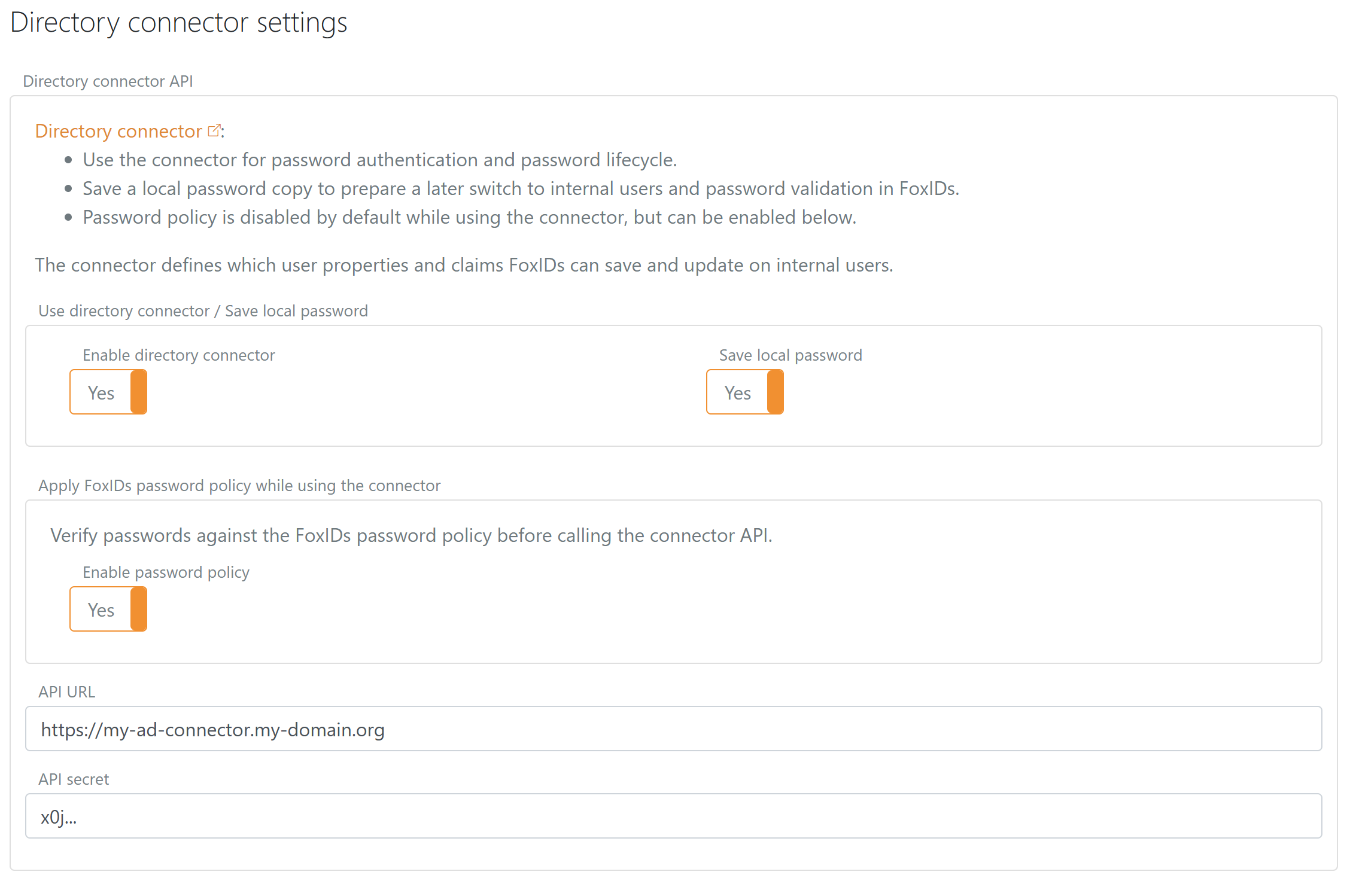
The API URL in FoxIDs must point to the connector base URL. FoxIDs appends the endpoint names when it calls the connector.
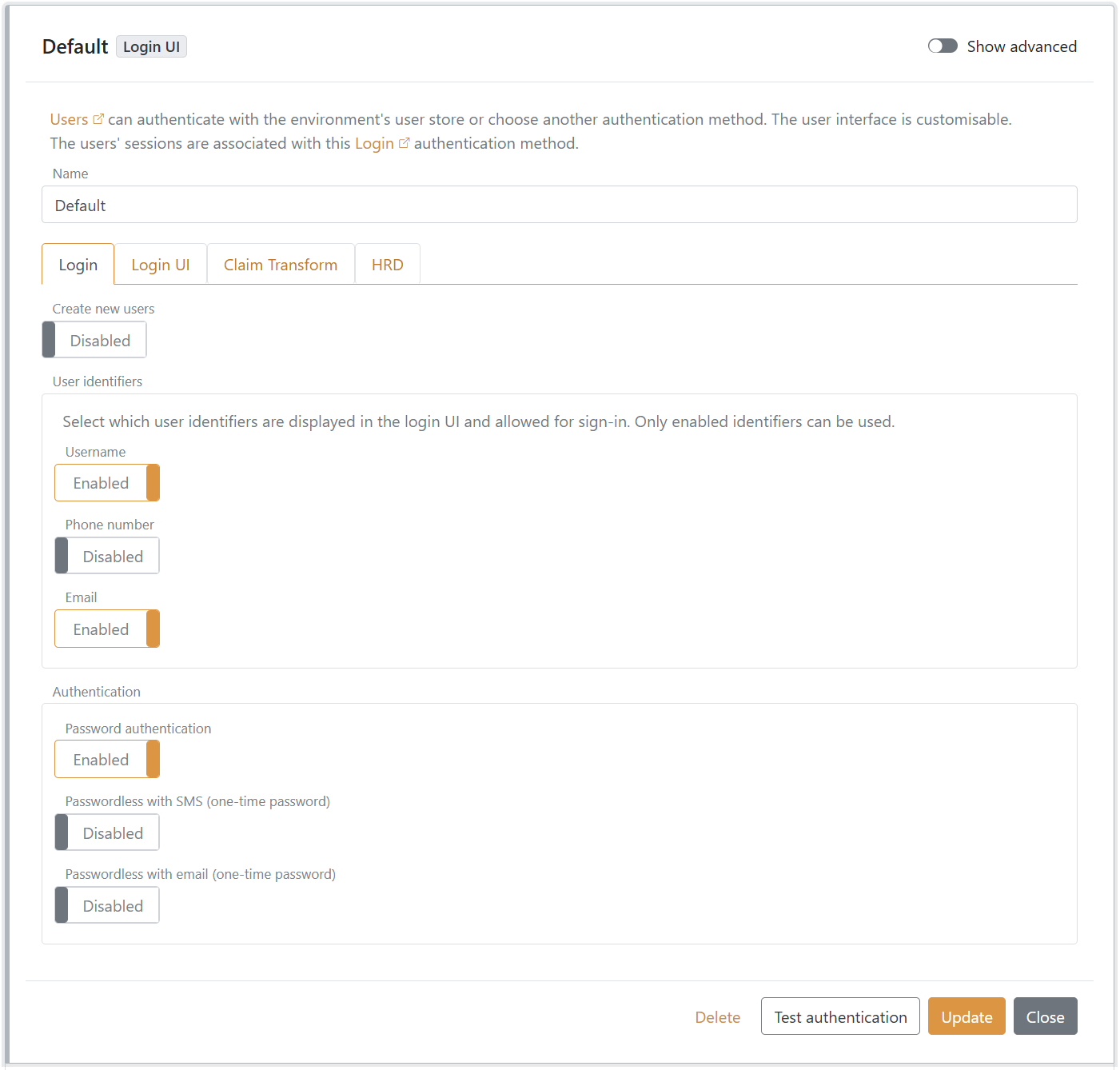
By default, only email address login is enabled in the Login authentication method. If users should be able to sign in with username or phone number, enable the corresponding user identifiers in the Login authentication method. User identifiers returned from AD can only be used for sign-in when the corresponding identifier is enabled in the Login authentication method.
Create user should be disabled in the Login authentication method when using Directory Connector for AD. Creating users is not supported by this connector; create new users in Active Directory and let FoxIDs create the internal user automatically on first successful login. If FoxIDs calls POST /create-user, the connector returns create_user_not_supported.
The example below has both username and email enabled and create user disabled.
Patching and updates
- Download the new
FoxIDs.DirectoryConnector.ActiveDirectory-x.x.x-win-x64.ziprelease and review the release notes. - Extract the zip to a temporary folder and copy over the current
appsettings*.jsonfiles or keep secrets in IIS environment variables. - Stop the IIS site or application pool.
- Rename or copy the current folder to a backup folder, for example
C:\inetpub\FoxIDs.DirectoryConnector.ActiveDirectory.2026-04-29.bak. - Xcopy the new files into
C:\inetpub\FoxIDs.DirectoryConnector.ActiveDirectoryand verify NTFS permissions for the app pool identity. - Start the application pool and verify
GET /health, then test a Directory Connector login or password operation. - If rollback is needed, stop the app pool, restore the backup folder to the live path, and start the app pool again.
The default web.config writes ASP.NET Core stdout logs to C:\inetpub\logs\LogFiles\foxids-directory-connector-ad. Keep stdout logging enabled until the connector is verified, and consider disabling it or forwarding logs to the environment's normal log system after production validation.