Internal users
Internal users can authenticate in one or more login authentication methods in an environment. This makes it possible to customise the sign-in experience for different application requirements.
Upload your users from a CSV file, with or without a password.
For an overview of user concepts such as internal users, external users, and external user stores, see the users overview.
Internal users can also be assigned access structure memberships to model hierarchical access and resolve access claims during login.
User identifiers
Internal users support three user identifiers: email, phone number, and username. These identifiers form the credential, which is the username part when a user signs in with username and password.
Email identifiers can be up to 100 characters, and usernames can be up to 60 characters. Email addresses and usernames are case-insensitive, and surrounding whitespace is removed before validation and matching.
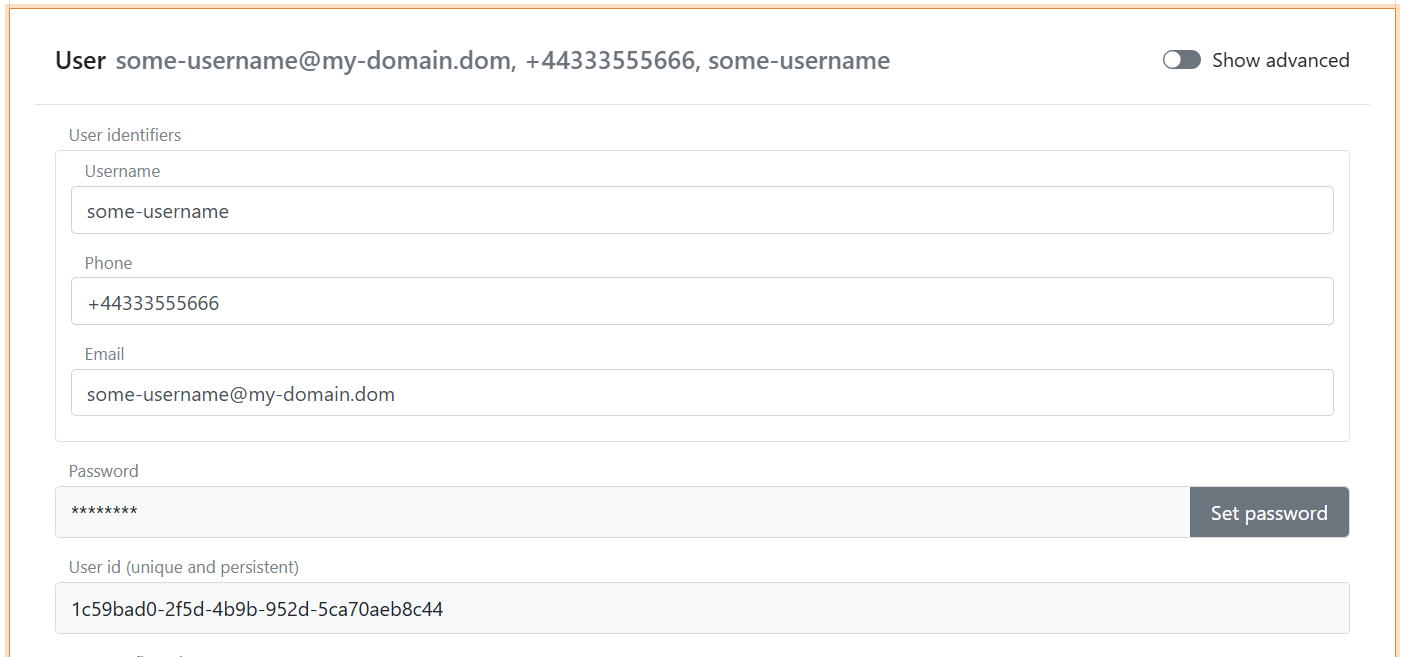
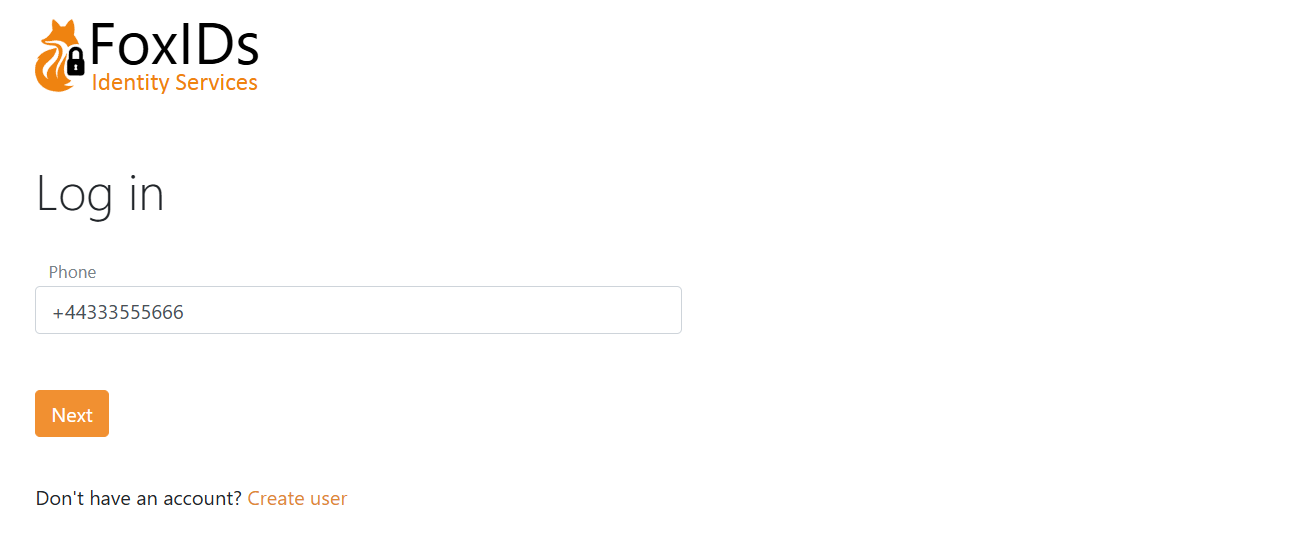
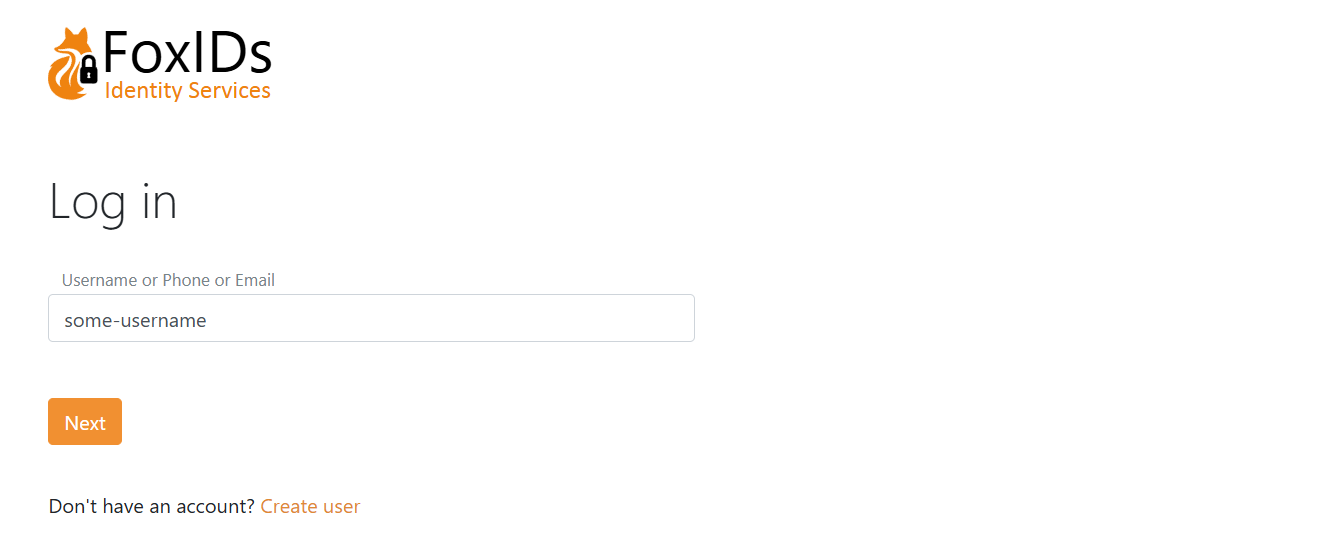
You can enable one, two, or all three identifiers in the login authentication method. If more than one identifier is enabled, the user can sign in with any enabled identifier. Identifiers defined on a user but disabled in the login authentication method are stored on the user, but cannot be used to sign in through that login method.
Only phone number as a user identifier.
Email, phone number, and username as user identifiers.
Password check
Internal users can authenticate with a password. The password is validated against the built-in password policy (default or policy group) and optionally an external password API.
You can also enable Directory Connector for the environment. In that case, password authentication and password lifecycle are delegated to an authoritative external directory while the users remain internal users in FoxIDs.
Built-in password policy and aging
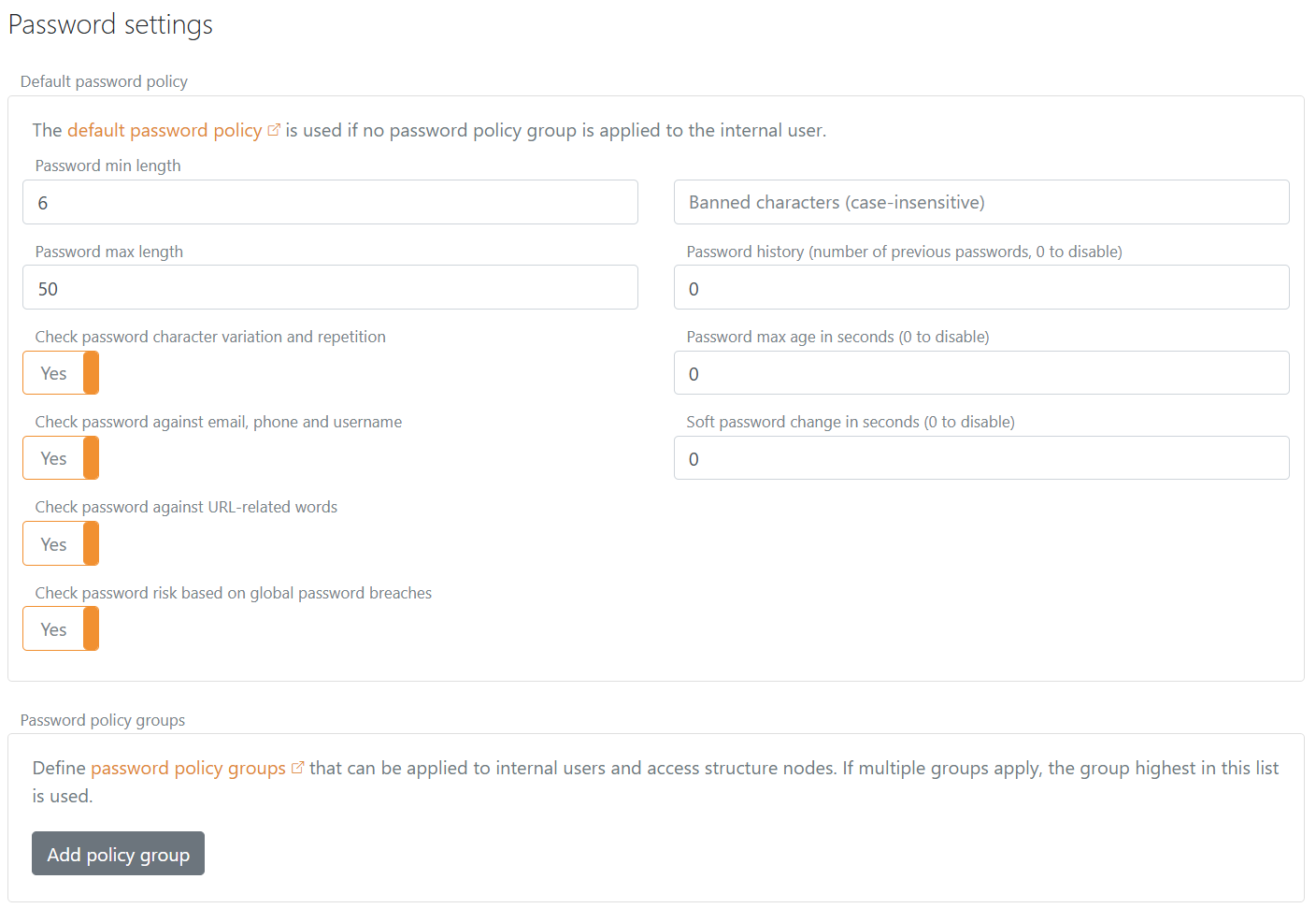
The default password policy is configured in the environment settings in the FoxIDs Control Client and applies when no password policy group is assigned to the user.
- Select the Settings tab.
- Select the Environment tab.
- Find the Password settings section.
- Configure the Default password policy box:
- Password min length and Password max length define the allowed range.
- Check password character variation and repetition requires at least three of the following character groups: lowercase letters, uppercase letters, numbers, and symbols. It also rejects a password if one character occurs at least
max(3, floor(password length / 2))times; the repeated characters do not need to be consecutive. - Check password against email, phone and username checks all available user identifiers associated with the user. Email values are divided at
@,.,-, and_; username values are also divided at:. Components of four or more characters must not occur in the password. A phone number of four or more characters is checked after removing a leading+. Comparisons are case-insensitive. - Check password against URL-related words rejects URL host and service-path components of four or more characters from the current FoxIDs context. Comparisons are case-insensitive.
- Check password risk based on global password breaches rejects passwords found in risk lists. For self-hosted deployments, see risk passwords.
- Banned characters (case-insensitive) blocks specific characters.
- Password history (number of previous passwords, 0 to disable) prevents reuse of recent passwords.
- Password max age in seconds (0 to disable) forces a change when a password becomes too old.
- Soft password change in seconds (0 to disable) allows a grace period. During login, a non-compliant or expired password prompts the user to change it, but the user can still sign in until the grace period expires.
- Click Update.
The three character, user identifier, and URL context checks are independent and enabled by default. They can be configured separately in both the default password policy and each password policy group.
Password policy groups
You can define up to 10 password policy groups per environment. A group overrides the default password policy for the users it is assigned to.
- Select the Settings tab.
- Select the Environment tab.
- Find the Password settings section.
- Configure the Password policy groups box.
- Click Add policy group and set the policy values, which are the same fields as the default policy, plus a name and an optional display name.
- Click Update.
Apply a group to a user in Internal Users → edit the user → Advanced → Password policy, or set the password policy name when provisioning via the Control API. If no group is selected, the default environment policy is used.
External password API
You can optionally configure an external password API to validate passwords and/or notify about password changes.
If the built-in password policy rejects the password, the external password API is not called. The notification method on the external password API is only called if the password passes all configured policy checks.
Password or one-time password (passwordless)
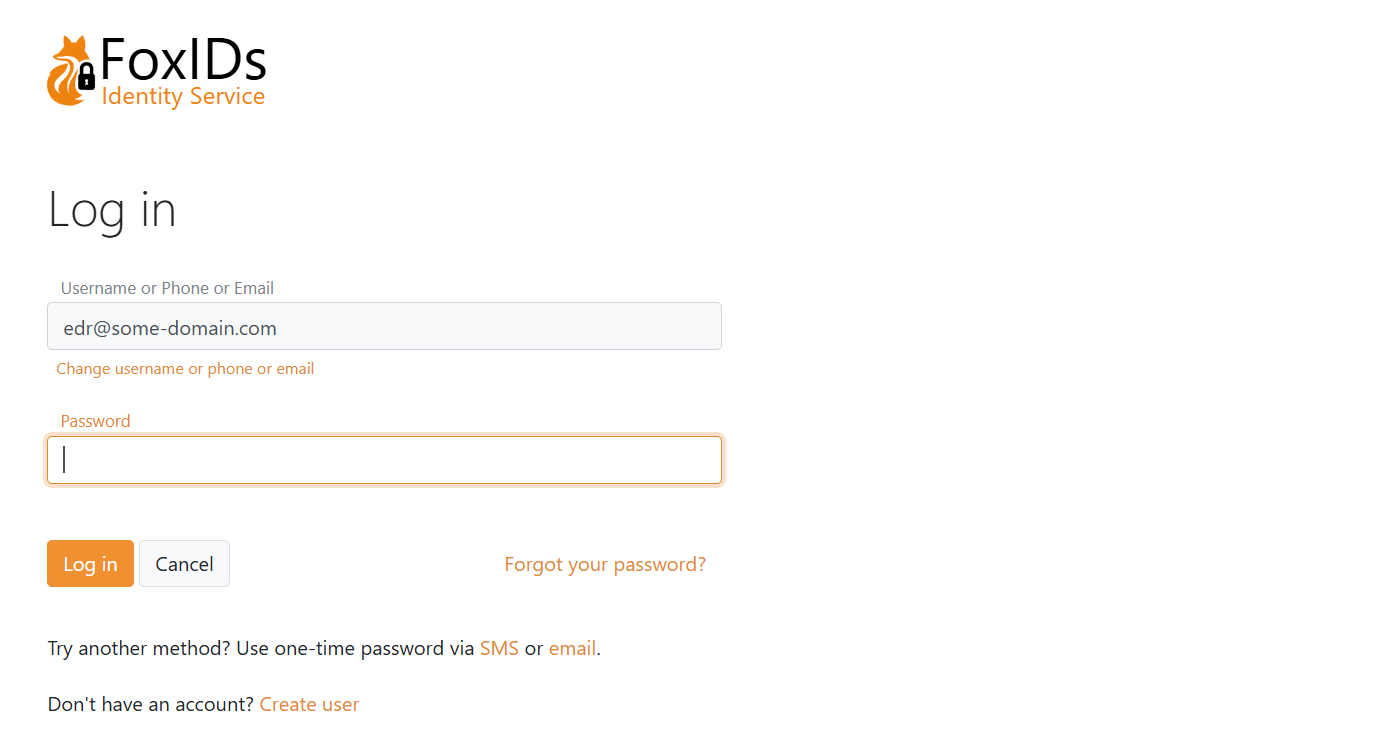
The login authentication method is configured by default for user identifier plus password.
You can also enable one-time password (OTP) via email and/or SMS for passwordless sign-in, and you can create multiple login authentication methods with different combinations.
If both password and OTP are enabled, all enabled methods are offered. The UI can also allow self-service account creation.
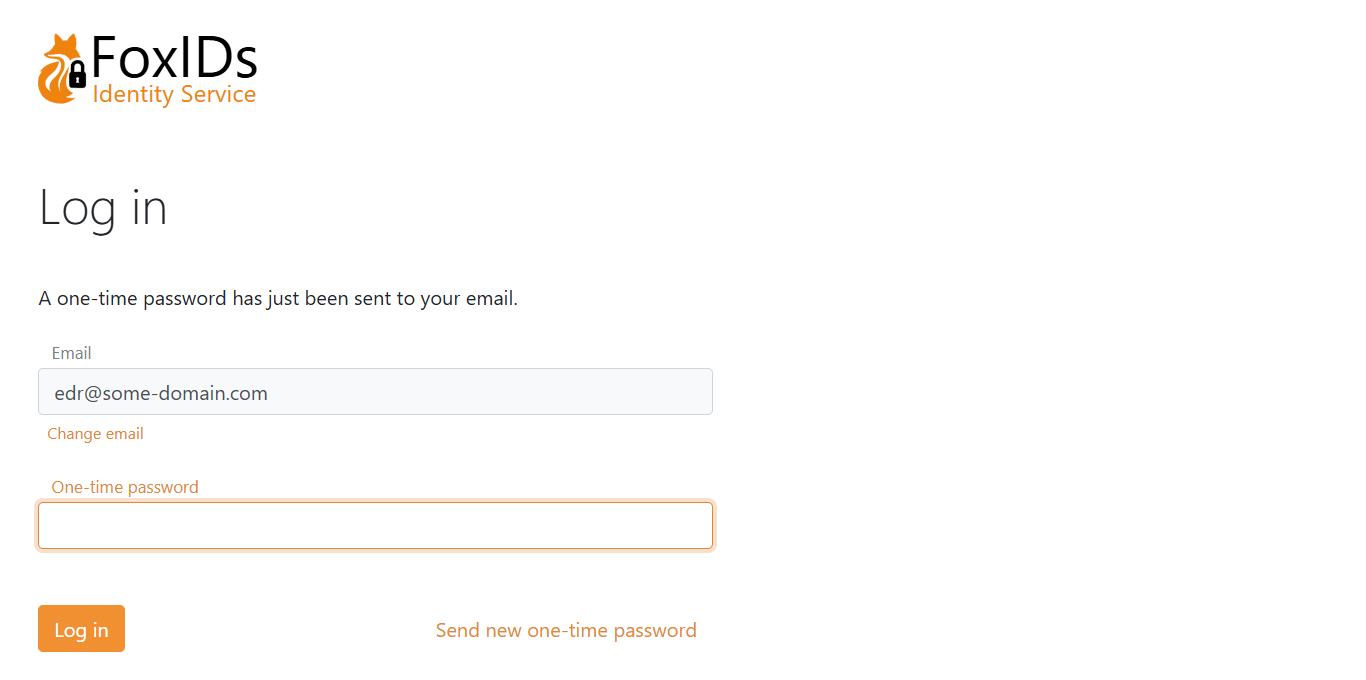
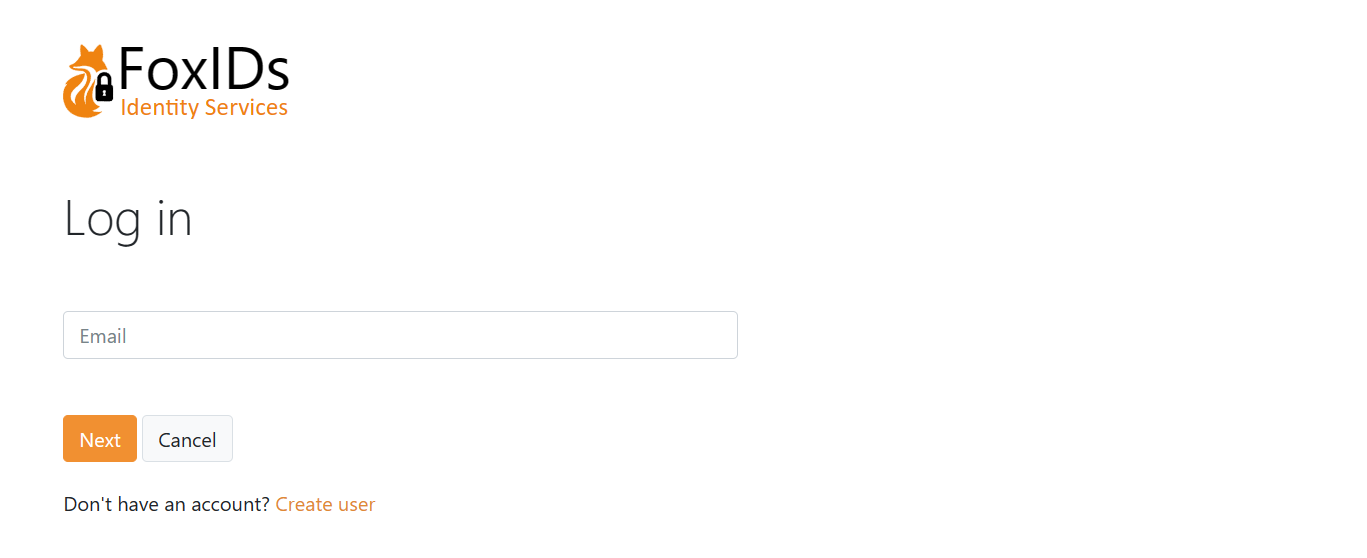
If only OTP via email is enabled:
Create user
Depending on the selected login method configuration, users can create an account online.
The user chooses to create a new account on the login page.
This example shows the create-user form.
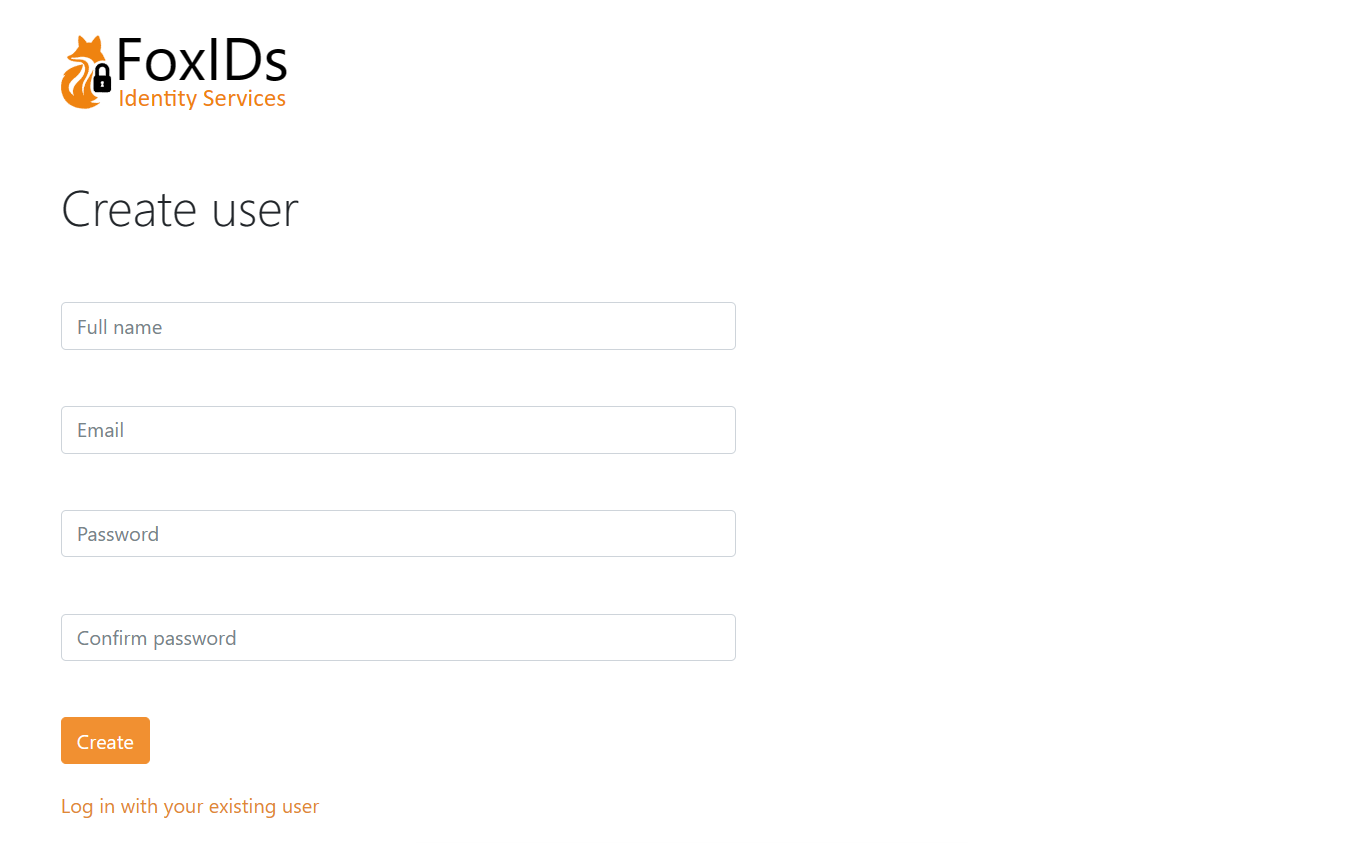
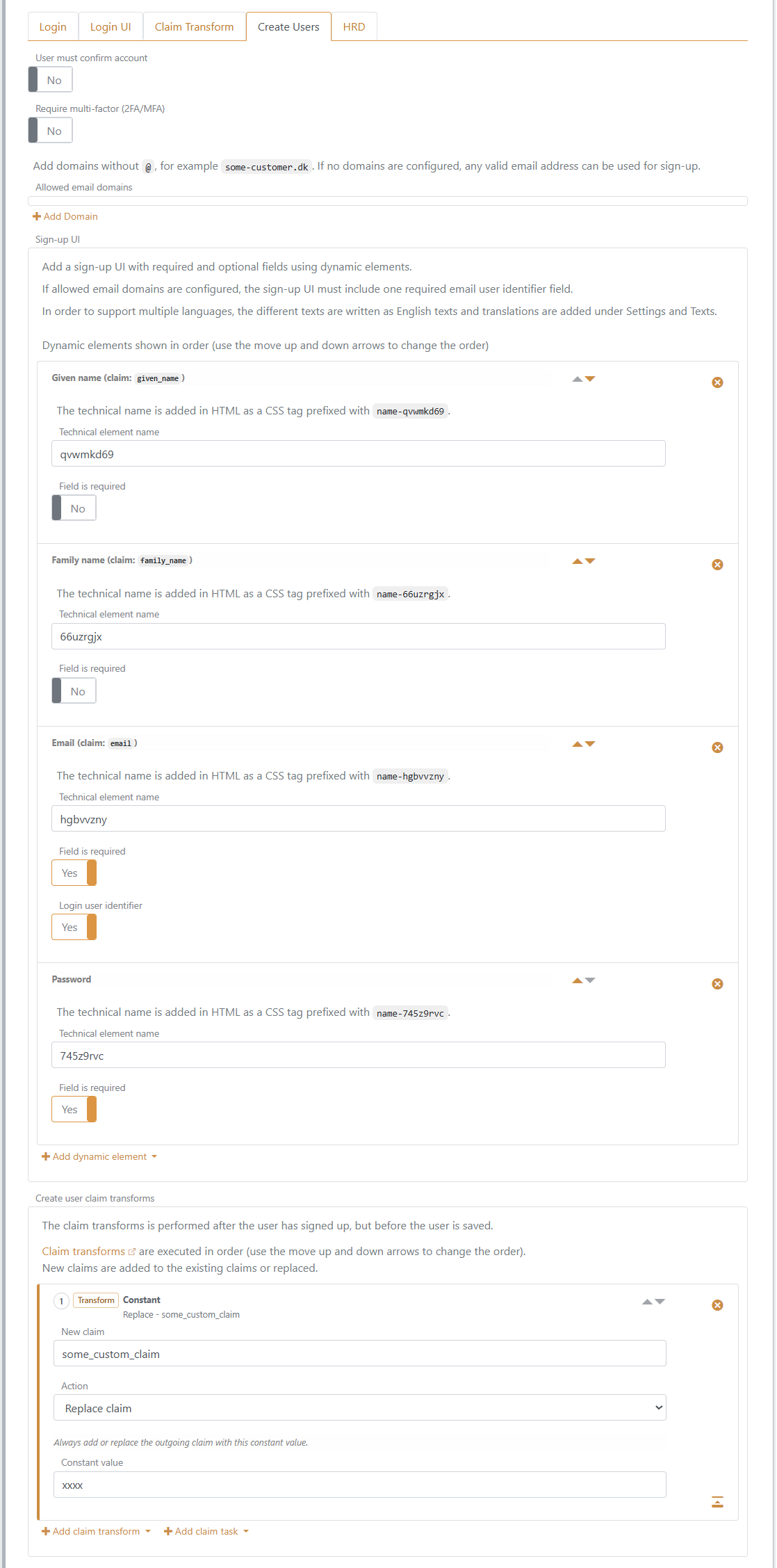
The page is composed of dynamic elements that can be customised per login method. In this example, the form contains Given name, Family name, Email, and Password fields. The Email field is the user identifier used for sign-in.
You can restrict online account creation to selected email domains in the login method's Create user configuration. If no allowed email domains are configured, users can create an account with any valid email address. Add allowed domains without @, for example some-customer.dk. Domain values must be lowercase domains without leading or trailing spaces. When allowed email domains are configured, the create-user form must include exactly one required Email dynamic element marked as a user identifier.
The domain restriction is checked against the email address typed by the user in the create-user form before create-user claim transforms are applied. This means a claim transform cannot make a sign-up valid by changing the submitted email domain.
This is the configuration in the login method. In addition, the claim some_custom_claim is added to each user as a constant via a claim transform.
Provisioning
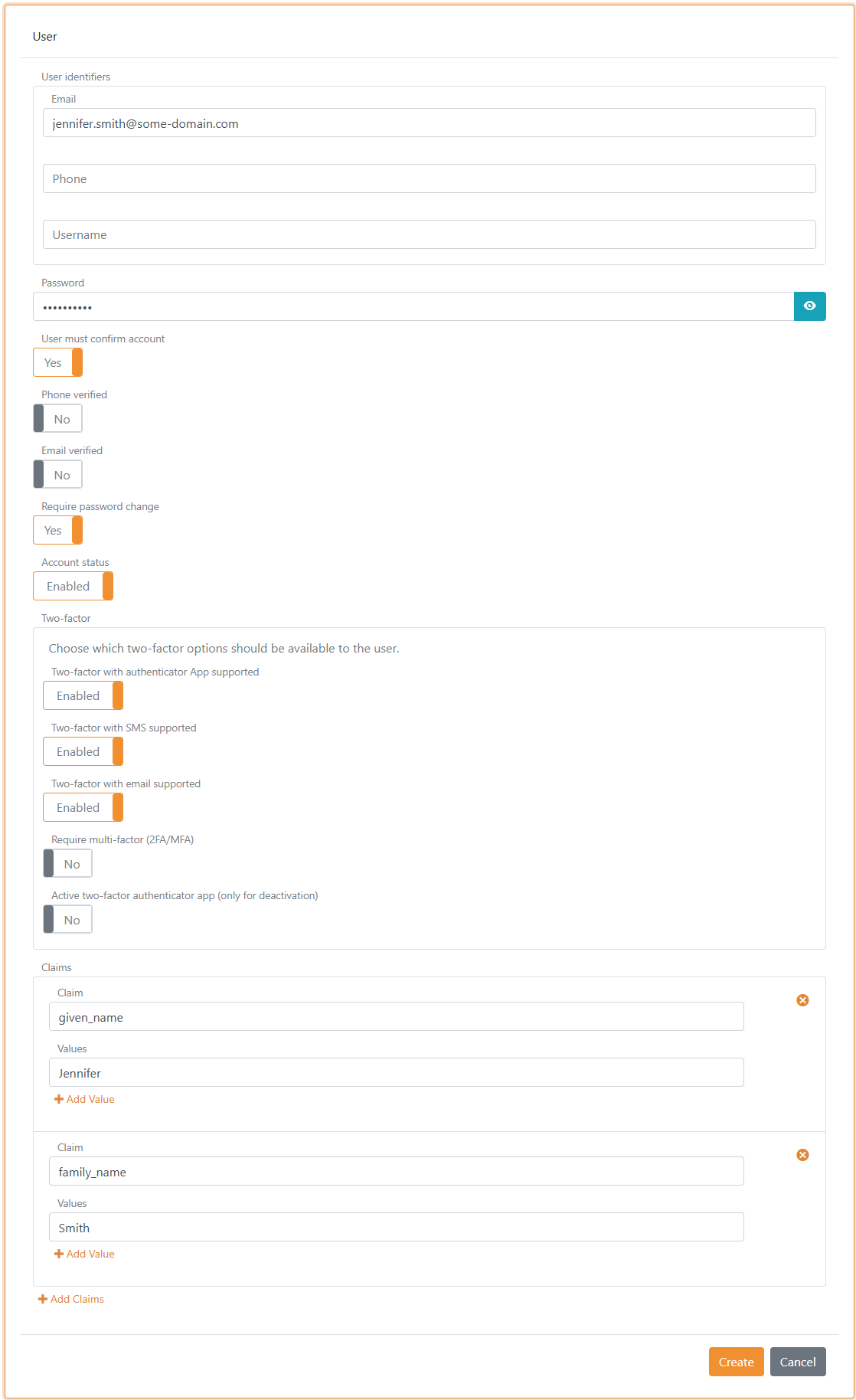
Internal users can be created, updated, and deleted in the Control Client or provisioned through the Control API. You can also upload many users from a CSV file.
Multi-factor authentication (MFA)
Two-factor and multi-factor authentication can be required per user. The user must then complete an additional factor and can register an authenticator app if it is not already registered. A user can have one authenticator app registration in two-factor mode and up to five registrations when advanced multi-factor is enabled. Any registered authenticator app can complete the Authenticator app MFA item.
Available factors are determined by the login authentication method and the user's data and settings. See two-factor and multi-factor authentication.
In Internal Users → edit the user → Advanced → Two-factor, an administrator can see each registered authenticator app and remove registrations individually. The list shows the persistent registration ID and the registration time when available; authenticator secrets are not shown. Registrations can also be synchronised through the Control API.
Password hash
Only a password hash is stored.
The hashing subsystem supports evolution. Hash metadata, which is the algorithm and parameters, is stored with each hash so old hashes can still be validated while new hashes use newer algorithms or parameters.
New passwords use P2HS512:10 (PBKDF2-HMAC-SHA512):
- HMAC (
RFC 2104) with SHA-512 (FIPS 180-4) - 10 iterations stored in the hash metadata, multiplied by 10,000 PBKDF2 rounds for a total of 100,000 iterations
- Salt length: 64 bytes
- Derived key length: 80 bytes
- Hash and salt are stored as Base64 URL encoded strings, which is Base64 without padding
Standard .NET libraries are used to compute these hashes.
Imported passwords also support bcrypt. Store the complete 60-character bcrypt string, including its variant, cost, salt and hash, and omit the separate salt. FoxIDs supports $2a$, $2b$ and $2y$ variants with costs from 4 to 16. The cost comes from each hash; $2b$10$ does not imply that all imported hashes use cost 10.
Bcrypt uses the first 72 UTF-8 bytes of the password. Imported hashes remain bcrypt after login; setting or changing a password uses the default PBKDF2 format. Password-history checks can also validate retained bcrypt hashes. See Control API password management for import fields and Auth0 migration for the migration workflow.