Upload many users
Use the FoxIDs Seed Tool to load users from a CSV file into a FoxIDs environment as internal users. Each user can be uploaded with:
- No password, for passwordless login with a one-time code by email or SMS.
- No password and a requirement to choose one at first login, confirmed by email or SMS.
- A known plaintext password, which the Seed Tool hashes before upload by default.
- A precomputed FoxIDs password hash and its separate salt.
- An Auth0 bcrypt password hash, allowing the user to keep their existing password.
The Control API accepts up to 1,000 users per request, of which at most 100 can contain plaintext passwords. Precomputed hashes count towards the 1,000-user limit. The Seed Tool uses batches of up to 1,000 users with its default client-side hashing. It uploads multiple batches for larger files. You can also use the Control API user operations directly.
Example upload time for 50,000 users
| Scenario | Users | Batch size | Approx. total time |
|---|---|---|---|
| Without passwords | 50,000 | 1,000 | ~2 minutes |
| With passwords | 50,000 | 100 | ~2 hours |
| Password hashes pre-calculated on client | 50,000 | 1,000 | ~5 minutes |
Times are approximate and depend on client machine, network and infrastructure.
Uploading users with passwords takes longer because a password hash must be computed for each user, and this operation is intentionally time-consuming for security.
Upload time can be improved by calculating the password hashes on the client before uploading the users.
Upload with seed tool
The Seed Tool in tools/FoxIDs.SeedTool reads a CSV file and bulk uploads its users to the configured FoxIDs environment through the Control API. Set the file path in SeedSettings.UsersSvcPath and select U to upload. The tool also supports bulk user deletion.
By default, the Seed Tool pre-calculates password hashes for plaintext passwords before upload. Supplied FoxIDs or bcrypt hashes are uploaded unchanged when
Passwordis empty or omitted.
CSV file
Save the CSV file as UTF-8, with fields separated by ;. Text can optionally be in quotation marks. The parser splits on semicolons, so fields cannot contain semicolons or line breaks, even inside quotation marks.
You can find sample CSV files here.
(For example, see UTF-8 characters in claims in the file password-claims-3-test-users.csv demonstrating multi-language / extended character support.)
The first line of the CSV file is the case sensitive headers. You can select to use all headers or a subset of the headers and change the order of the headers.
The headers:
- Phone
- Username
- ConfirmAccount
- EmailVerified
- PhoneVerified
- Password
- PasswordHashAlgorithm
- PasswordHash
- PasswordHashSalt
- ChangePassword
- PasswordLastChanged
- SetPasswordEmail
- SetPasswordSms
- DisableAccount
- Claims
- RequireMultiFactor
The number of headers and elements in each line need to match.
This example uploads a passwordless user. Omit Password and all password-hash columns, and keep SetPasswordEmail and SetPasswordSms false. Enable passwordless login with the corresponding email or SMS provider. Preserve each user's known verification state.
Email;EmailVerified;SetPasswordEmail;SetPasswordSms
passwordless@example.com;true;false;false
This CSV example uses the Email and SetPasswordEmail headers to upload users who must choose a password with email confirmation on their first login.
The email is thereafter marked as verified.
Email;SetPasswordEmail
u1@somedomain.test;true
u2@somedomain.test;true
u3@somedomain.test;true
This CSV example includes a username and marks the supplied email address and phone number as verified. The passwords are set with an email or SMS confirmation code.
Email;Phone;Username;EmailVerified;PhoneVerified;SetPasswordEmail;SetPasswordSms
u1@somedomain.test;;u1;true;true;true;false
;+4422222222;u2;true;true;false;true
u3@somedomain.test;+4433333333;u3;true;true;true;false
This CSV example uploads users with plaintext passwords and claims. The last user is uploaded as a disabled user.
Email;Phone;Username;ConfirmAccount;EmailVerified;PhoneVerified;Password;ChangePassword;SetPasswordEmail;SetPasswordSms;DisableAccount;Claims;RequireMultiFactor
u1@somedomain.test;+4411111111;u1;false;true;true;"My1Password!";false;false;false;false;"[{""Claim"": ""role"", ""Values"": [""admin""]}]";false
u2@somedomain.test;+4422222222;u2;false;true;true;"My2Password!";true;false;false;false;"[{""Claim"": ""role"", ""Values"": [""admin""]}, {""Claim"": ""customer_id"", ""Values"": [""1234""]}]";true
u3@somedomain.test;+4433333333;u3;false;true;true;"My3Password!";false;false;false;true;"[{""Claim"": ""role"", ""Values"": [""admin"", ""user""]}]";false
If you supply precomputed password hashes, use the PasswordHashAlgorithm and PasswordHash columns and leave Password empty (or remove it). Include PasswordHashSalt for P2HS512:10; omit it for bcrypt, whose complete hash string includes the salt. See the supported password import formats. You can optionally preserve the original password change timestamp with PasswordLastChanged (Unix seconds). When a password or hash is provided without PasswordLastChanged, the upload stamps the current time.
You should add passwords and claims with the ;""; notation. If a password contains the " symbol it is escaped, for example the password My"Password which become ;"My""Password";
Claims are added with a JSON structure without line breaks and the " symbols is escaped.
[
  { "Claim": "role", "Values": ["admin", "user"] },
  { "Claim": "customer_id", "Values": ["1234"] }
]
Import Auth0 bcrypt password hashes
Convert the reviewed Auth0 user data and matching password hashes into the Seed Tool CSV format. Put each complete Auth0 passwordHash value in PasswordHash and set PasswordHashAlgorithm to bcrypt. Omit Password and PasswordHashSalt; bcrypt includes its salt in the hash string.
For example, this synthetic test account uses Auth0's $2b$10$ format:
Email;EmailVerified;PasswordHashAlgorithm;PasswordHash;SetPasswordEmail;SetPasswordSms;ChangePassword;DisableAccount
auth0.alice@example.com;true;bcrypt;$2b$10$..CA.uOD/eaGAOmJB.yMBu3YunYvFEoaS5IJZ/wiqfQ/EWx.HaqjC;false;false;false;false
The source repository includes tools/FoxIDs.SeedTool/user_upload_csv_files/auth0-bcrypt-3-test-users.csv with synthetic hashes using costs 10 and 12, quoted and unquoted hash fields, and a disabled account. These test hashes use the password QAZ!234wsx. Replace the sample data with your reviewed users and their own hashes before migration.
Set UsersSvcPath to the converted CSV file, then run the Seed Tool and select U. Keep the password-setup and change-password flags false when users should retain their existing passwords, and enable password login on the Login authentication method. You can try the import in a test environment and sign in with an imported user's original password.
See Migrate from Auth0 to FoxIDs for export, matching password hashes to users, supported hash formats and account mapping.
Download and configure the seed tool
First download the FoxIDs.SeedTool-x.x.x-win-x64.zip file for Windows or FoxIDs.SeedTool-x.x.x-linux-x64.zip file for Linux from the FoxIDs release and unpack the seed tool.
The seed tool is configured in the appsettings.json file.
Access to upload users is granted in your master environment.
Create a seed tool OAuth 2.0 client in the FoxIDs Control Client:
This grants the seed tool full access to your tenant. For least privilege, see Control API access rights.
- Login to your tenant (in self-hosted the main tenant)
- Select the master environment (in the top centre environment selector)
- Select the Applications tab
- Click New Application
- Click Backend Application
- Select Show advanced
- Add a Name e.g.,
Seed tool - Change the Client ID to
foxids_seed - Click Register
- Remember the Authority.
- Remember the Client secret.
- Click Close
- Click on the application in the list to open it
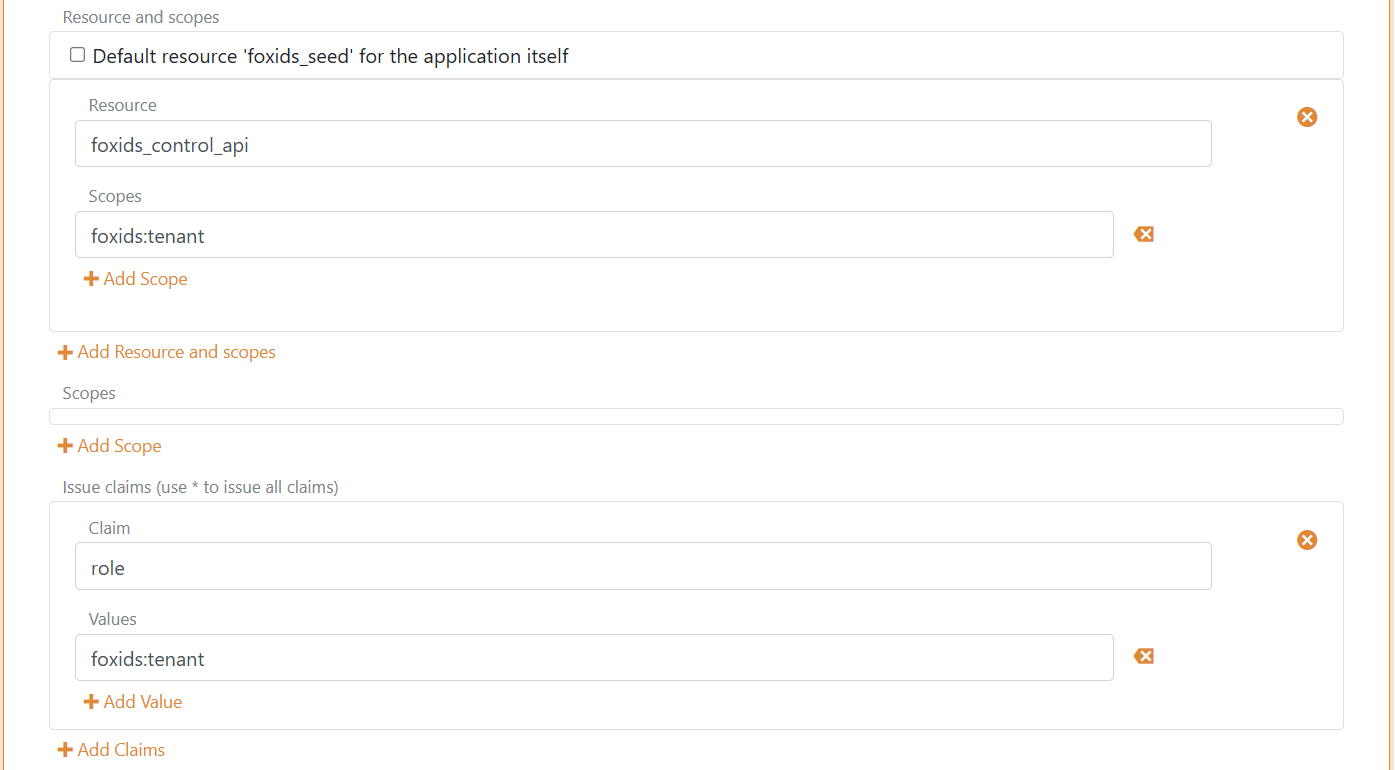
- In the Resource and scopes section
- Remove the check mark from Default resource 'foxids_seed' for the application itself
- Click Add Resource and scope and add the resource
foxids_control_api - Then click Add Scope and add the scope
foxids:tenant
- Select Show advanced
- In the Issue claims section
- Click Add Claim and add the claim
role - Then click Add Value and add the claim value
foxids:tenant
- Click Add Claim and add the claim
- Click Update
Add your FoxIDs Control API endpoint and tenant and environment and the seed tool Authority and Client secret and CSV file path to the seed tool configuration.
"SeedSettings": {
    "FoxIDsControlEndpoint": "https://control.foxids.com", // self-hosted "https://control.yyyyxxxx.com" or local development https://localhost:44331
    "Tenant": "xxxxxx",
    "Environment": "xxxxxx",
    "Authority": "https://id.foxids.com/zzzzz/master/foxids_seed/", // custom domain, self-hosted or local development "https://https://localhost:44331/zzzzz/master/foxids_seed/"
    "ClientId": "foxids_master_seed",
    "ClientSecret": "xxxxxx",
    "Scope": "foxids_control_api:foxids:tenant",
    "UsersSvcPath": "c:\\... xxx ...\\users.csv"
}
Run the seed tool and upload the users
- Start a Command Prompt
- Run the seed tool with
SeedTool.exe - Click
Uto start uploading users
The upload can take a while depending on the number of users.
The Seed Tool reports success and failure counts, and the imported users are available in FoxIDs Control. You can try an upload with a small CSV file in a test environment and inspect the resulting users there. Bulk upload can replace existing users and their credentials; check identifier collisions before uploading and reconcile any partial upload before retrying.