Autenticação de dois fatores e multifator (2FA/MFA)
O FoxIDs suporta tanto um modo simples de dois fatores como um modo avançado de multifator no método de autenticação de login.
- Modo de dois fatores:
Advanced multi-factorestá desativado (predefinição). - Modo multifator:
Advanced multi-factorestá ativado.
Use o modo de dois fatores quando um fator adicional for suficiente. Use o modo multifator quando precisar de uma cadeia MFA ordenada ou quiser incluir métodos de autenticação como passos MFA.
Conceitos
A autenticação de dois fatores (2FA) e a autenticação multifator (MFA) adicionam um ou mais passos de verificação após o início de sessão primário.
- 2FA: um início de sessão primário mais um fator adicional.
- MFA: um início de sessão primário mais um ou mais fatores adicionais ordenados.
Fatores suportados
O FoxIDs suporta fatores incorporados e métodos de autenticação como itens MFA.
| Factor | Type | AMR value |
|---|---|---|
| Código SMS | Incorporado | sms |
| Código por email | Incorporado | email |
| Código de app autenticadora | Incorporado | otp |
| Código de recuperação | Incorporado (app autenticadora) | otp |
| Método de autenticação (OIDC, SAML 2.0, Environment Link) | Item configurável | AMR configurado, ou nome do método/perfil se vazio |
Pode usar qualquer app autenticadora compatível, por exemplo Google Authenticator, Microsoft Authenticator, Authy e outras apps TOTP.
Quando MFA é exigido
O MFA é acionado quando se aplica uma das seguintes condições:
- O utilizador tem
Require multi-factor (2FA/MFA)ativado. - O método de autenticação de login tem
Require multi-factor (2FA/MFA)ativado. - A aplicação que chama pede MFA com ACR
urn:foxids:mfa.
Os requisitos MFA aplicam-se em ambos os modos. Se Advanced multi-factor estiver desativado, o requisito é cumprido pelo fluxo simples de dois fatores.
Se forem pedidos valores ACR específicos juntamente com urn:foxids:mfa, apenas os valores ACR correspondentes são exigidos.
Modo de dois fatores (Advanced multi-factor está desativado)
Neste modo, as opções incorporadas de dois fatores são configuradas diretamente:
- App autenticadora
- SMS
Para configurar o modo de dois fatores:
- Abra o separador Authentication.
- Clique no método de autenticação Login para editar.
- Clique em Show advanced.
- Vá para a secção Multi-factor.
- Mantenha
Advanced multi-factordesativado e configure as opções App autenticadora, SMS e Email.
O nome da app autenticadora mostrado aos utilizadores pode ser configurado. Por predefinição, é usado o nome do tenant.
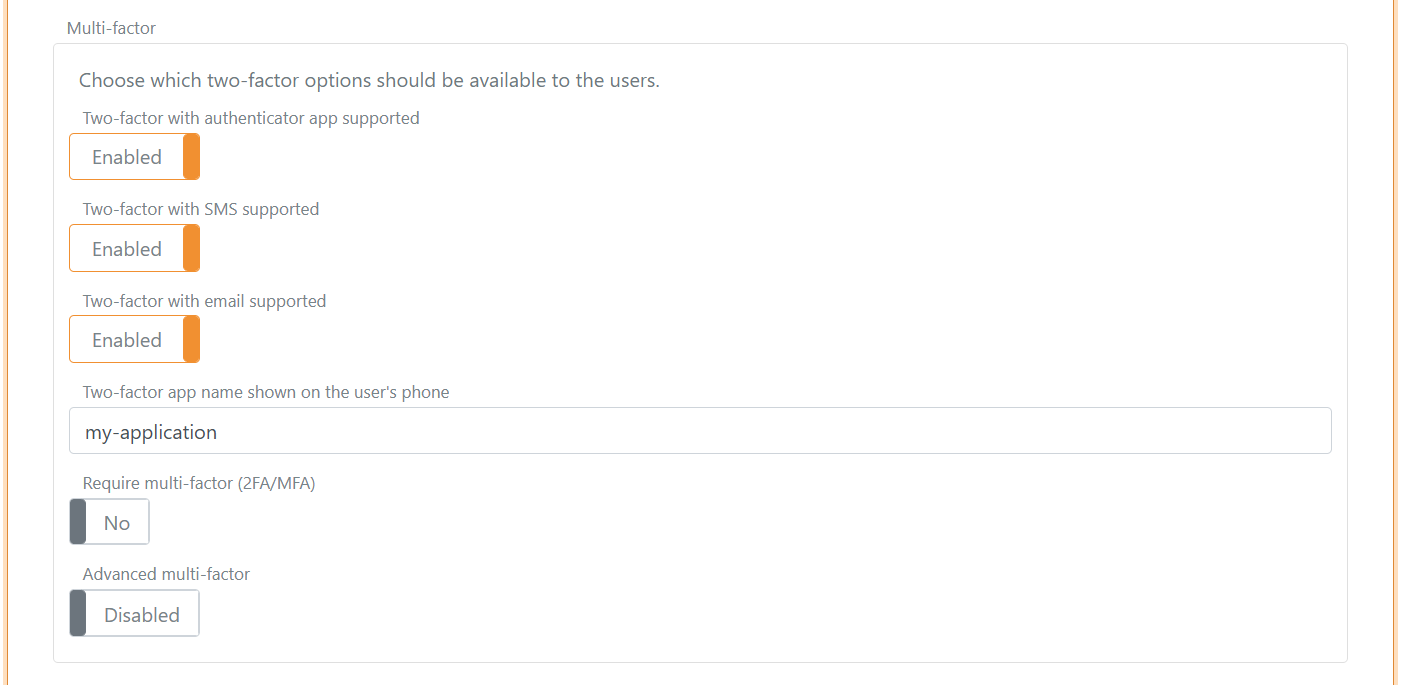
Os fatores SMS e email exigem informação de contacto do utilizador. Esta pode ser fornecida como identificadores de utilizador ou como claims (phone_number e email).
Comportamento de seleção de dois fatores
No modo de dois fatores, o FoxIDs prefere uma app autenticadora já registada. Se não houver nenhuma registada, o SMS tem prioridade sobre o email quando ambos estão disponíveis.
| SMS two-factor enabled and user has phone number | Email two-factor enabled and user has email | User has registered authenticator app | Possible two-factor type(s) | Selected two-factor type |
|---|---|---|---|---|
| false | false | false | Configuração da app autenticadora | Configuração da app autenticadora |
| false | false | true | App autenticadora | App autenticadora |
| true | false | false | SMS, com configuração opcional da app autenticadora após a verificação por SMS | SMS |
| true | false | true | SMS e app autenticadora | App autenticadora |
| false | true | false | Email, com configuração opcional da app autenticadora após a verificação por email | |
| false | true | true | Email e app autenticadora | App autenticadora |
| true | true | false | SMS e email, com configuração opcional da app autenticadora após verificação por SMS ou email | SMS |
| true | true | true | SMS, email e app autenticadora | App autenticadora |
Notificar uma API quando uma aplicação autenticadora é registada
O método de autenticação de login pode notificar imediatamente o seu backend depois de um utilizador registar uma nova aplicação autenticadora. A notificação é opcional e aplica-se apenas a novos registos, não a logins posteriores com a aplicação.
Para configurar a notificação:
- Abra o separador Authentication.
- Clique no método de autenticação Login para o editar.
- Clique em Show advanced.
- Aceda à secção Multi-factor.
- No modo de dois fatores, ative
Notify an API when an authenticator app is registeredabaixo das opções de fatores incorporadas. No modo multifator avançado, ative-o no item MFA Authenticator app. - Configure o URL base e o segredo da API.
O FoxIDs guarda localmente o registo da aplicação autenticadora antes de chamar a API e escreve o rastreio Authenticator app registration saved locally; external notification pending. Em seguida, a API é chamada de forma síncrona. O login só continua se a API devolver o estado HTTP 200 OK. Se a chamada falhar ou devolver outro estado, o FoxIDs remove o novo registo e apresenta a página de erro. Os registos existentes não são alterados.
O registo bem-sucedido é escrito no log de auditoria depois de a API devolver 200 OK. Se a notificação estiver desativada, a auditoria é escrita imediatamente após o registo local ser guardado.
Pedido à API de notificação
Se o URL base configurado for https://backend.example/authenticator, o FoxIDs envia um pedido HTTP POST para:
https://backend.example/authenticator/notification
O FoxIDs Cloud chama a sua API a partir do IP
57.128.60.142.Os endereços IP podem mudar ou ser expandidos.
O pedido utiliza HTTP Basic authentication:
- Nome de utilizador:
authenticator_app - Palavra-passe: o segredo da API configurado
O pedido JSON contém:
{
  "type": "registered",
  "registration_id": "7a772286-76a2-4f17-a0f8-4e927bb1772d",
  "user_id": "e061ed17-7b44-48a8-b224-ecdb800ed5cc",
  "email": "user@example.com",
  "phone": "+4512345678",
  "username": "user@example.com"
}
type identifica a notificação. O tipo suportado registered significa que foi registada uma nova aplicação autenticadora. registration_id é o ID único permanente do novo registo. A sua API pode utilizá-lo como chave de idempotência. user_id é o ID técnico estável do utilizador FoxIDs. email, phone e username são incluídos quando têm um valor. O segredo da aplicação autenticadora e o código de recuperação nunca são enviados.
A API deve aceitar a notificação e devolver 200 OK assim que o trabalho síncrono necessário estiver concluído. Qualquer processamento adicional em fila ou distribuição para outros deployments é da responsabilidade do backend.
Gerir registos de apps autenticadoras
Os administradores podem listar e remover individualmente os registos de apps autenticadoras de um utilizador em Internal Users -> editar o utilizador -> Advanced -> Two-factor. Os registos são identificados pelo ID persistente e, para novos registos, pela data de registo. Não é solicitado ao utilizador um nome de apresentação durante o registo.
Para listar, ler, criar, atualizar, eliminar ou sincronizar registos através da Control API, consulte Control API - utilizadores e apps autenticadoras. O guia documenta endpoints, o recurso de request, segurança, responses de erro e comportamento de notification num único local.
Modo multifator (Advanced multi-factor está ativado)
Quando Advanced multi-factor está ativado, o MFA é configurado como uma lista ordenada de até 5 itens MFA.
Só pode ser configurado um item MFA Authenticator app. Um utilizador pode ter até cinco registos de aplicações autenticadoras para esse item. Todos os registos são alternativas para concluir o mesmo item MFA: o FoxIDs verifica o código submetido em relação às aplicações registadas e aceita a primeira correspondência. O pedido de registo durante o login só cria um registo quando o utilizador não tem nenhum; não adiciona outro quando já existe um. O nome da aplicação autenticadora e a API opcional de notificação de registo são configurados no item MFA Authenticator app.
Para configurar o modo multifator:
- Abra o separador Authentication.
- Clique no método de autenticação Login para editar.
- Clique em Show advanced.
- Vá para a secção Multi-factor.
- Ative
Advanced multi-factore configure os itens MFA ordenados.
Tipos de item MFA suportados:
- Incorporados:
- SMS
- App autenticadora
- Método de autenticação:
Regras de configuração:
- Os tipos de item incorporados só podem ser configurados uma vez cada.
- Itens de método de autenticação podem ser configurados várias vezes, por exemplo com perfis diferentes.
- Os itens são executados pela ordem da lista.
- Pode adicionar, remover e reordenar itens.
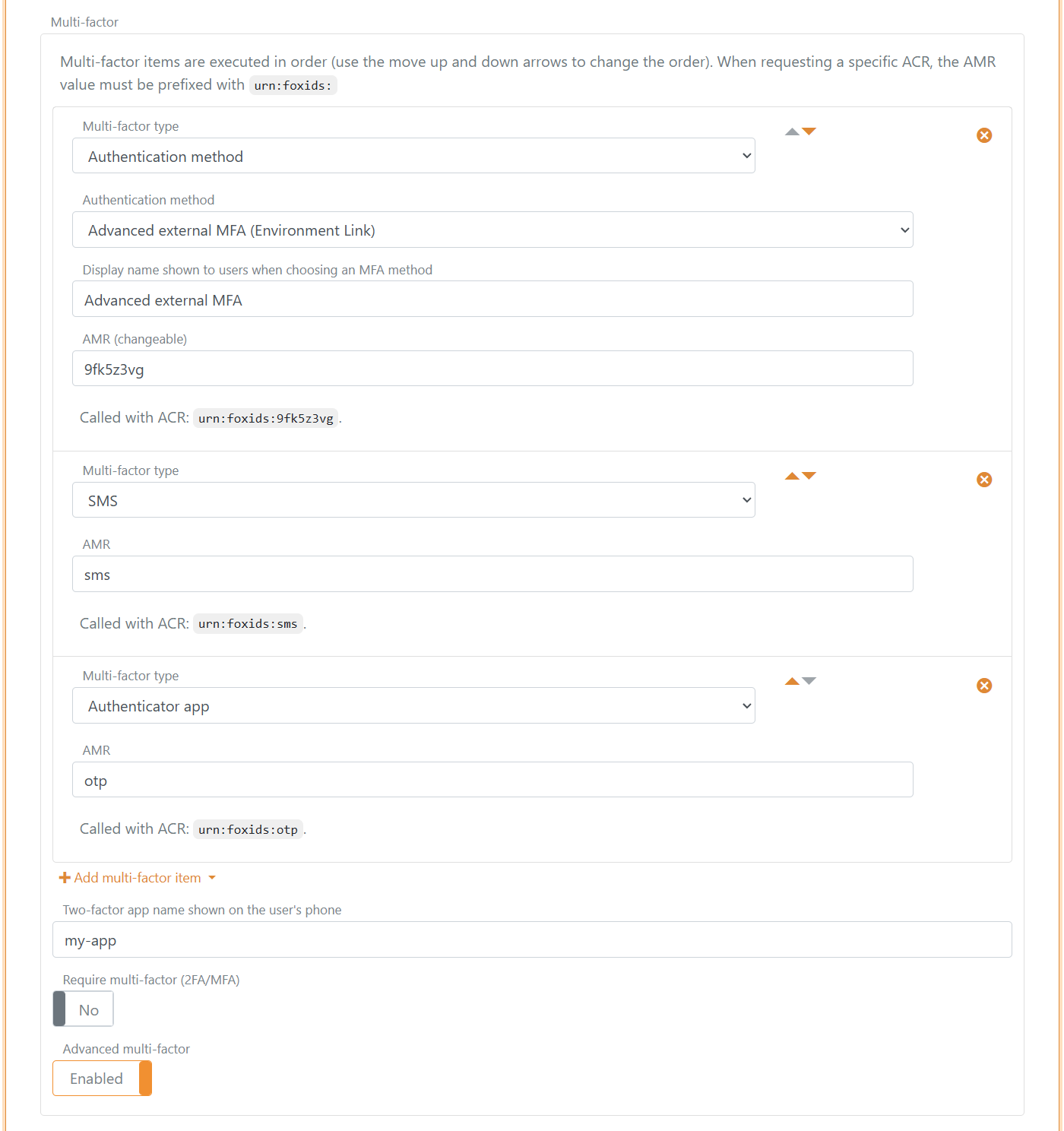
Comportamento de AMR e ACR do item MFA
Cada item MFA concluído contribui com valores do claim AMR para a sessão.
- Os valores AMR incorporados são fixos:
- SMS:
sms - Email:
email - App autenticadora e código de recuperação:
otp
- SMS:
- AMR de item de método de autenticação:
- Pode ser configurado um AMR personalizado opcional.
- Se o AMR estiver vazio, é usado o nome do método de autenticação ou do perfil.
Os valores ACR pedidos são comparados com os valores AMR do item MFA neste formato:
urn:foxids:<amr>- Exemplo:
urn:foxids:link
urn:foxids:mfa é o requisito MFA geral, e o FoxIDs adiciona AMR mfa quando o MFA é concluído.
Seleção e encadeamento de itens MFA
- Se forem pedidos valores ACR específicos, um dos itens MFA correspondentes tem de ser concluído.
- Se apenas for pedido MFA geral, qualquer item MFA configurado e disponível pode cumprir o requisito.
- Se existir mais do que um item MFA elegível e o FoxIDs não conseguir selecionar um automaticamente, é mostrada uma UI de seleção.
- Se estiver configurada uma app autenticadora e esta já estiver registada, o FoxIDs dá-lhe prioridade para pedidos MFA gerais.
- Se a configuração da app autenticadora for selecionada e ainda não estiver registada, o fluxo de configuração pode continuar após um passo selecionado de SMS, email ou método de autenticação.
- Se apenas a app autenticadora estiver configurada, a configuração pode começar diretamente após o início de sessão do primeiro fator.
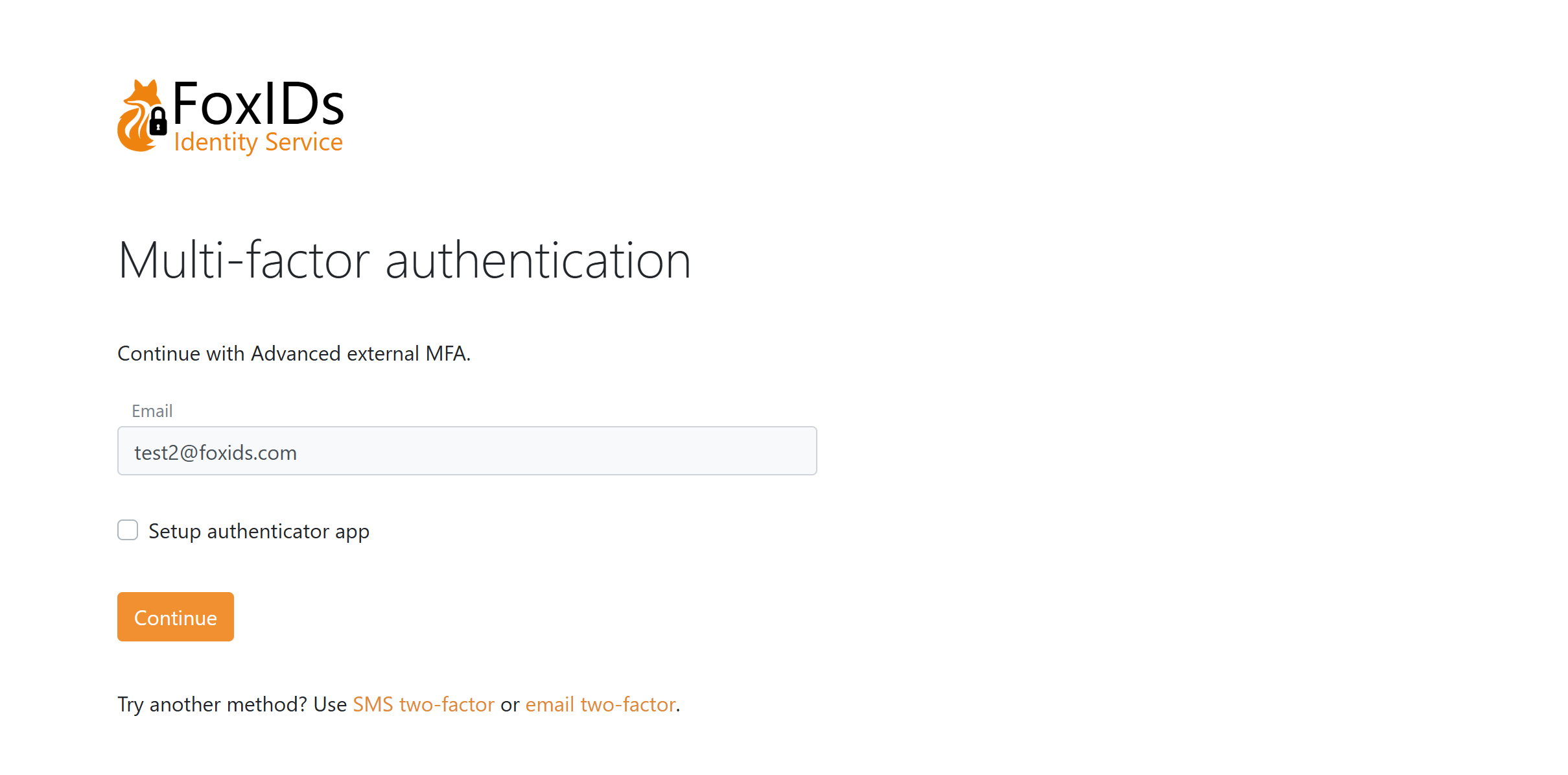
Página de método de autenticação MFA com registo opcional da app autenticadora e a opção de escolher um item MFA diferente.
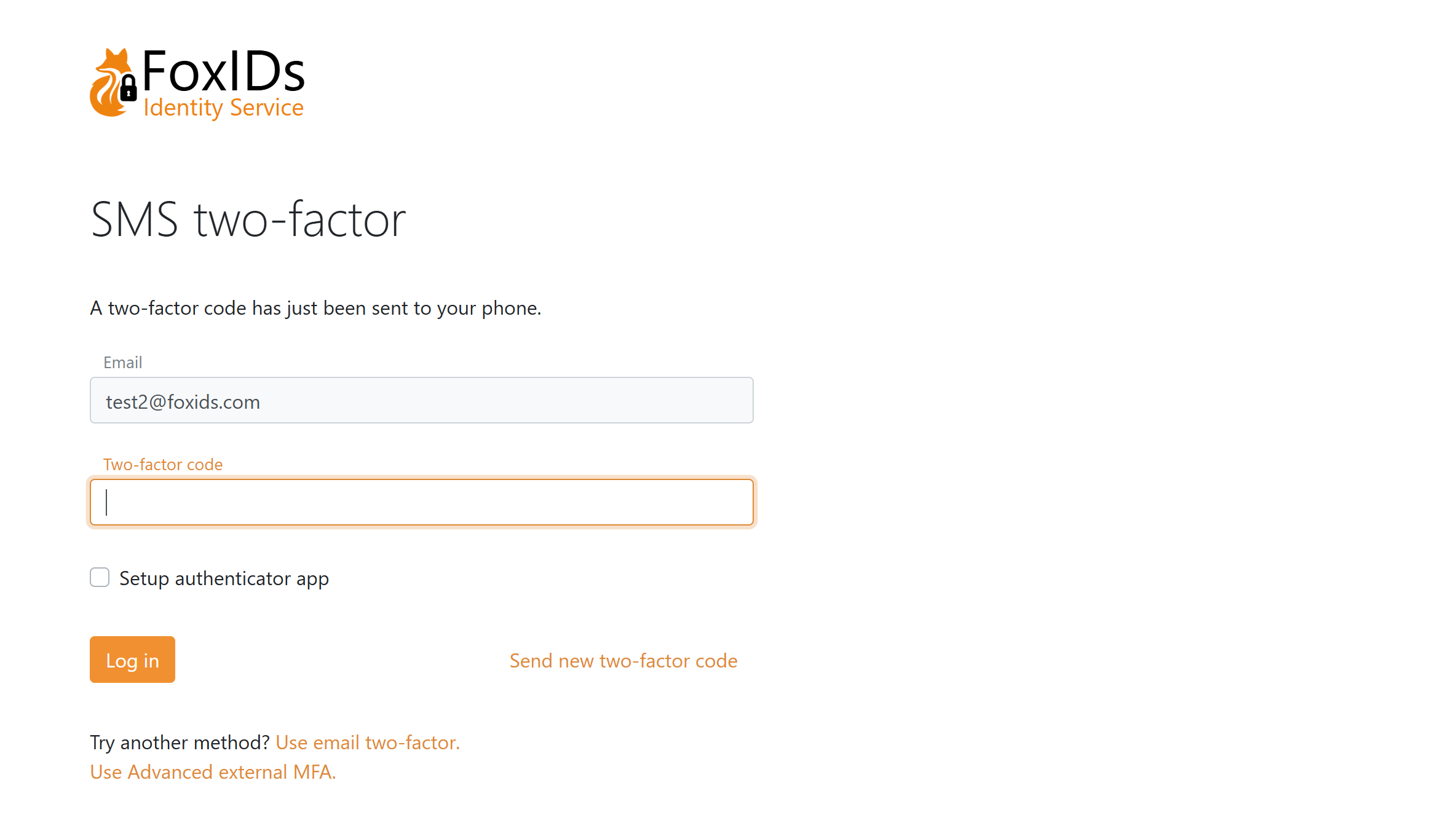
Página MFA SMS com registo opcional da app autenticadora e a opção de escolher um item MFA diferente.
Página MFA email onde a app autenticadora é configurada, com a opção de escolher um item MFA diferente.
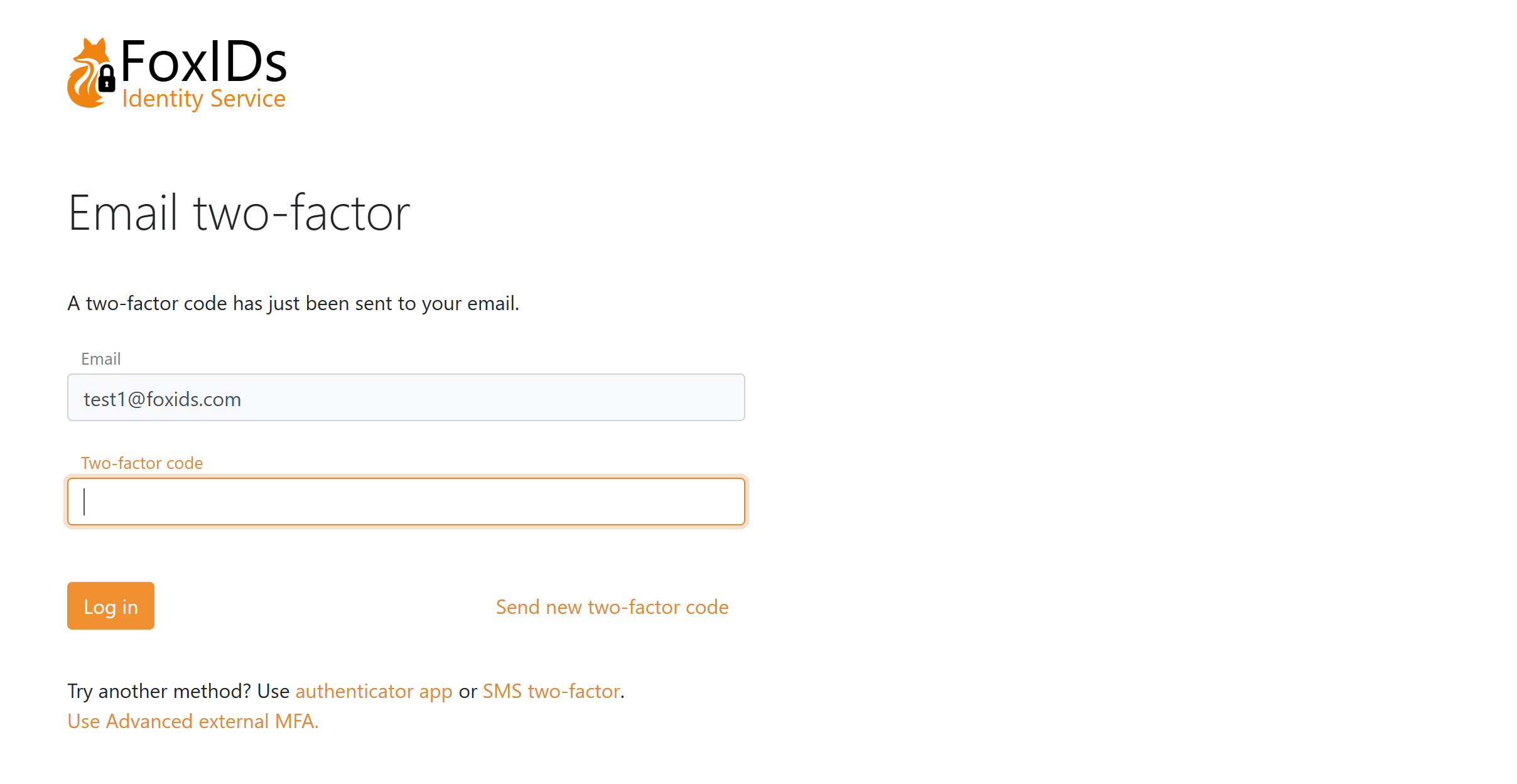
Página MFA app autenticadora com a opção de escolher um item MFA diferente.
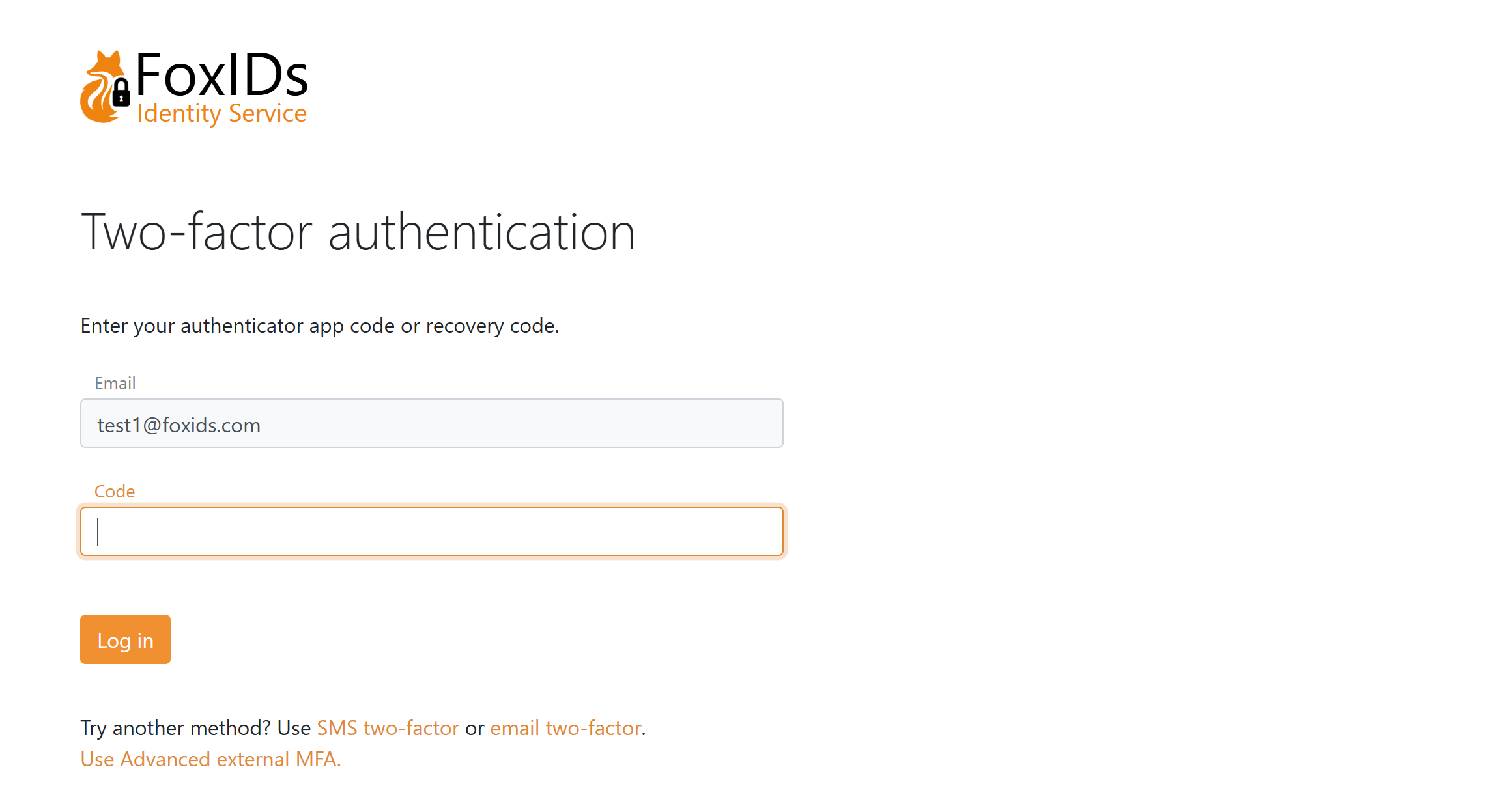
Métodos de autenticação usados como itens MFA
Métodos de autenticação (OIDC, SAML 2.0, Environment Link) podem ser usados como itens MFA com estas regras:
- Valores ACR específicos de MFA não são encaminhados para o pedido do método de autenticação MFA.
- A resposta do método de autenticação tem de incluir o valor AMR exigido para o item MFA selecionado.
- O valor AMR é normalmente adicionado na transformação de claims se a identidade devolvida corresponder à identidade esperada. Veja o exemplo de transformação de claims.
- Se o valor AMR exigido estiver em falta, o login falha.
- Após validação com sucesso, o FoxIDs adiciona AMR
mfaà sessão resultante.
Pedir MFA a partir das aplicações
As aplicações podem pedir MFA tanto em OpenID Connect como em SAML 2.0.
Se forem pedidos valores ACR específicos, mas estes não estiverem configurados em itens MFA no método de autenticação de login selecionado, a autenticação falha.
OpenID Connect
Use acr_values:
- MFA geral:
acr_values=urn:foxids:mfa - MFA geral e método específico:
acr_values=urn:foxids:mfa urn:foxids:link
SAML 2.0
Use RequestedAuthnContext.AuthnContextClassRef:
- MFA geral: incluir
urn:foxids:mfa - MFA geral e método específico: incluir
urn:foxids:mfae valores específicos comourn:foxids:link
Comportamento da sessão
O FoxIDs valida os valores AMR exigidos face à sessão de login atual.
- Novo login: a sessão é criada depois de todos os requisitos serem cumpridos.
- Step-up login: uma sessão existente é atualizada depois de todos os requisitos MFA adicionais serem cumpridos.
- Reutilização de sessão: se a sessão já satisfizer os valores AMR exigidos, o FoxIDs reutiliza a sessão e não volta a pedir login.
Resolução de problemas
Razões comuns para falhas MFA:
- Os valores ACR pedidos não estão configurados como itens MFA no método de autenticação de login.
- Um método de autenticação usado como MFA não devolve o valor AMR exigido.
- Nenhum item MFA configurado está atualmente disponível para o utilizador, por exemplo porque faltam dados de telefone ou email para SMS ou email.